Hi @JackIEEE,
I’m not clear yet on what you want the gradient to look like. (If you want to nerd out about them, they have more options that you might first guess.)
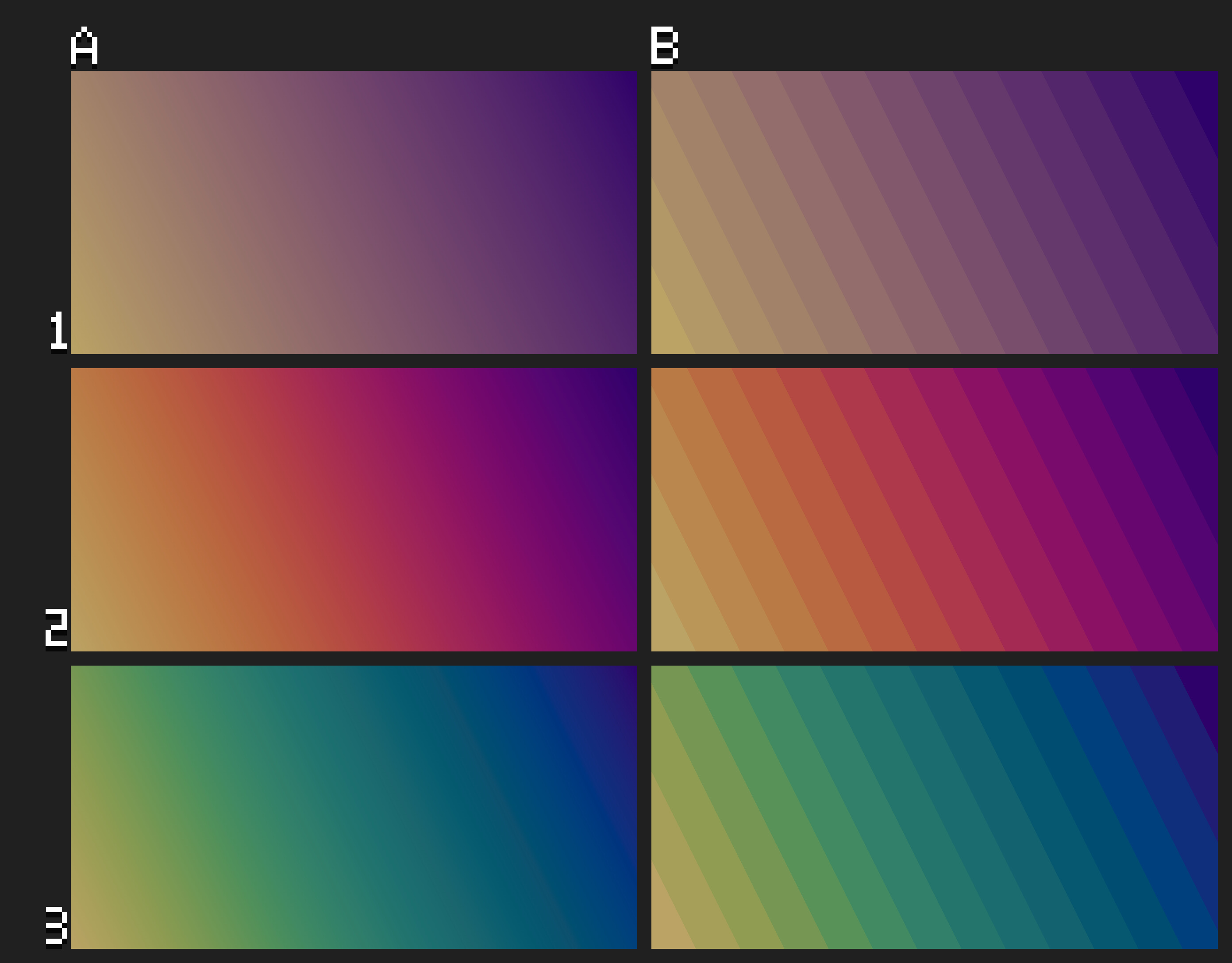
If what you want looks like any of the gradients in the picture above, I made them with gradient tools that I created with Aseprite scripts. There are online tools you could try as well, such as this one.
The gradient in your first image spans a fairly large distance by pixel art standards (1280x640). You may have scaled up the original, but the .jpg file format makes it harder for me to tell. If you want a smooth gradient, banding could be an issue over such a large span. Imagine game designer who’s creating a game where a little space ship zooms passed lots of nebulae and planetary atmospheres: they’re familiar with this problem.
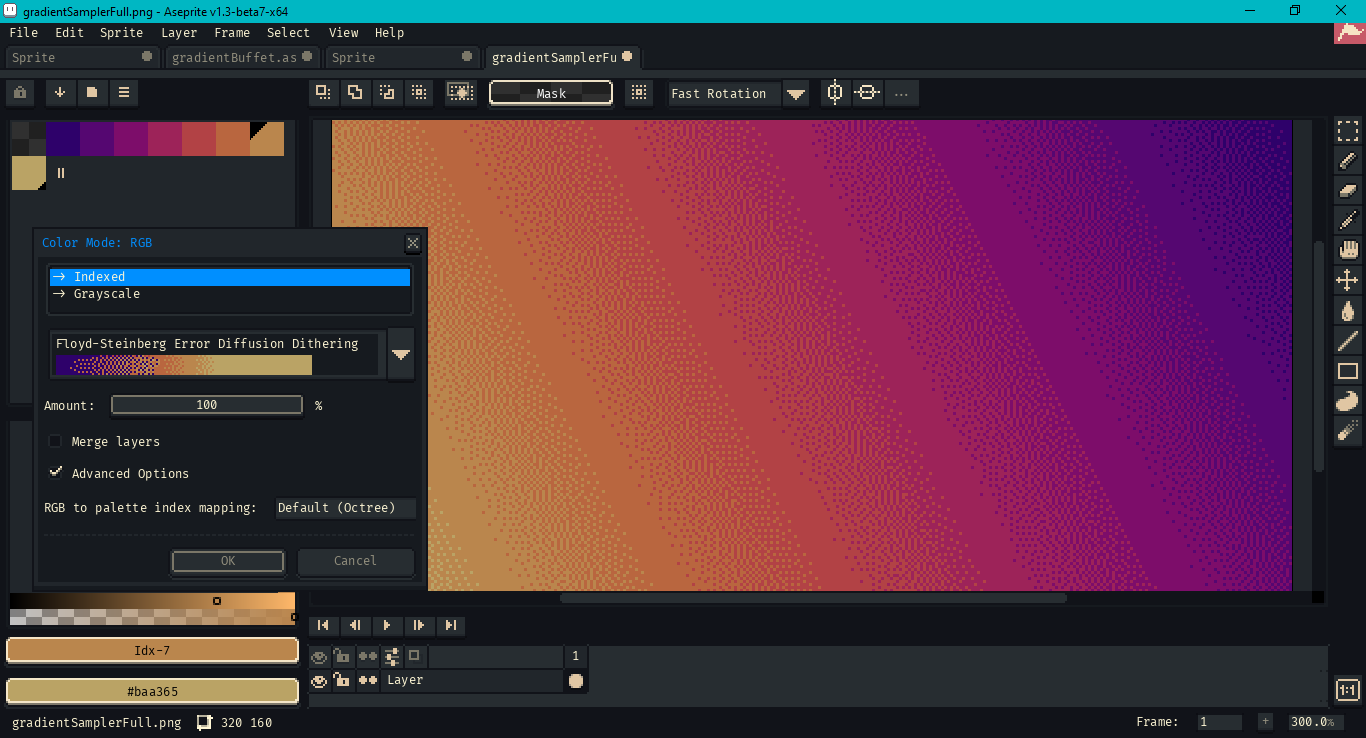
For a dithered look with more colors, you could
- create or import a smooth gradient image while in RGB Color Mode,
- sample a handful of colors from the gradient (I used 8 above),
- create a palette from the samples, making sure the palette’s first color is transparent black,
- go to
Sprite > Color Mode > More Optionsand convert to indexed with the dithering option you want.
For more noticeable dithering, make the smooth gradient smaller than the final product, say 320x160. After you’ve converted it to indexed color mode, scale up the sprite with Nearest Neighbor method. You could also experiment with more or fewer samples.
Convert back to RGB color mode when you’re done if that’s the color mode you want. Don’t lose your original color palette when sampling colors. Either work in a separate sprite or save the palette beforehand, then re-import after.
Best to you,
Jeremy