Download Link: Carbs Toolbar by CarbsCode
Quick Teaser / Announcement Video: https://youtu.be/CcrI9wKGJMA
Full Overview / How To Use Video: https://youtu.be/gCqpYfHveio
Carbs Toolbar is an extension for Aseprite which adds 25+ small but helpful features to the already amazing pixel art program! From setting the grid from a rectangle selection and creating isometric grid layers all the way to a handy set of export features supporting slices, layers and single selection options.
The goal of Carbs Toolbar was to group many of the smaller features we had wanted in a easy to get to place and of course creating said features along the way. The tool continues to grow as small features are requested as mentioned below. As of update 4.0 all the functions even work when the tool is closed when using the built in and customizable hotkeys which makes using the functions even that much more convenient.
Carbs Toolbar requires Aseprite version 1.3.15 or newer
Grid Options -
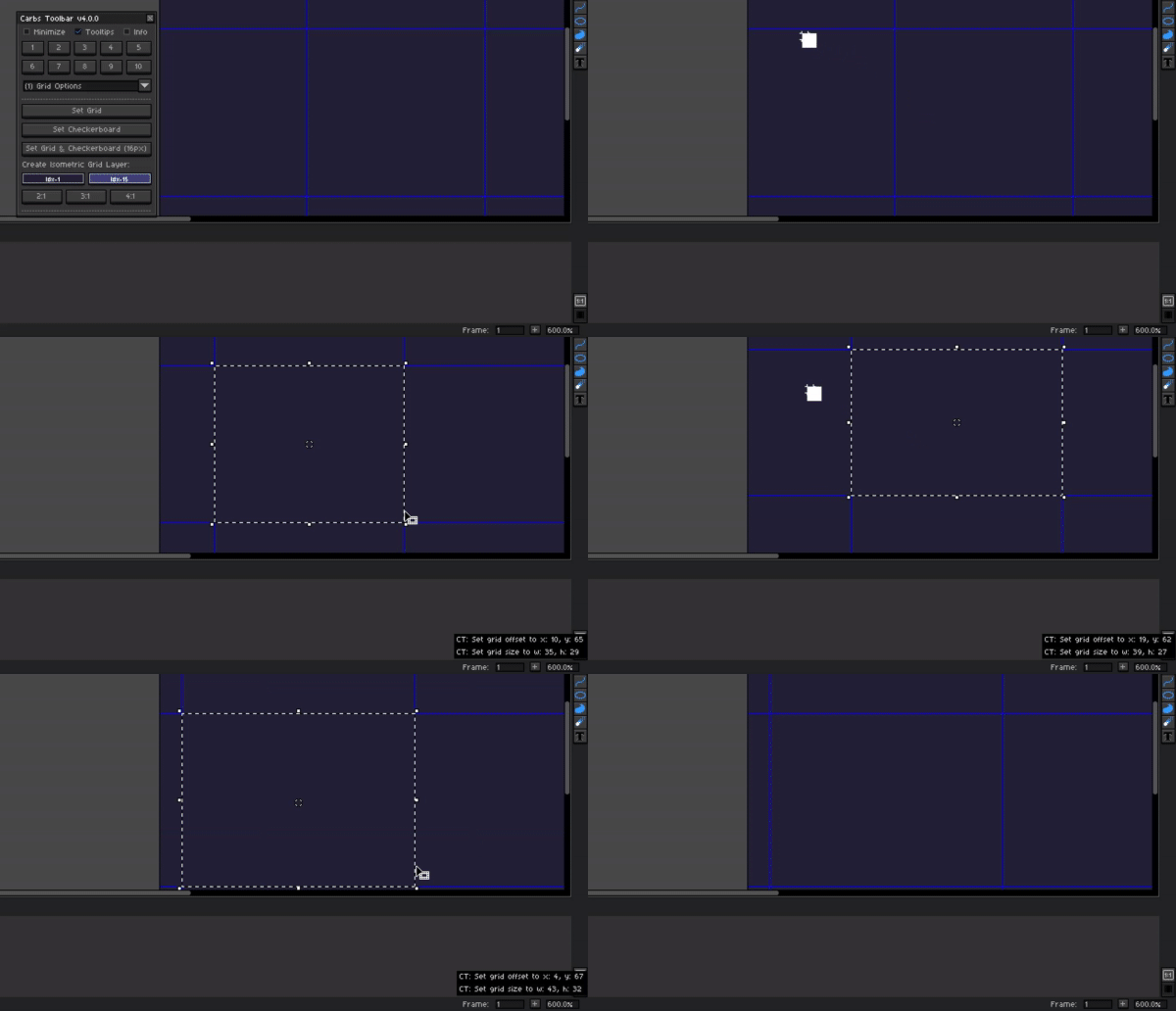
Set Grid Size From Selection
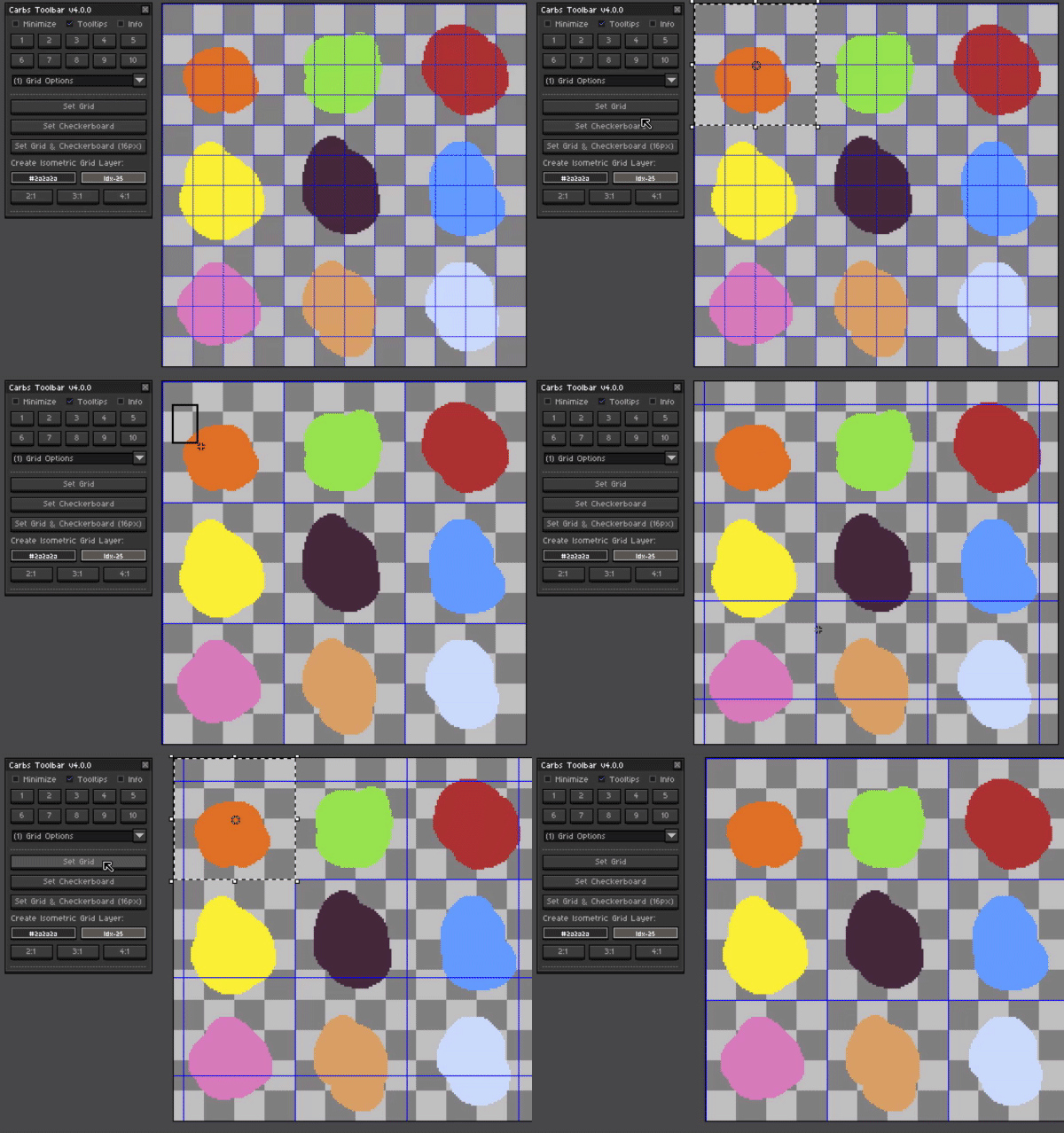
The grid can be set via a rectangle selection, this selection can either at 0,0 or offset to off set the grid.
Set Checkerboard From Selection
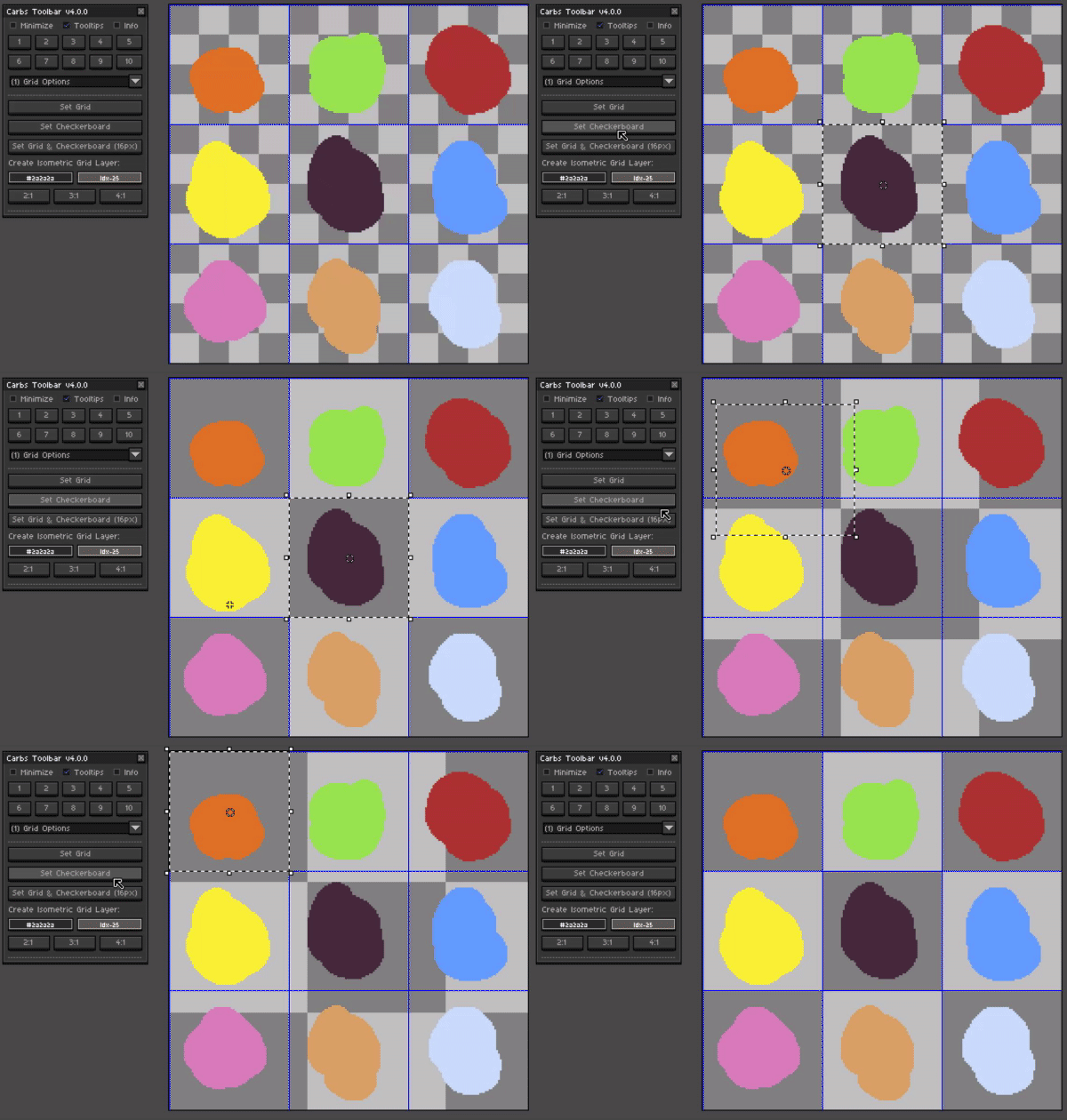
Setting the checkerboard with the current selection will set the background checkerboard size. This will always have an origin of 0,0.
Reset Grid & Checkerboard To 16 px (Aseprite Defaults)
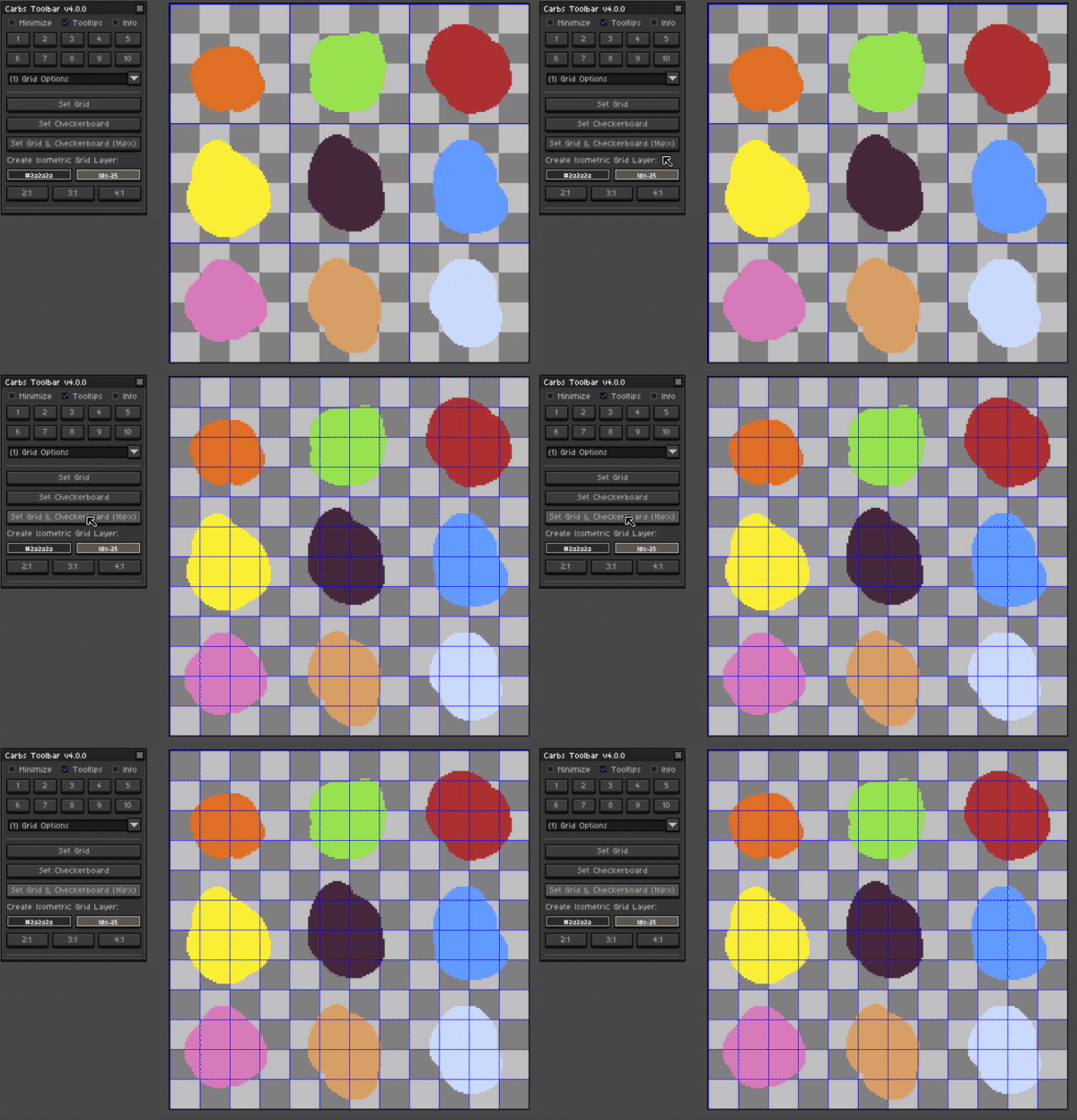
Resets the grid and checkerboard in a single click back to the default 16x16 px.
Create Isometric Grid Layer
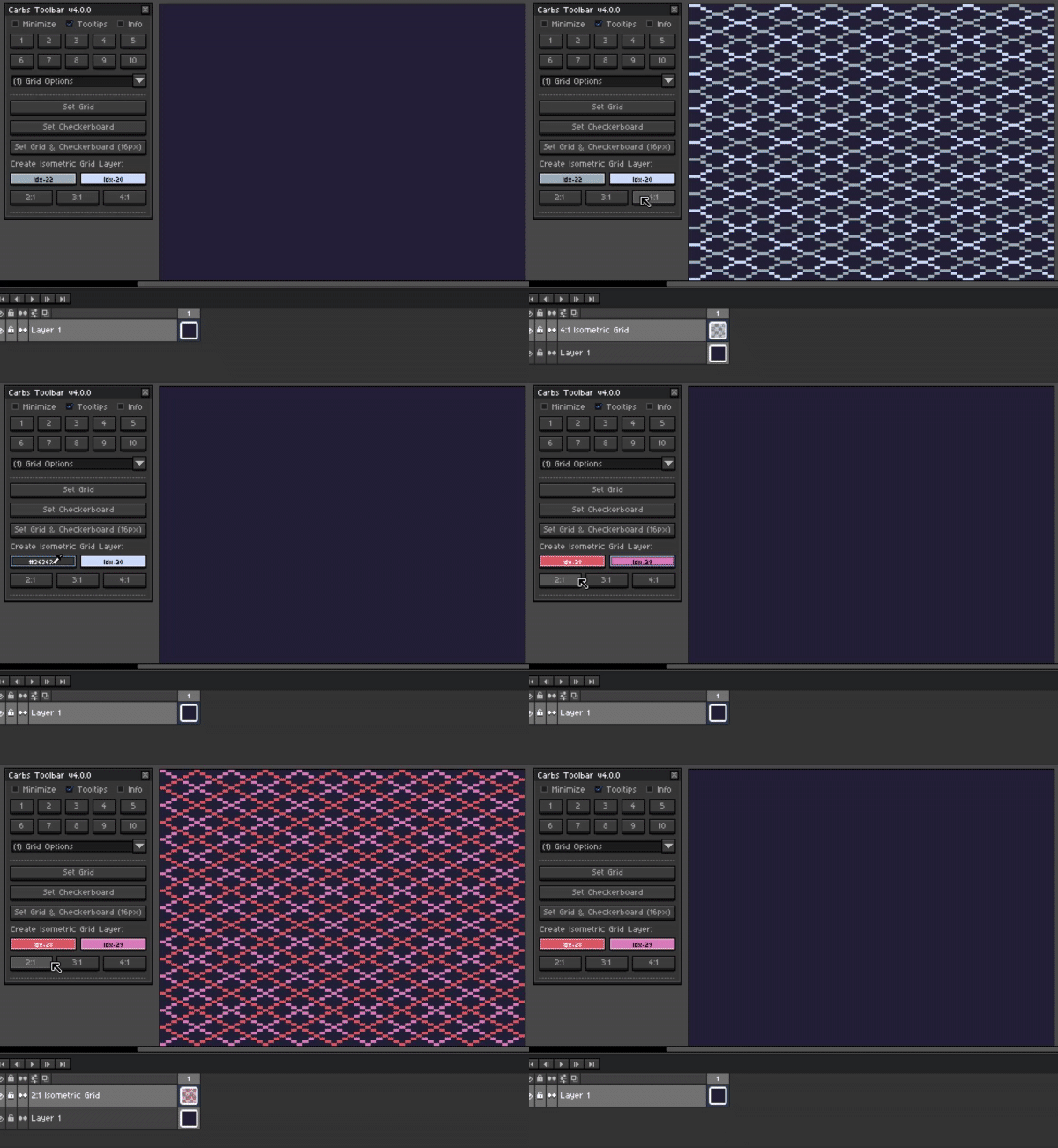
Create isometric grid layers with 2:1, 3:1, and 4:1 ratios. Use the color selectors above to select a color for the outside and the inside of the grid. A mask color can also be used to exclude the inside or outside lines as well.
Sprite Options -
Shrink Wrap Selection
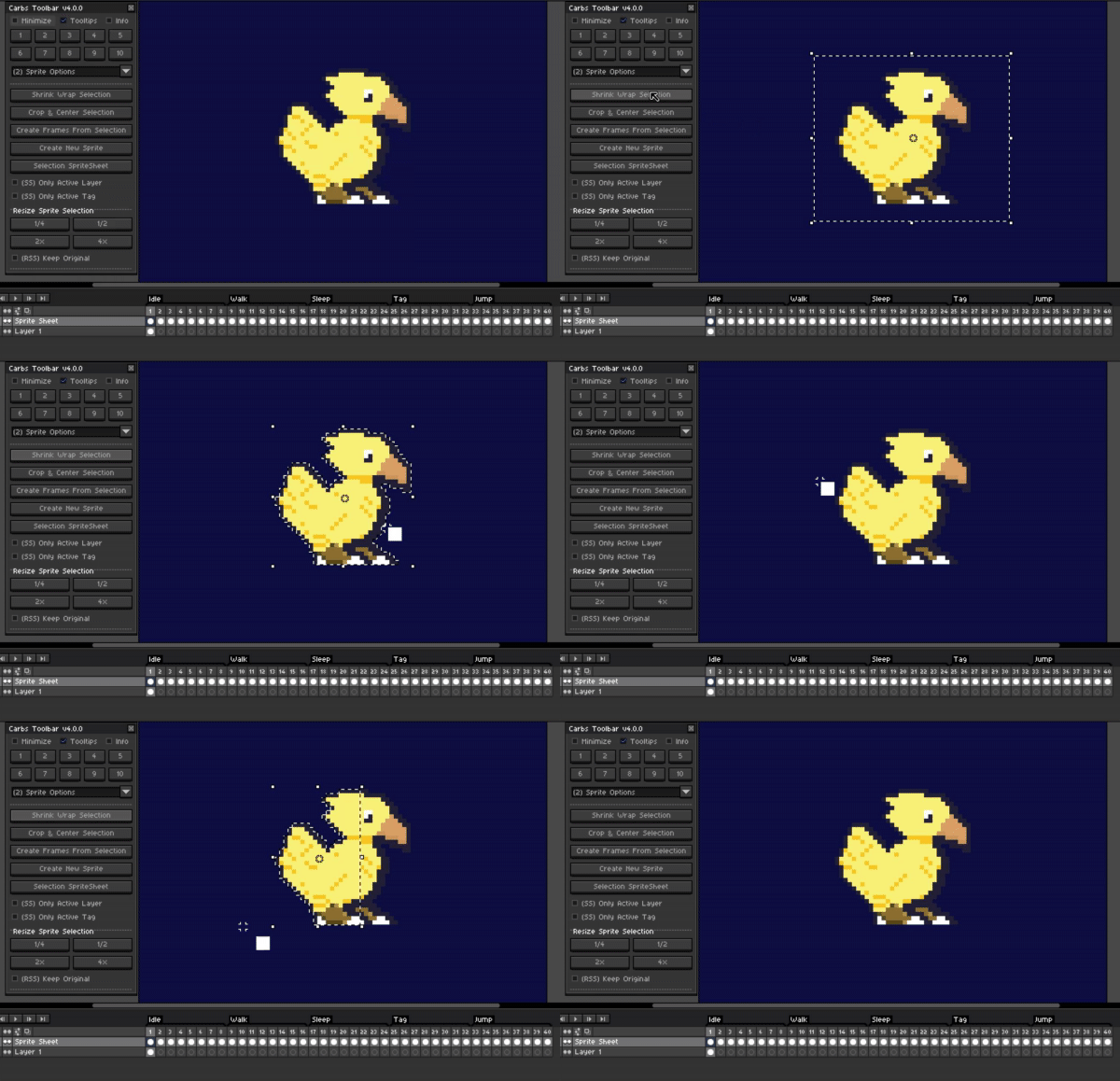
Modify the current selection to be a tightly wrapped selection around the sprite’s pixels contained within. Thanks to SnowDrama for this feature request.
Crop & Center Selection
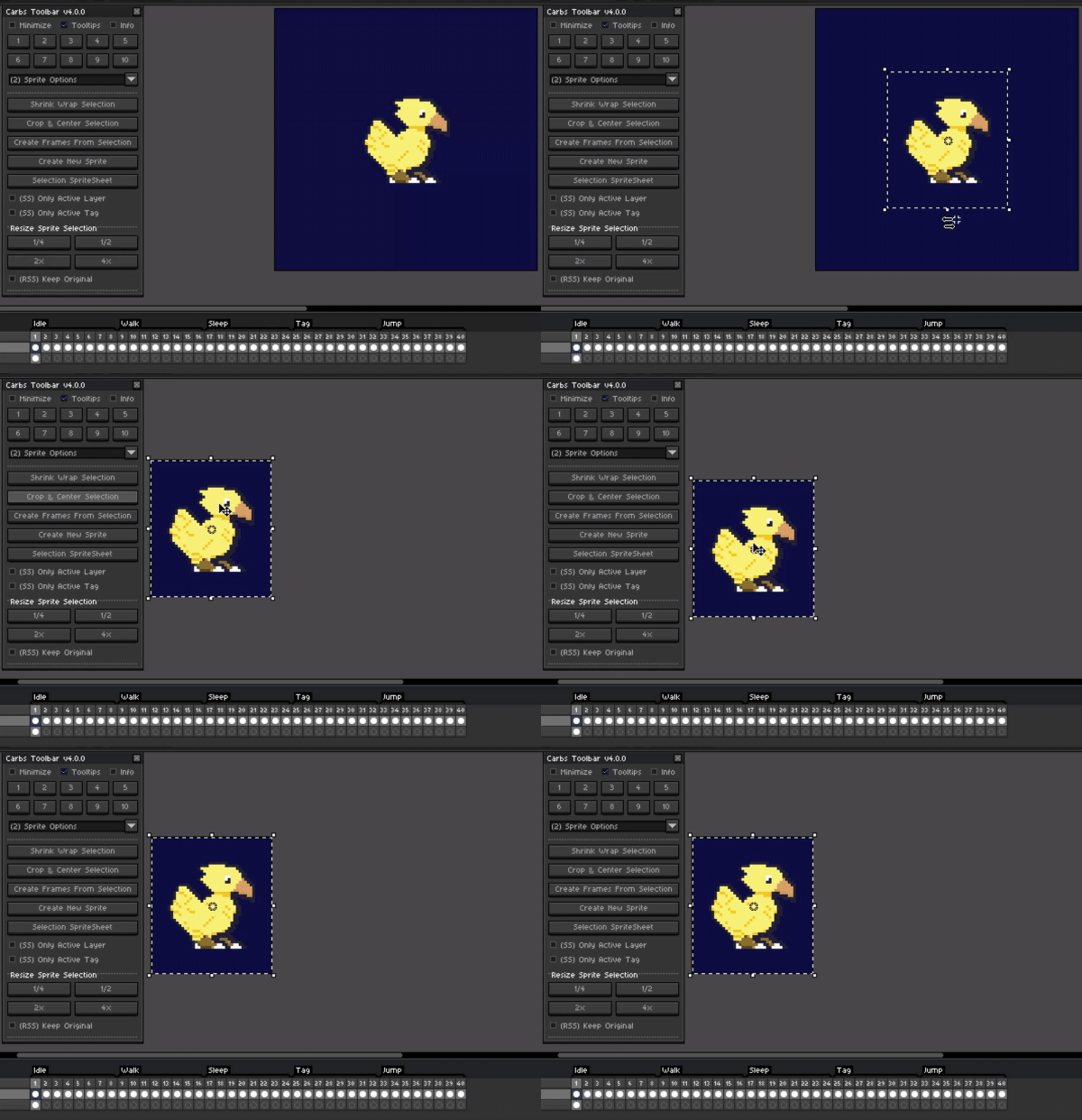
In a single button the sprite will be cropped to the current selection and the view will be centered on the newly cropped sprite.
Create Frames From Selection
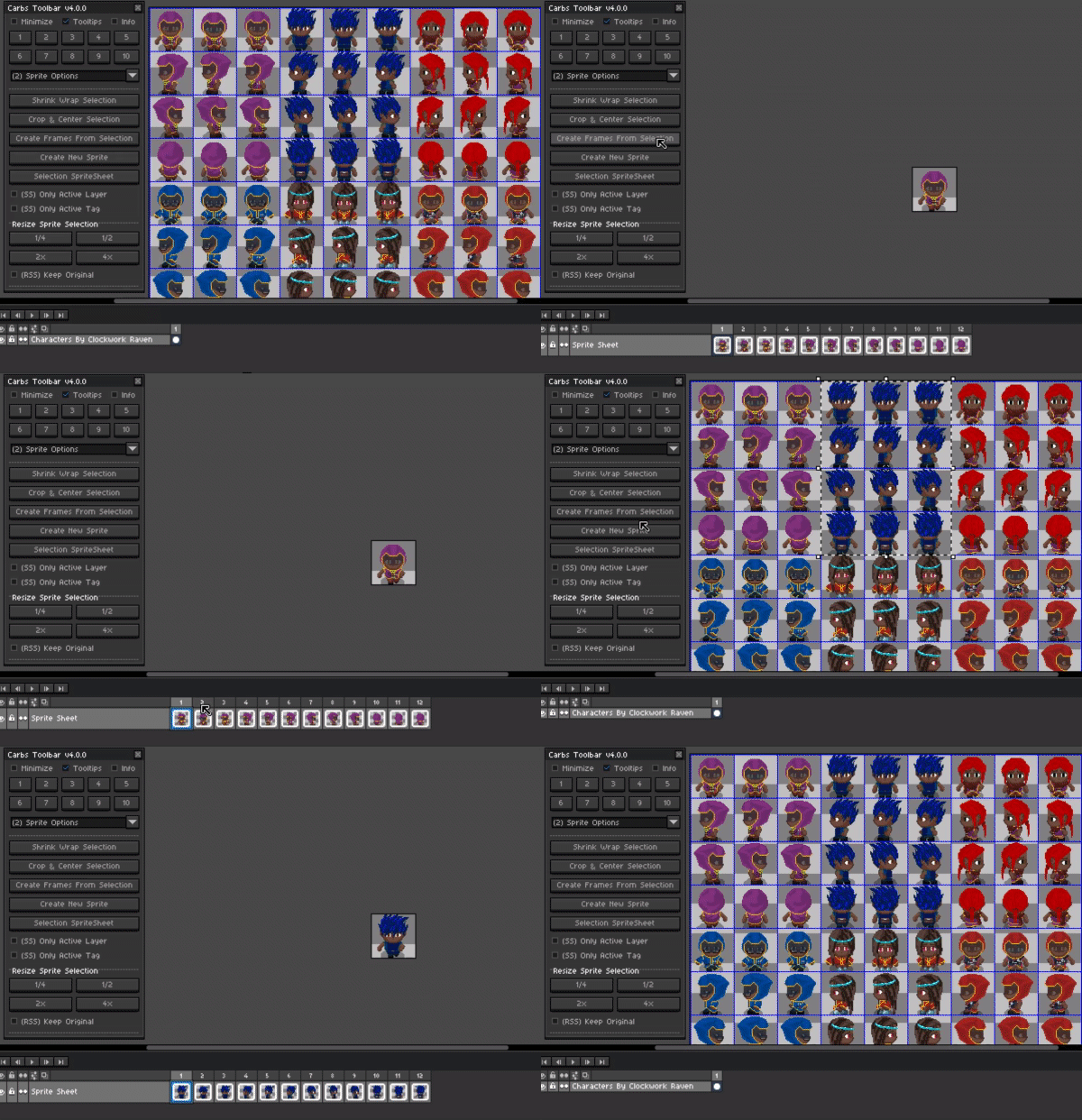
Extract / Import a selection of sprites from a spritesheet using the grid bounds directly into frames. Each row horizontally will be added before moving to the next row. Sprites shown from ClockworkRaven’s Character Pack
Create New Sprite
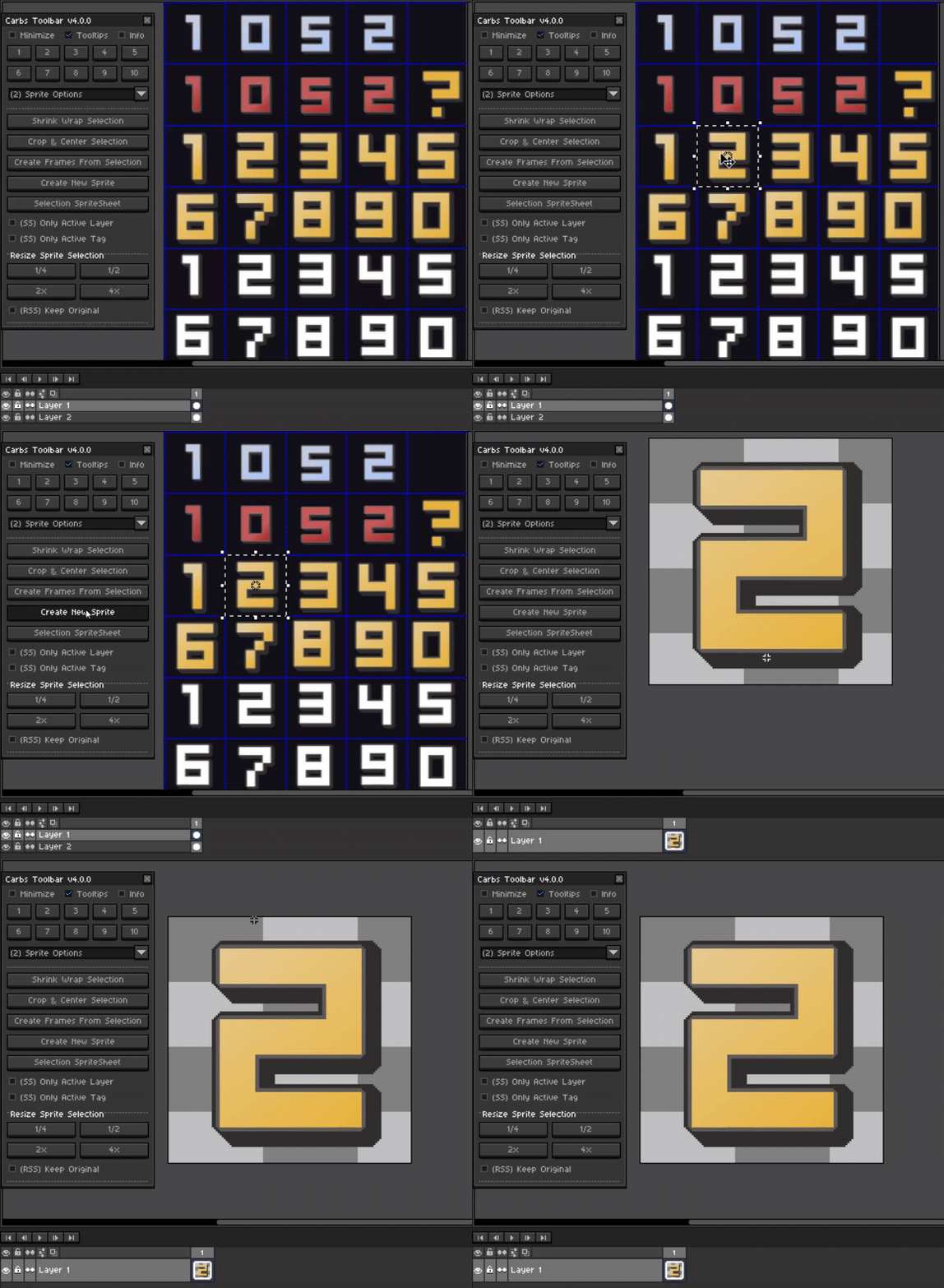
Quick access to the create new sprite from selection option. This will create a new sprite from the current bounds and use the current cels image. Hoping to add extra functionality to this including an option for combined layers in a future update.
Selection Spritesheet
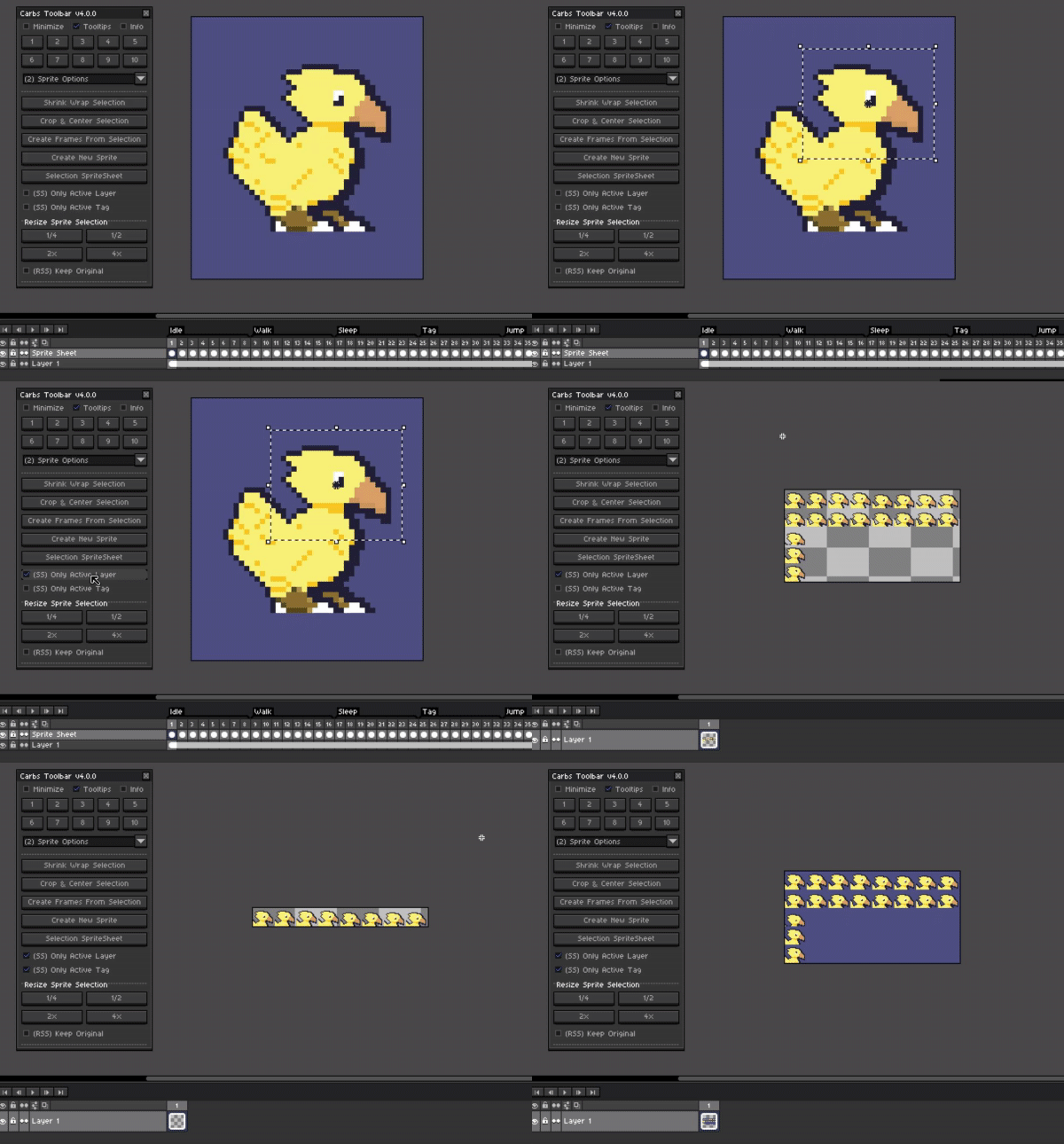
Export a spritesheet using the current selection bounds. Each sprite of the sprite sheet will only use the currently selected area. This supports active layers as well as all layers combined. It also supports using all tags in separate rows or a single row with the current tag. Thanks to Whitevault for requesting this feature.
Resize Sprite Selection
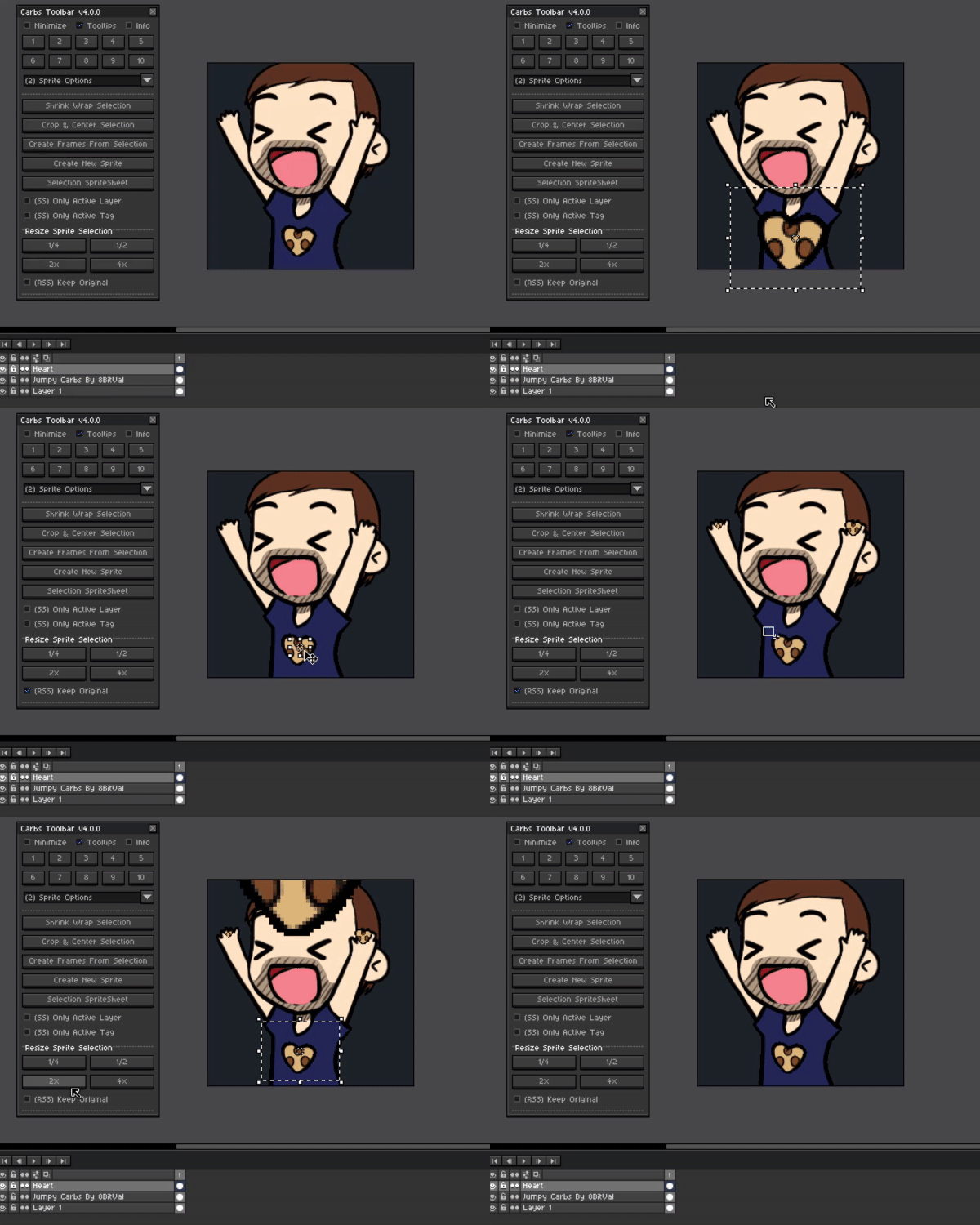
Resize your current selection from 25% to 400% with the quick selection buttons. You can also choose to keep your original and instead resize a copy by toggling “Keep Original”. The sprite shown above is jumpy Carbs made by 8bitVal and also thanks to SnowDrama for requesting this feature.
Sprite Export Options -
Export Visible Selection
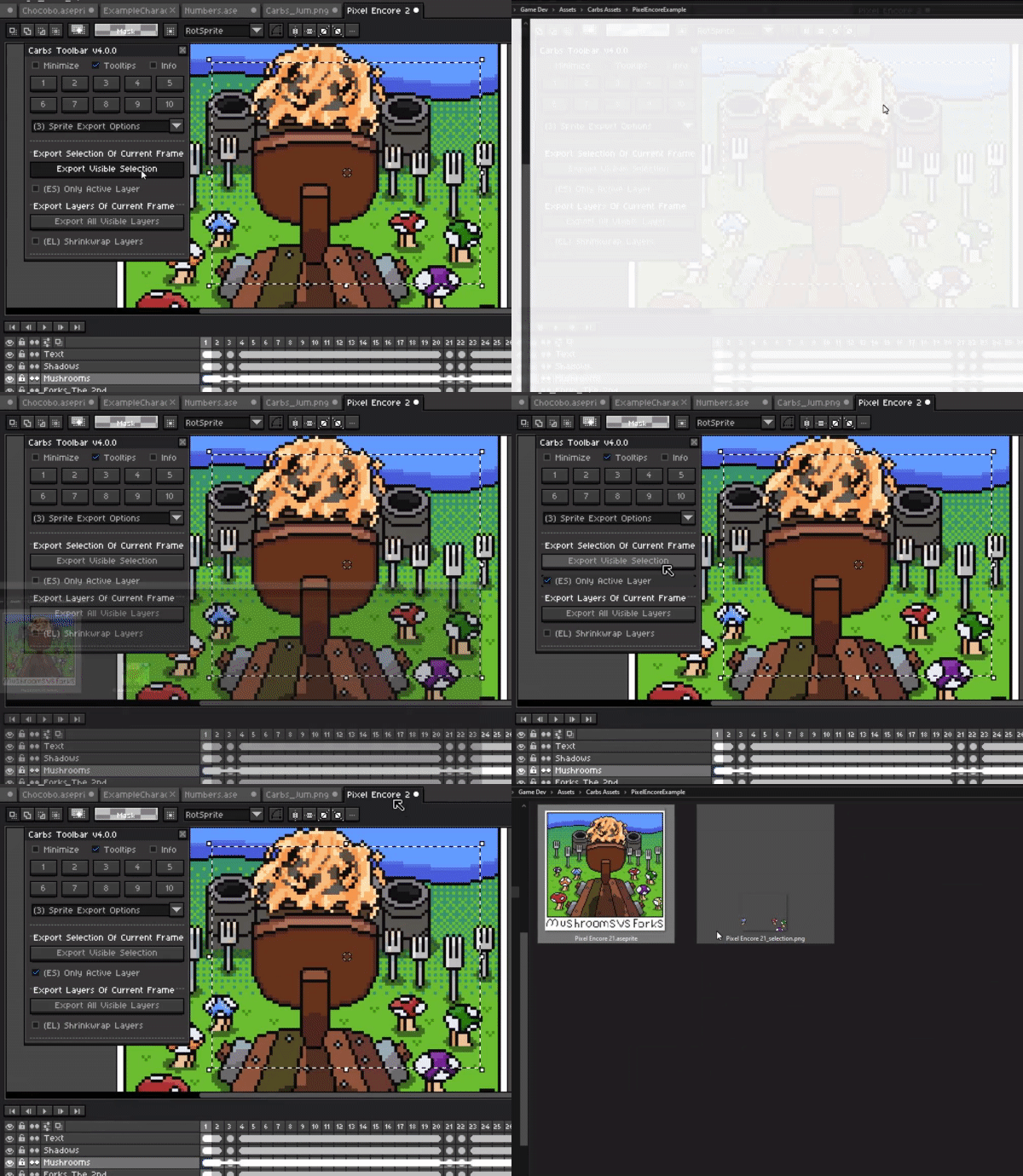
Export visible selection will take the current selection and export all pixels that are seen within to a file located in the current documents folder. Thanks to Kebbrokk for requesting this feature.
Export All Visible Layers
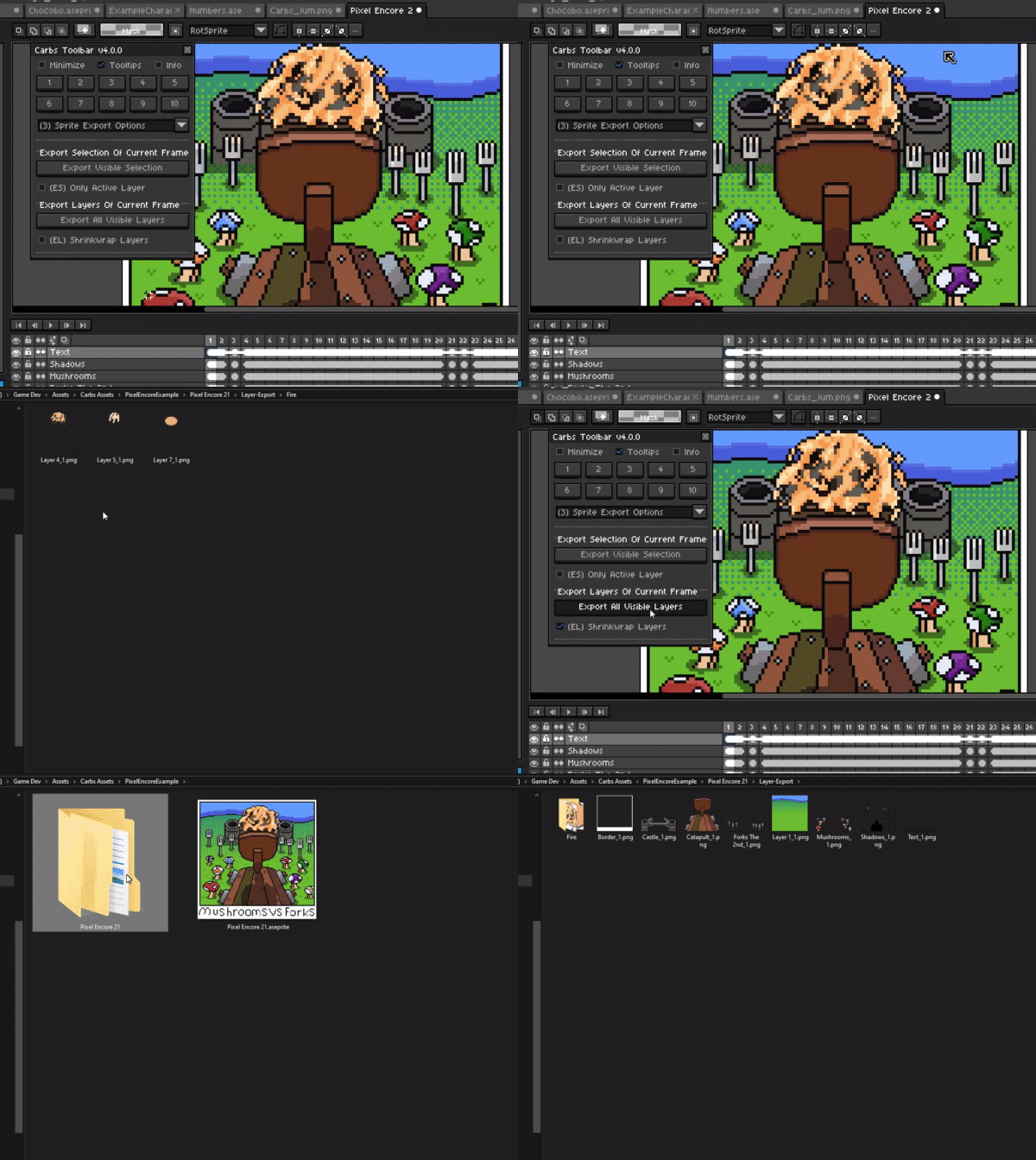
Exporting individual layers as separate PNG images either as a full canvas size or cropping down using the shrink wrap option to only include the bounds of each layer instead. Thanks to SnowDrama for requesting this feature.
Slice Options:
Slice Selection
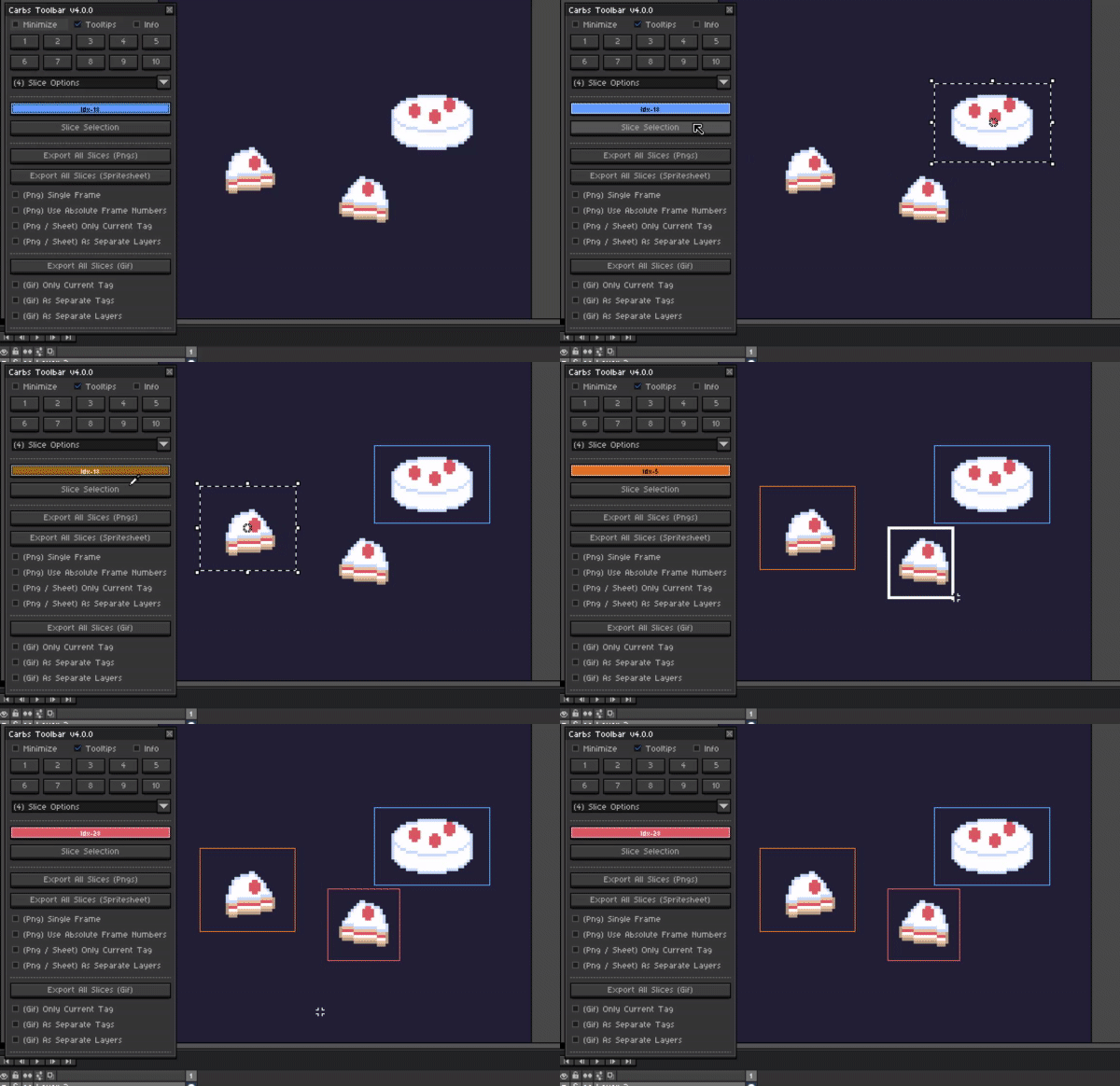
Slices can now be created using the rectangle selection tool. Slices will use the currently selected color in the provide color box above. When using the below exporting features you can also specify which slices are going to export using the rectangle selection tool. If no selection is made all slices will be exported.
Export Slices As PNGs
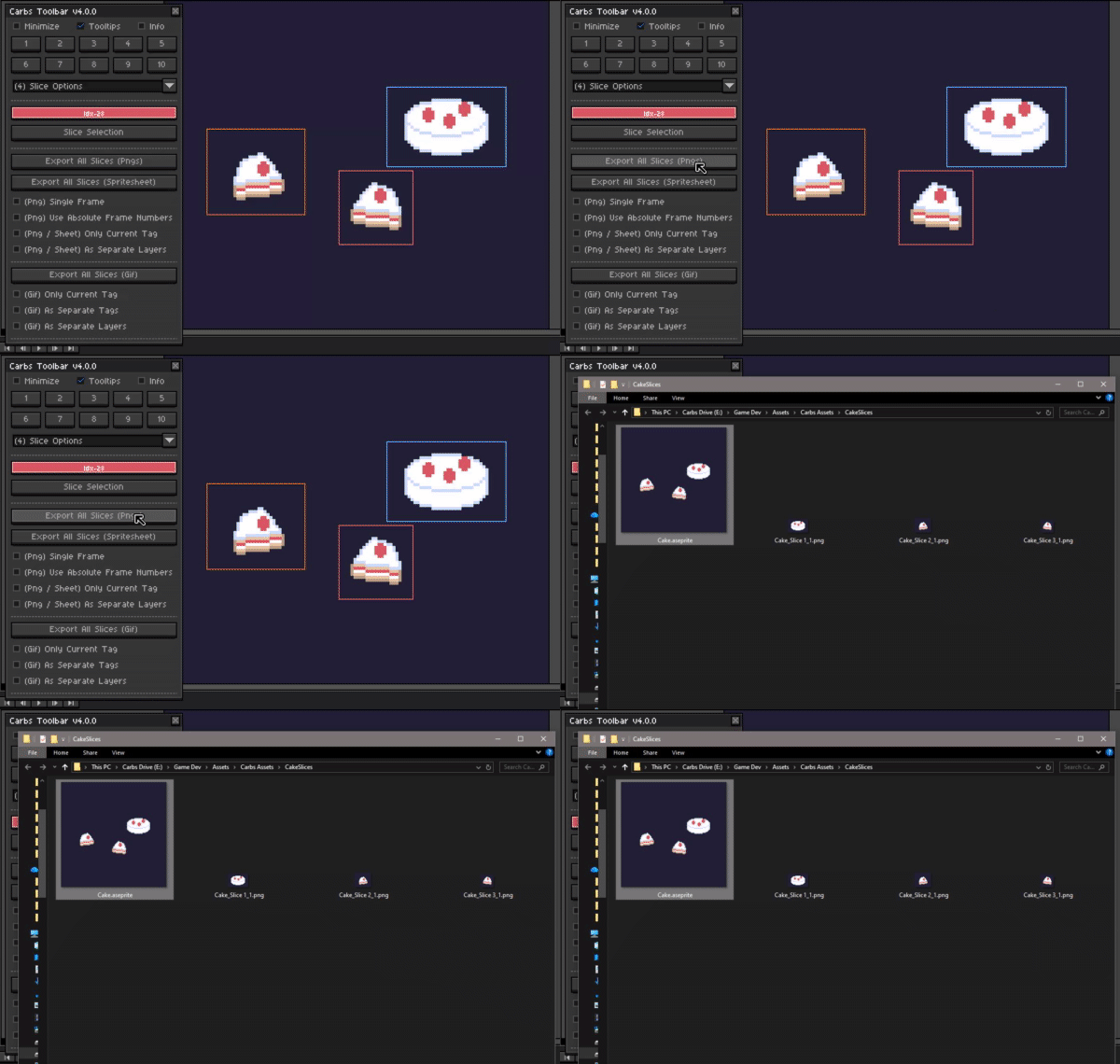
This tool includes many PNG export options for slices which include single images, all images, current tags and sperate layers as seen below.
Export Separate Layers
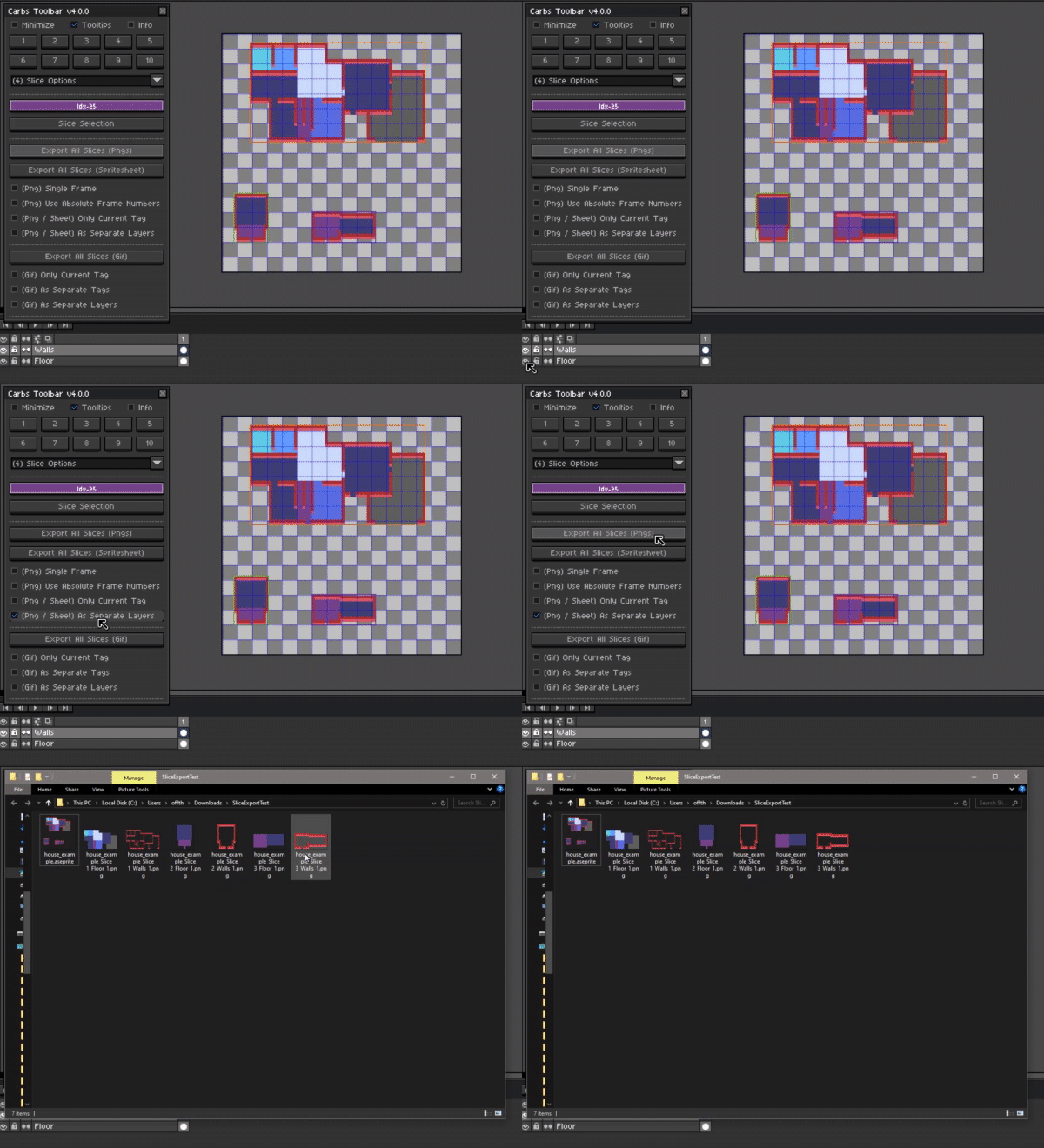
Thanks to SnowDrama for this feature request and the house sections sprite above.
Export Slices As Spritesheets
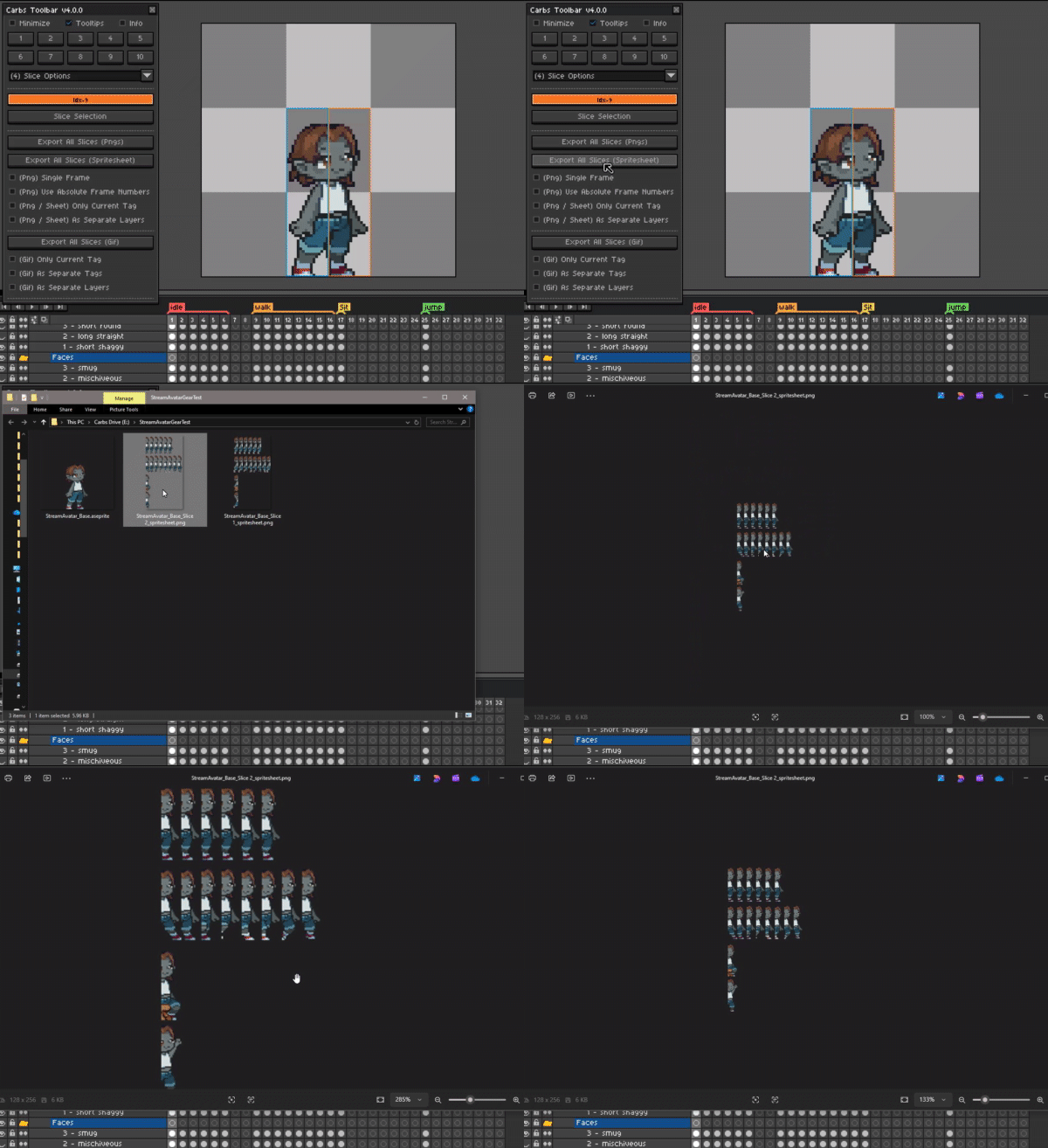
Slices can also be exported as individual spritesheets which include all current tags in separate horizontal rows. If current frame does not have a tag above it all frames will instead be exported in a single horizontal row as well.
**Export Slices Using Current Tag
 **
**
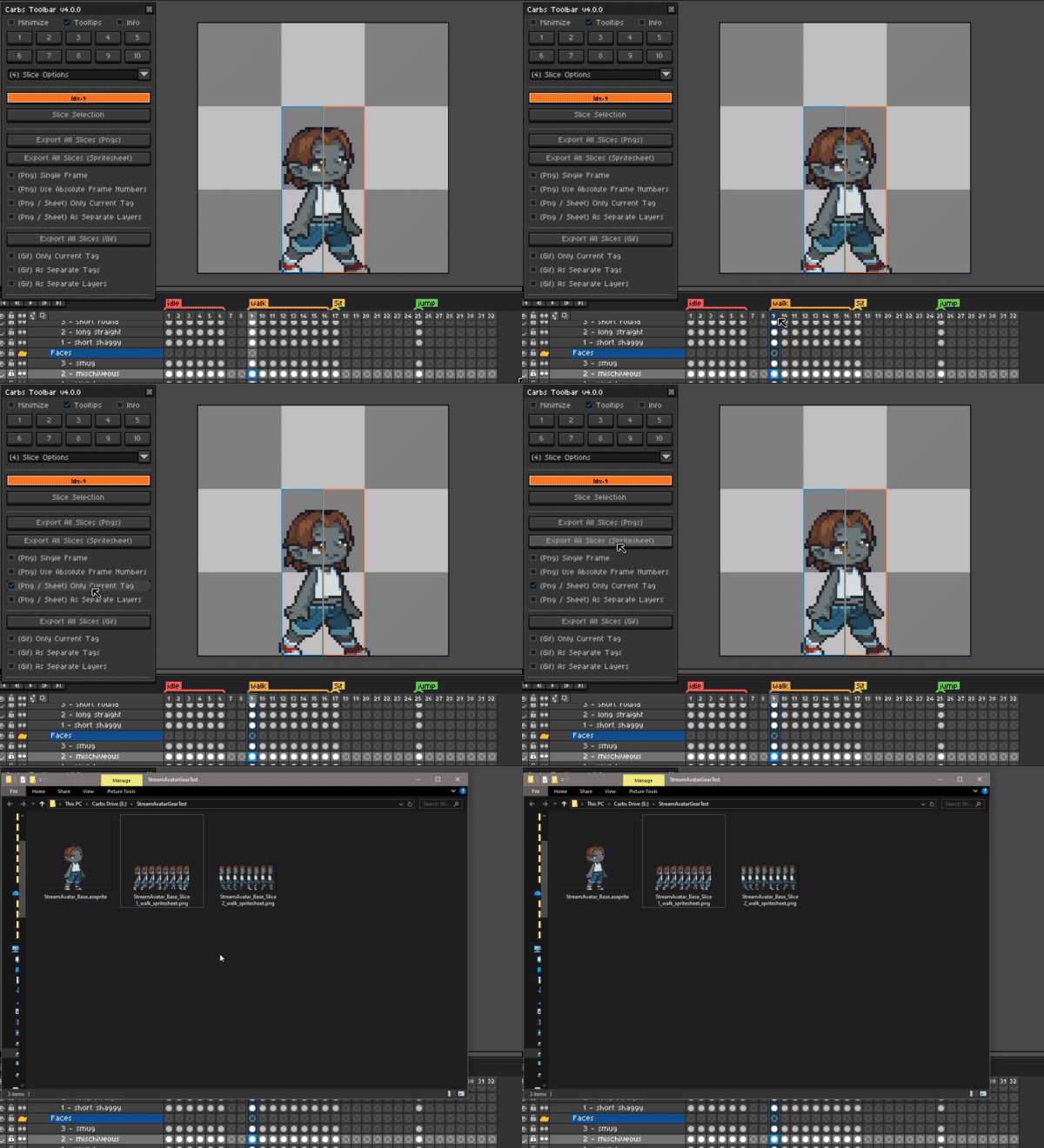
Slices can also be exported using only the current tag above the currently selected frame. Thanks to CarlosandresRG for requesting spritesheet support and exports.
Export Slices As Gifs
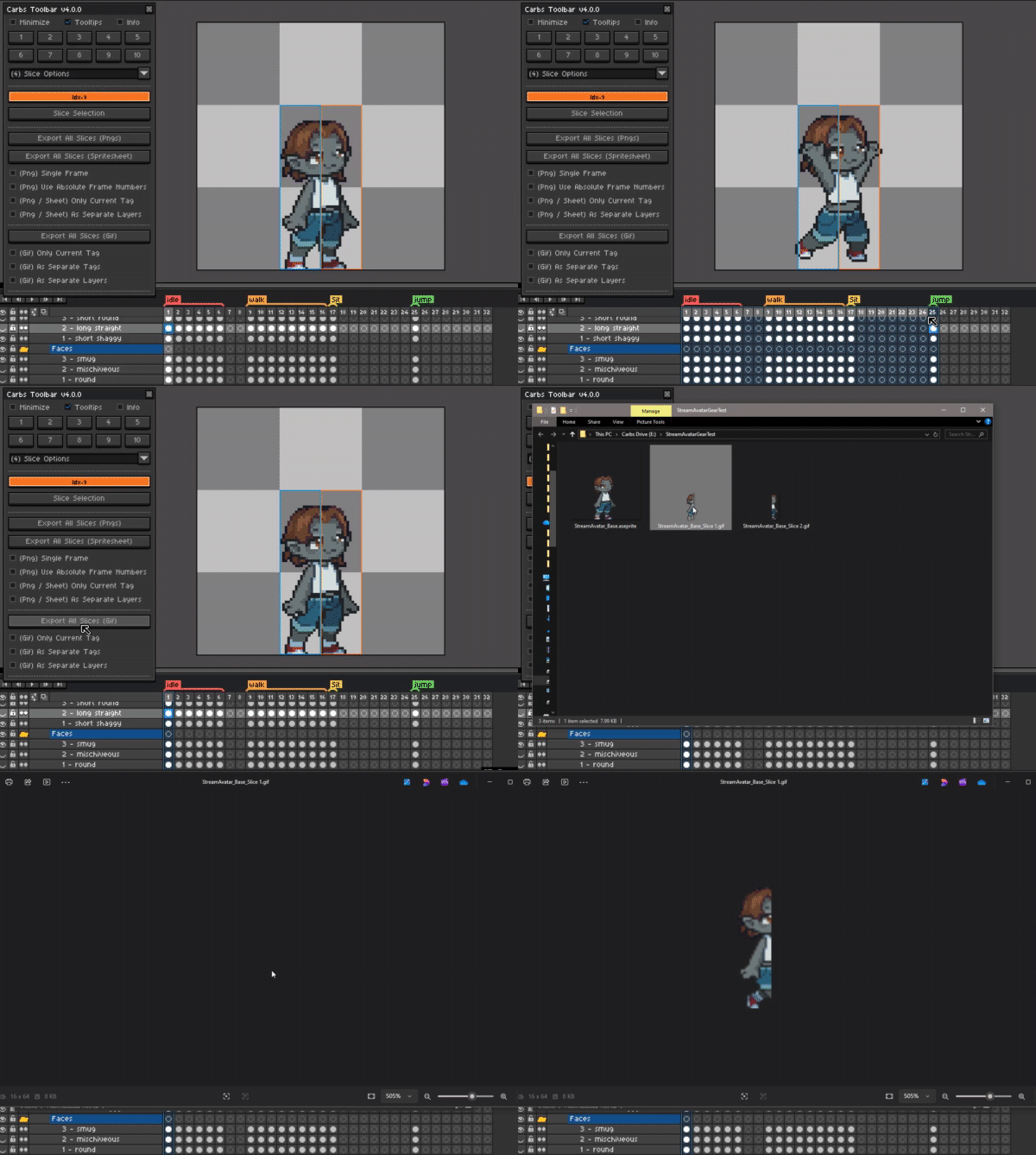
Slices can be exported as individual GIFs as one per slice. They can include all frames of the animation, the current tag or even each induvial tag as a separate GIF.
Thanks to Lesma_Pixels for requesting Gif output support and also sending the example project shown in the examples above.
Duplicate & Shift Options -
8 Directions And Fill Canvas
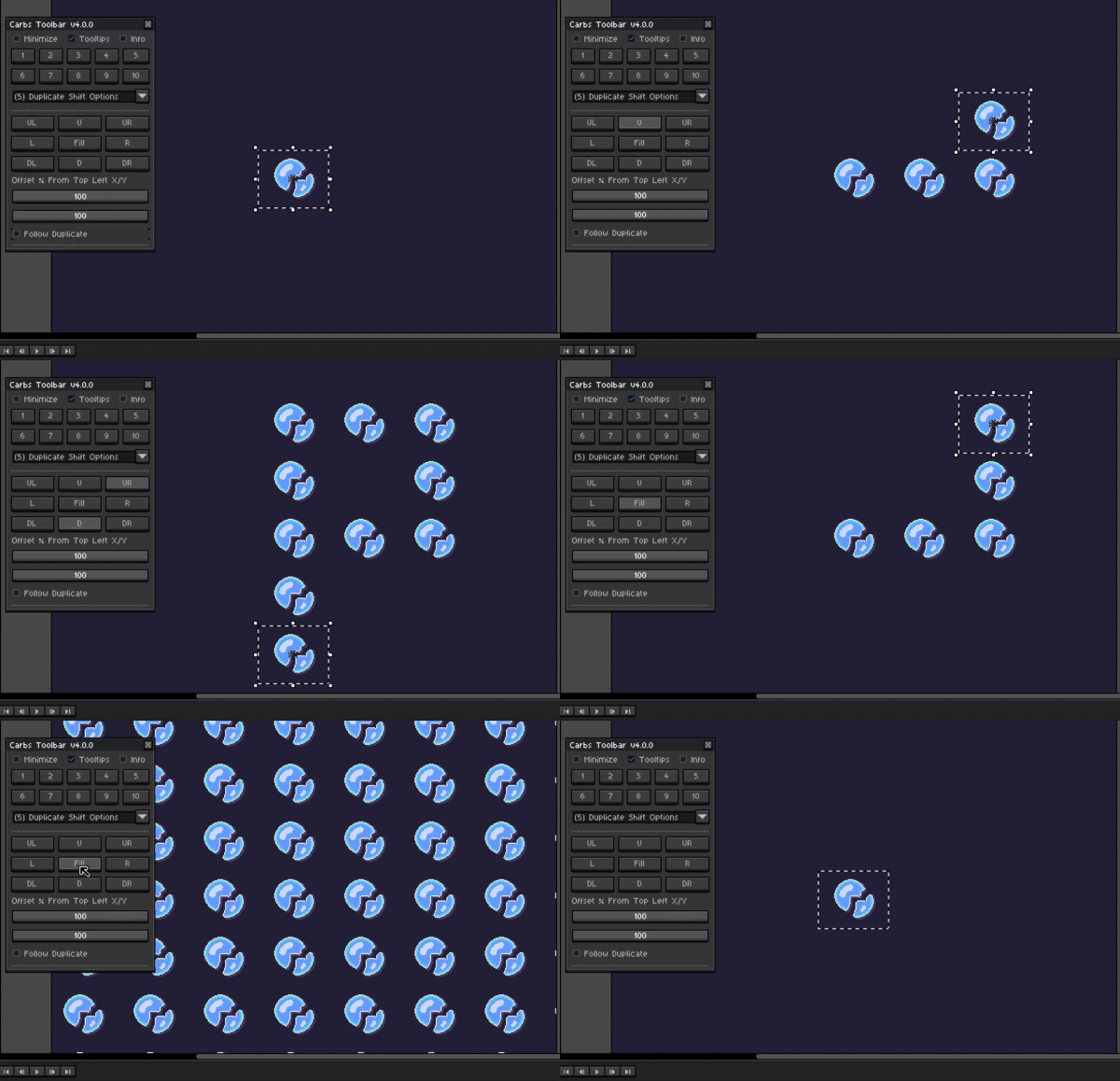
The current sprite selection will be duplicated and shifted in the direction specified. If the fill button is pressed this will fill the canvas with the current selection instead.
Partial Offset / Overlapping Sliders
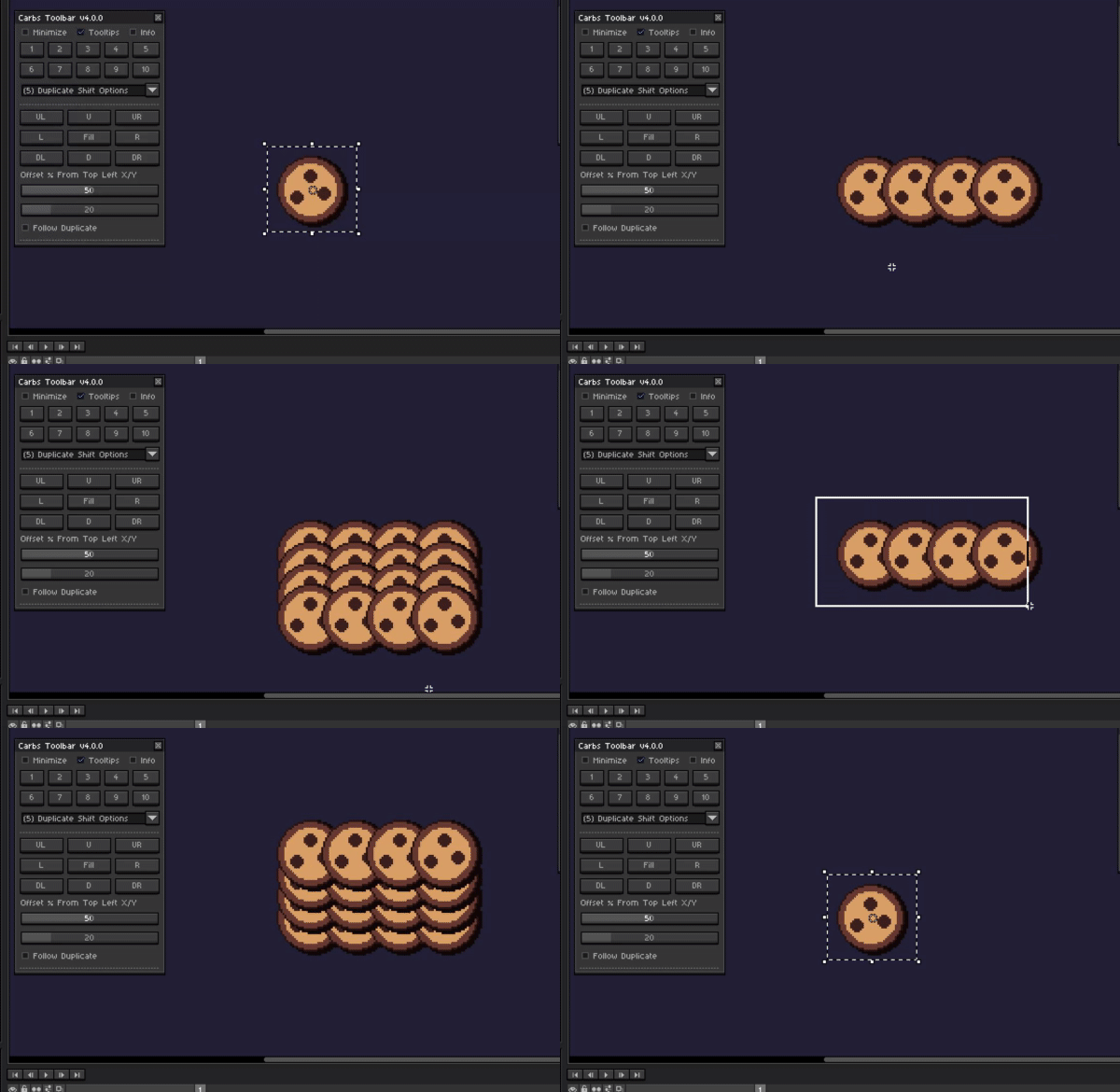
Using the offset % sliders this will shift the current selection by a set percentage width or height when using the directional buttons above. The follow duplicate button is also an option to move the view with the shifting copy of the sprite to keep it in view.
Duplicate & Rotate Options -
Counter Clockwise & Clockwise Rotations
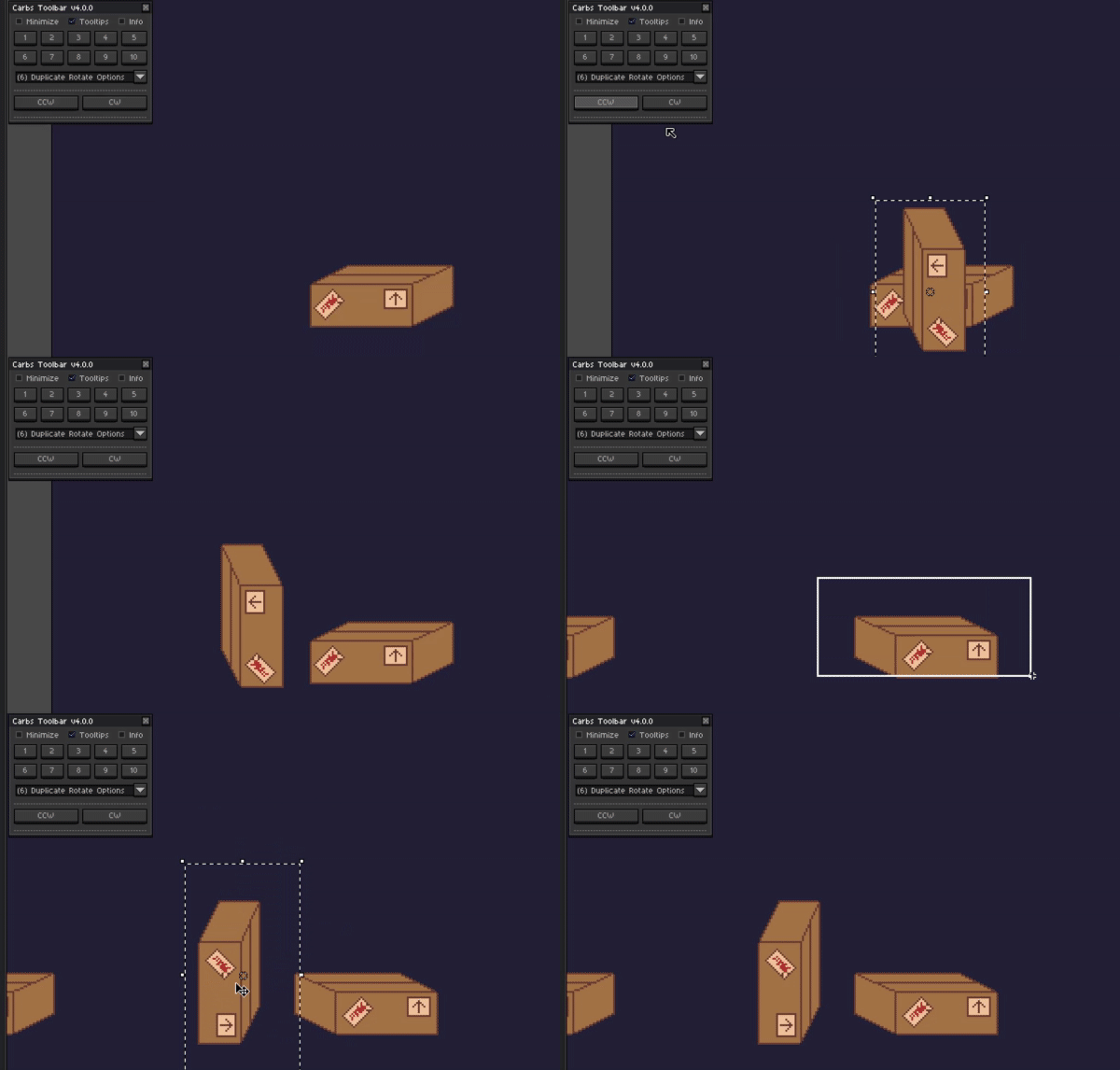
This option will take the current sprite selection, create a copy of it and rotate said copy by either 90 degrees or -90 degrees.
Expand Canvas Options -
Expand In 8 Directions Or All Directions
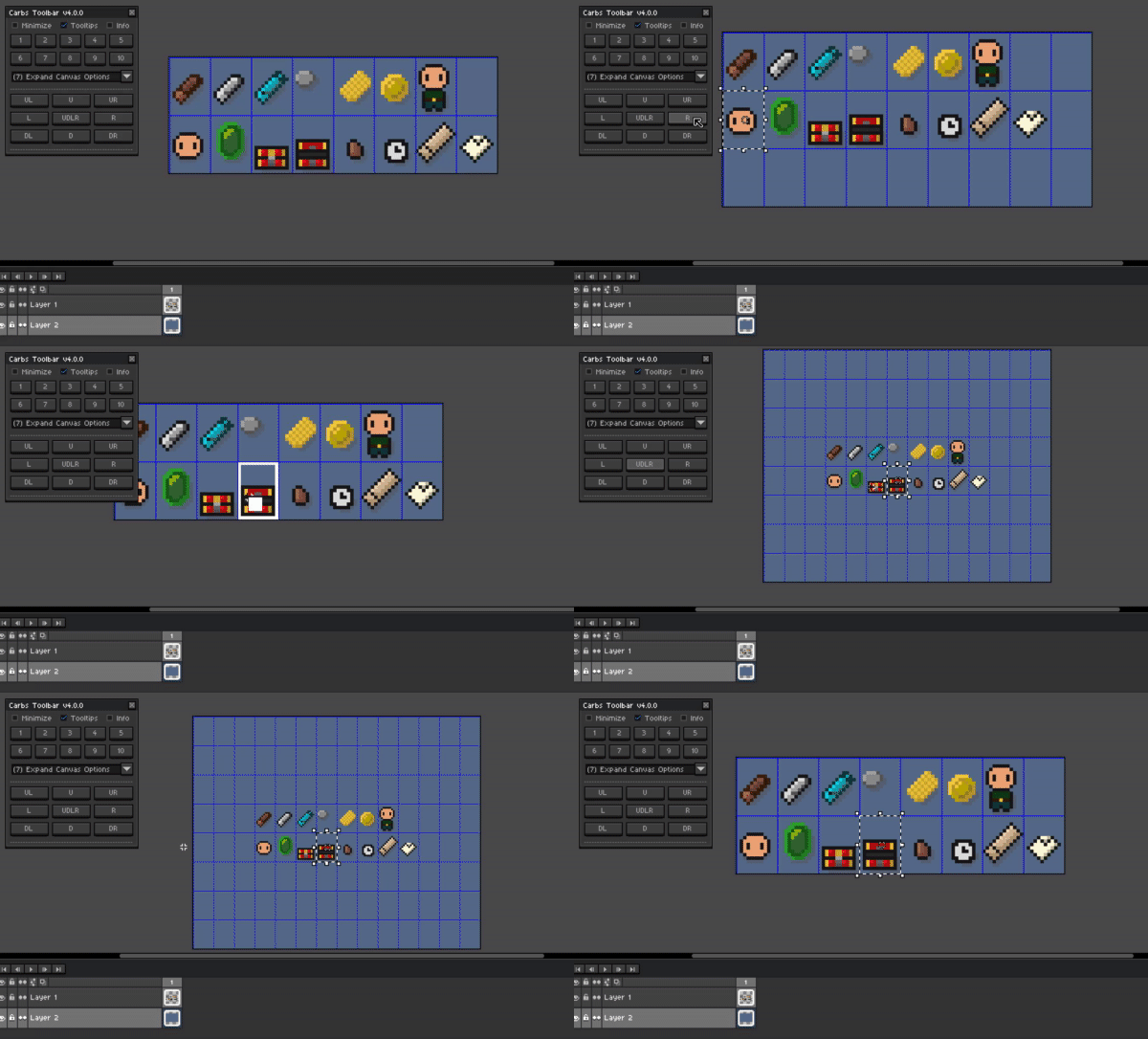
Using the current selections width and / or height the canvas can be quickly expanded in any of the 8 directions. The canvas can also be expanded in all directions at the same time using the button in the middle as well.
Quick Outline Options -
Quick Outline
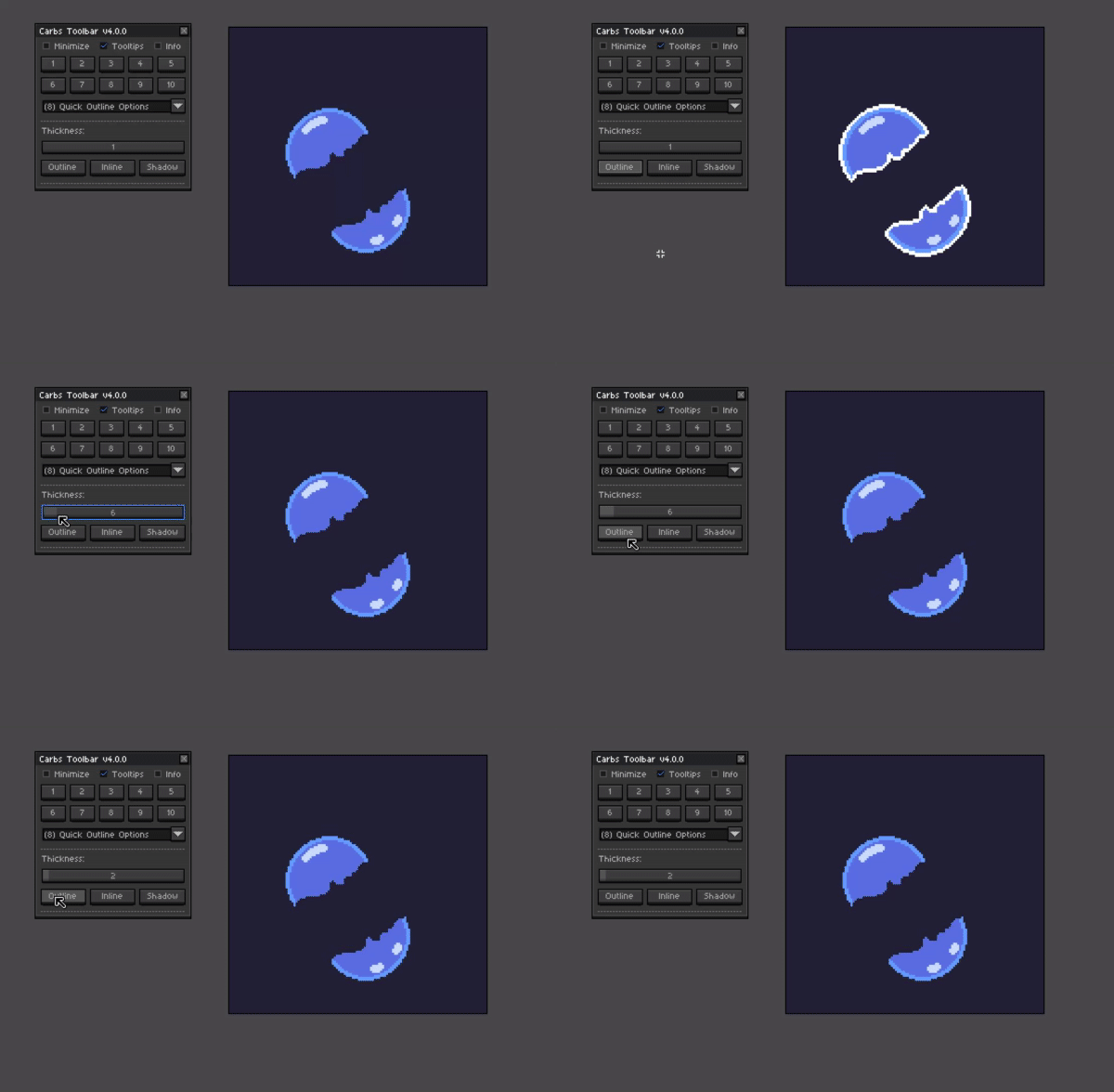
Create a quick outline using the currently selected color and pixel thickness from the slider around the current pixels in the canvas or in the pixels within the current selection.
Quick Inline
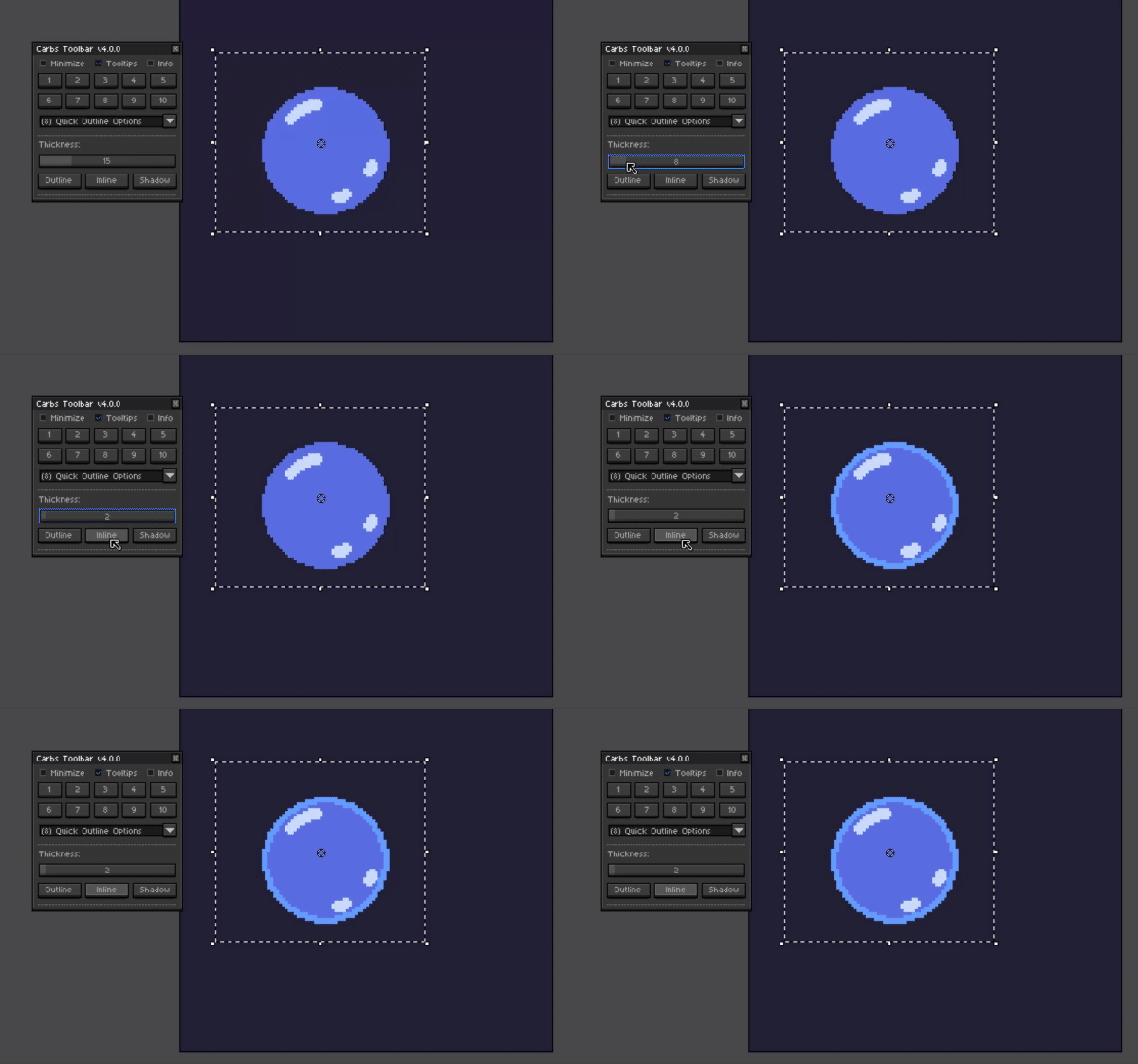
Create a quick “outline” on the inside of the current sprite using the current color and thickness from the slider above. This will apply to either from the whole canvas or within the current selection. If the current color that is selected is a mask color this will reduce the sprite around the edges which can be helpful to clean up an edge.
Quick Shadow
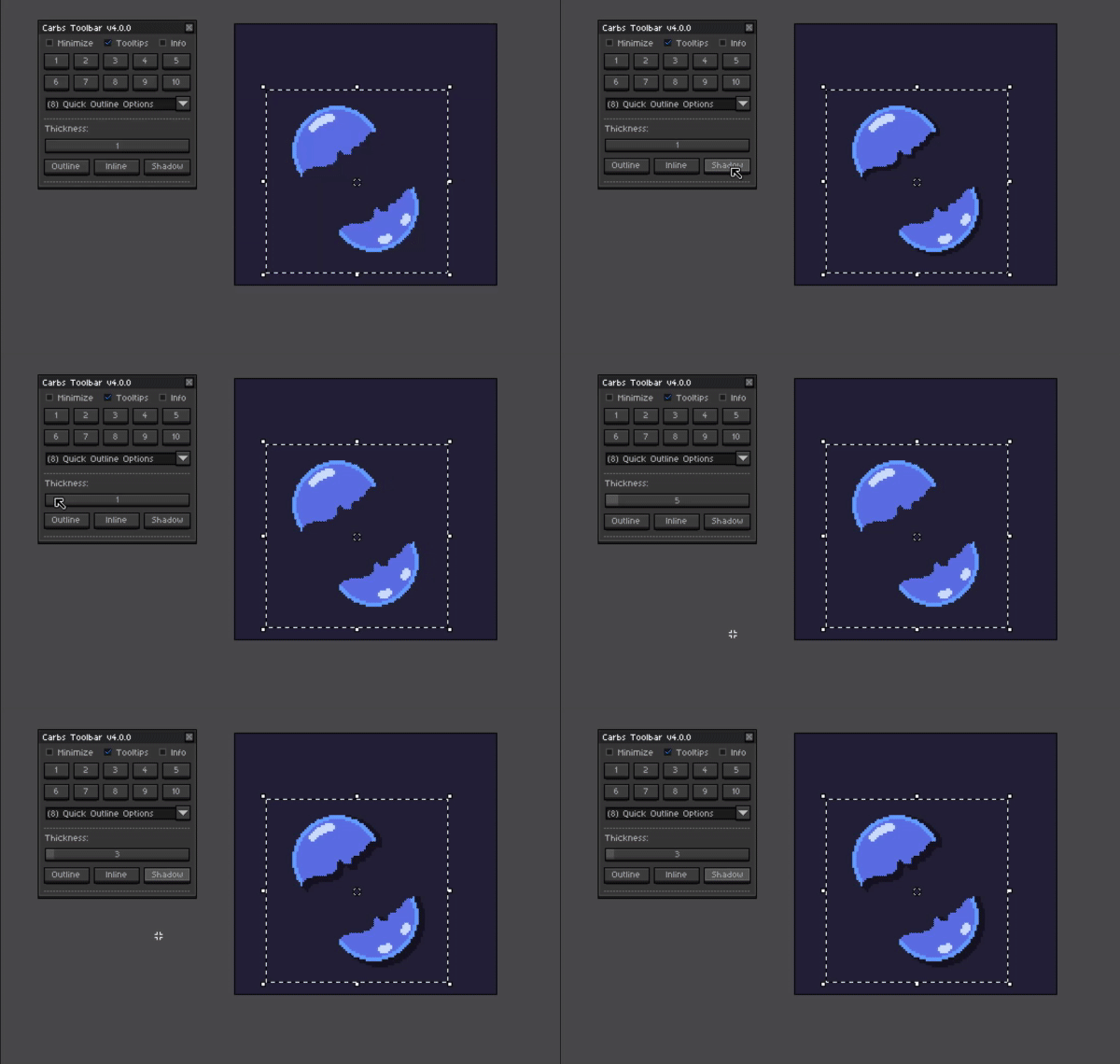
Create a quick shadow using the currently selected color. The shadow is set to the down right direction and use the current thickness from the slider above.
Shift HSV Options -
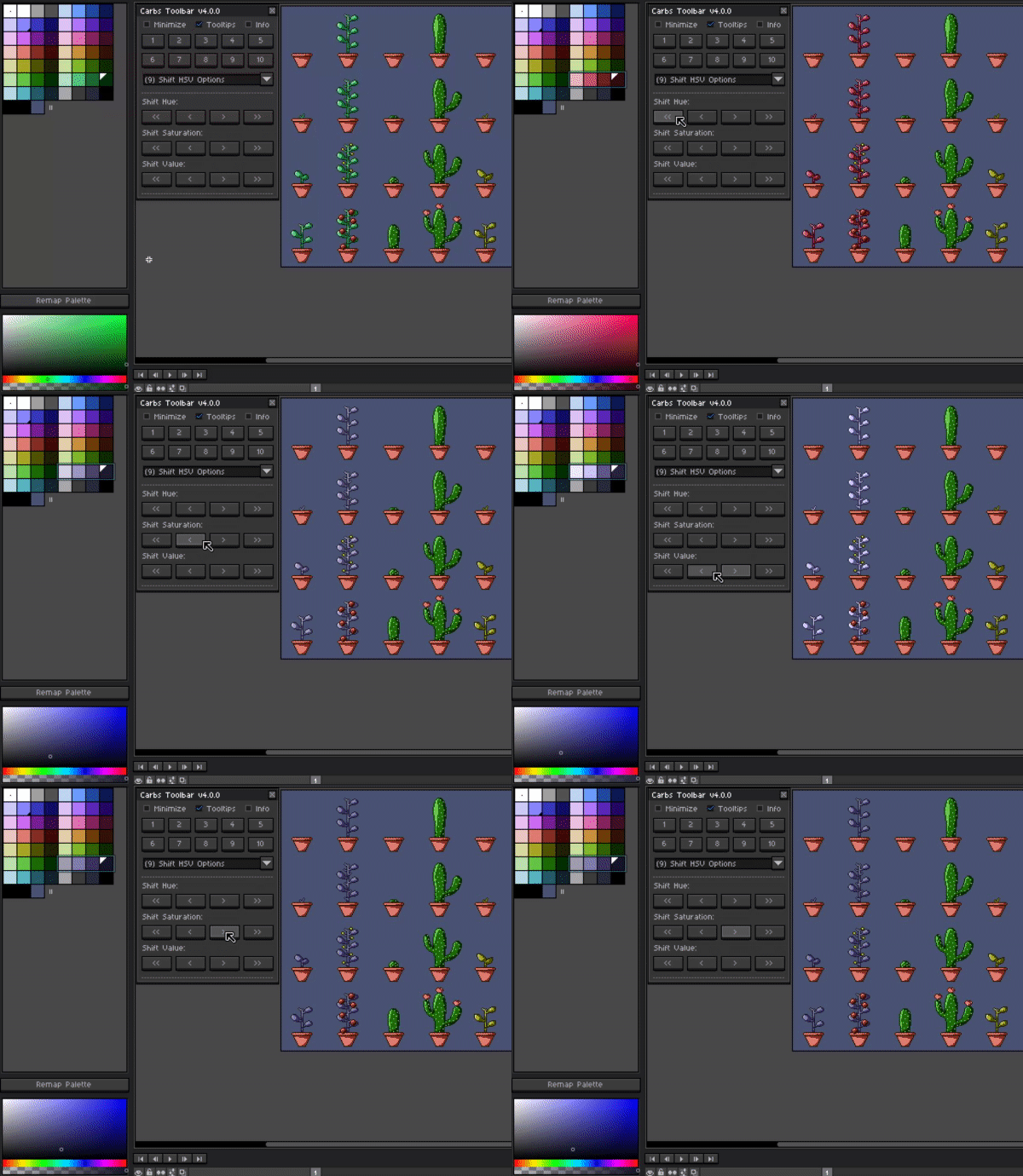
Shift selected colors hue, saturation and value by preset amounts. Each arrow from left to right is as follows -50, -10, +10,+50.
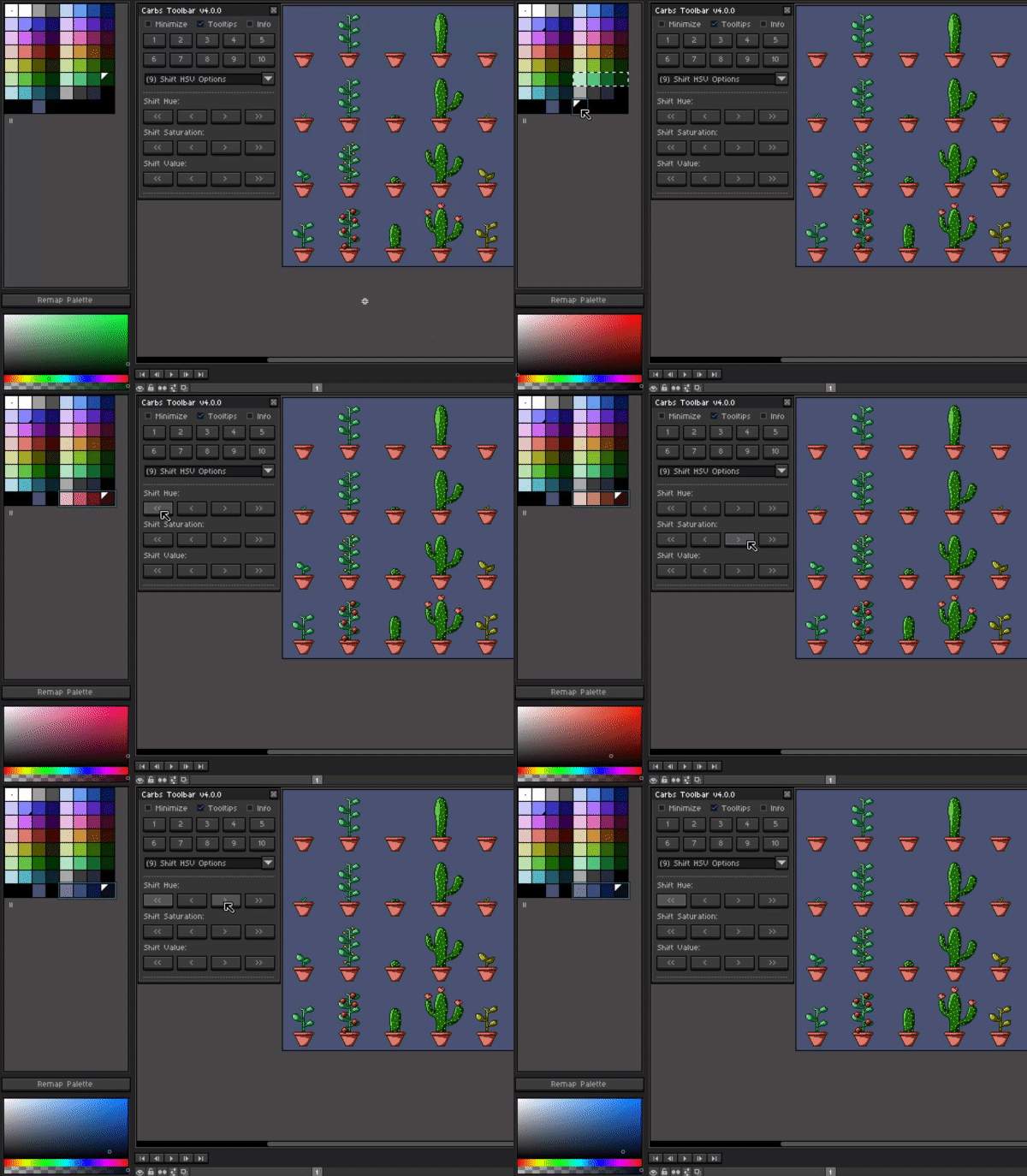
This can also be used to modify a new set of colors that has the same shading if they are copy and pasted within the current palette. Sprites shown above by TinyJustice24
Misc Options -
Center Preview On Center Of Selection
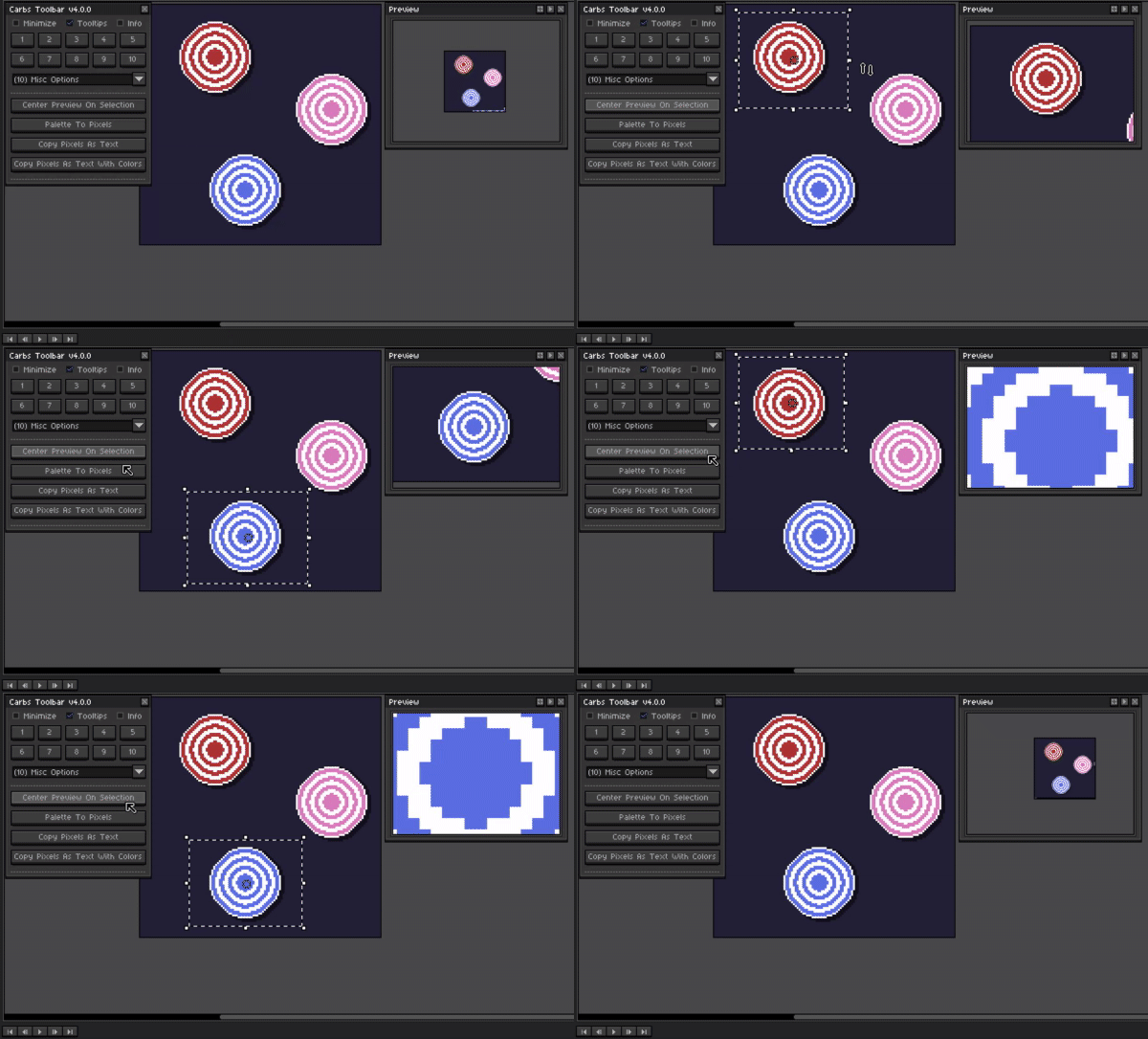
Using the current selection this feature will center Aseprite’s preview window to the center of said selection keeping the zoom level that the preview is currently at.
Palette To Pixels
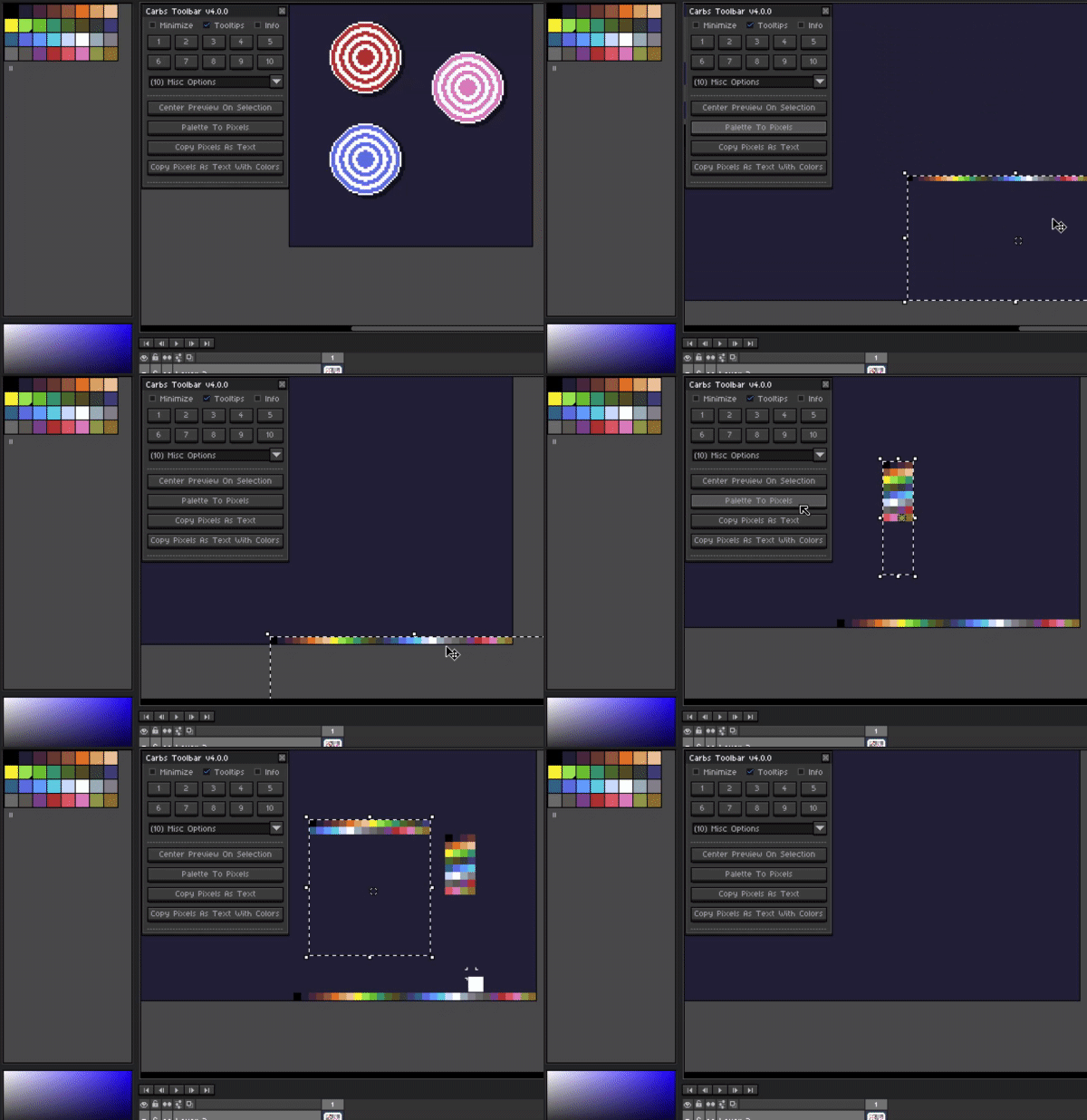
Paint the current colors from the palette on to the canvas at the current selection. This is helpful if you would like to include your palette on the image. Thanks to SnowDrama for requesting this feature.
Copy Pixels As Text
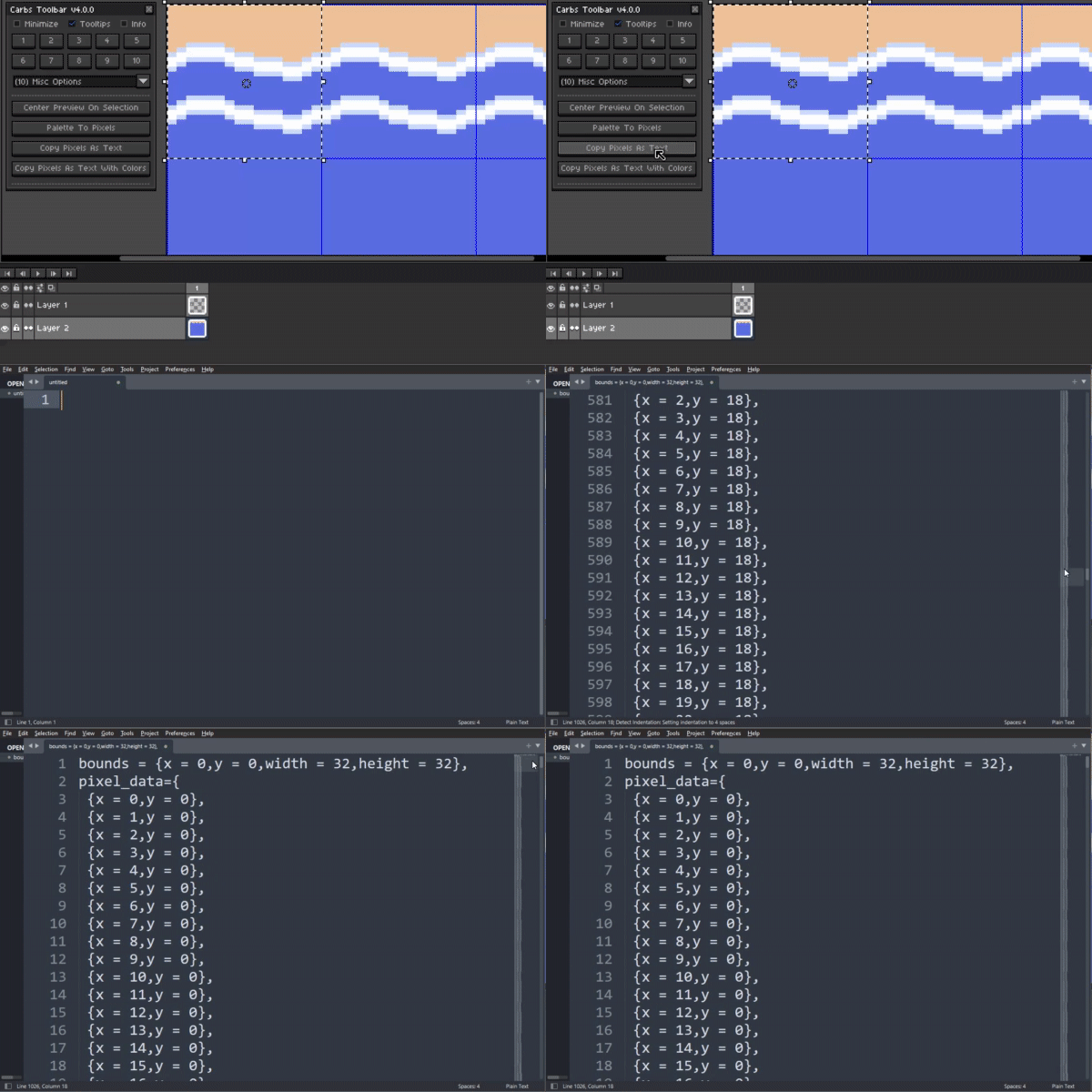
Copies the current selections pixel data to clipboard as a text table. This will include pixels that are filled in and includes all visible pixels with their local x and y coordinates.
Copy Pixels As Text (Color)
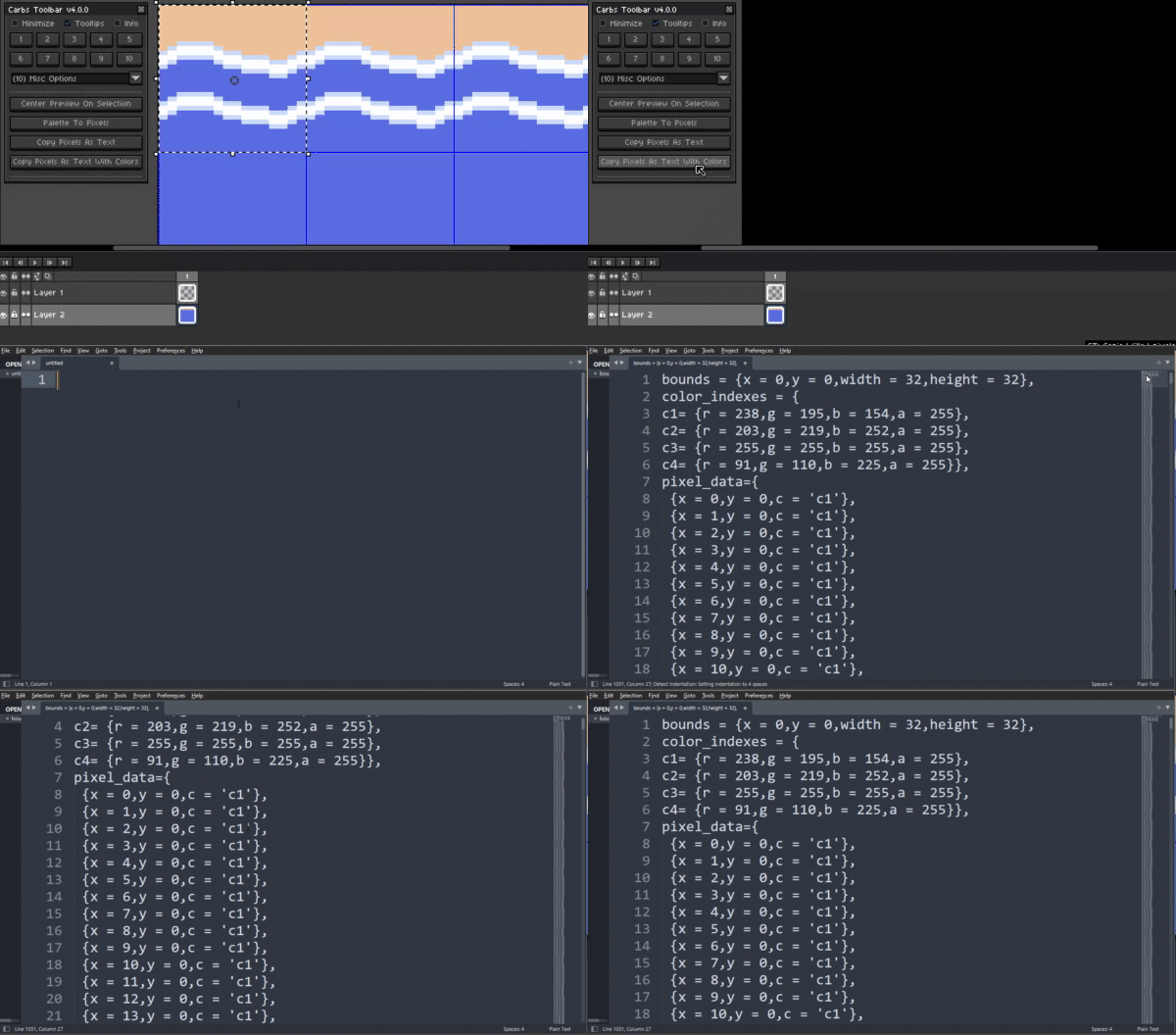
Copies the current selections pixel data to clipboard as a text table and includes the pixels rgba pixel data as well as their local x and y coordinates.
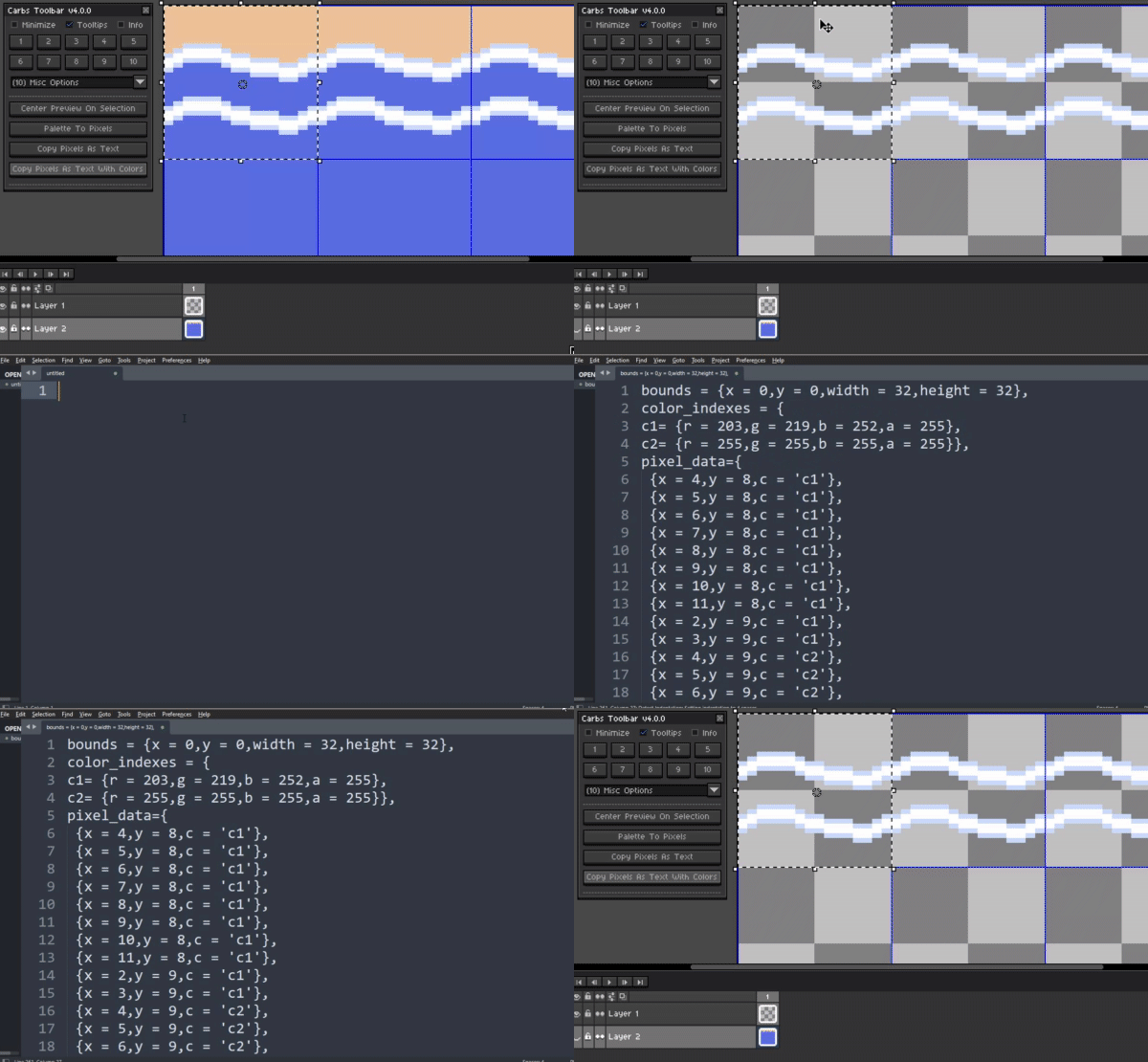
Both functions will only include pixels that are filled in and visible pixels and can be useful when creating and needing hardcoded patterns. For instance I had used them for the isometric grid patterns above.
Built-In Help / Quick Reference
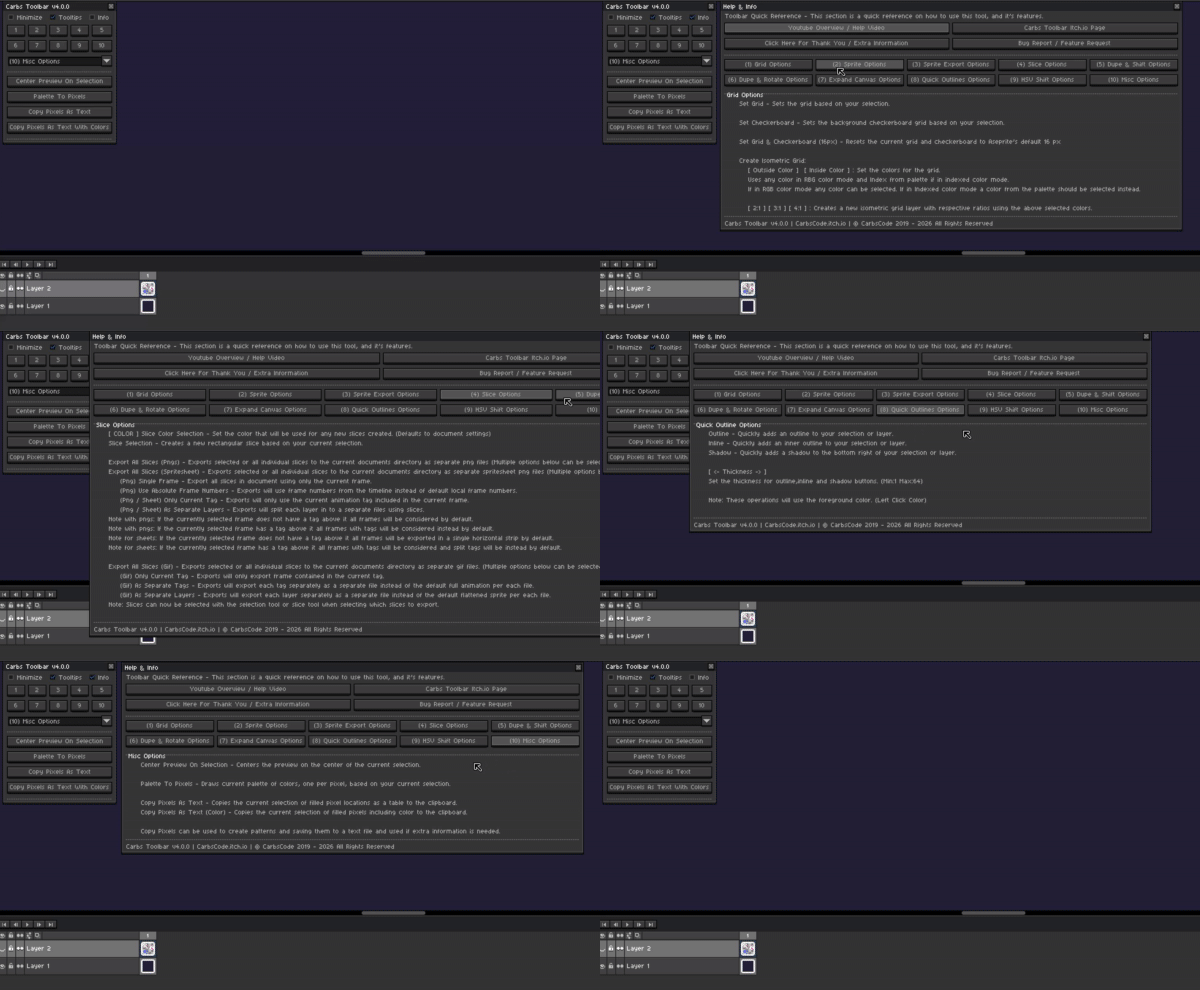
Customizable Hotkeys
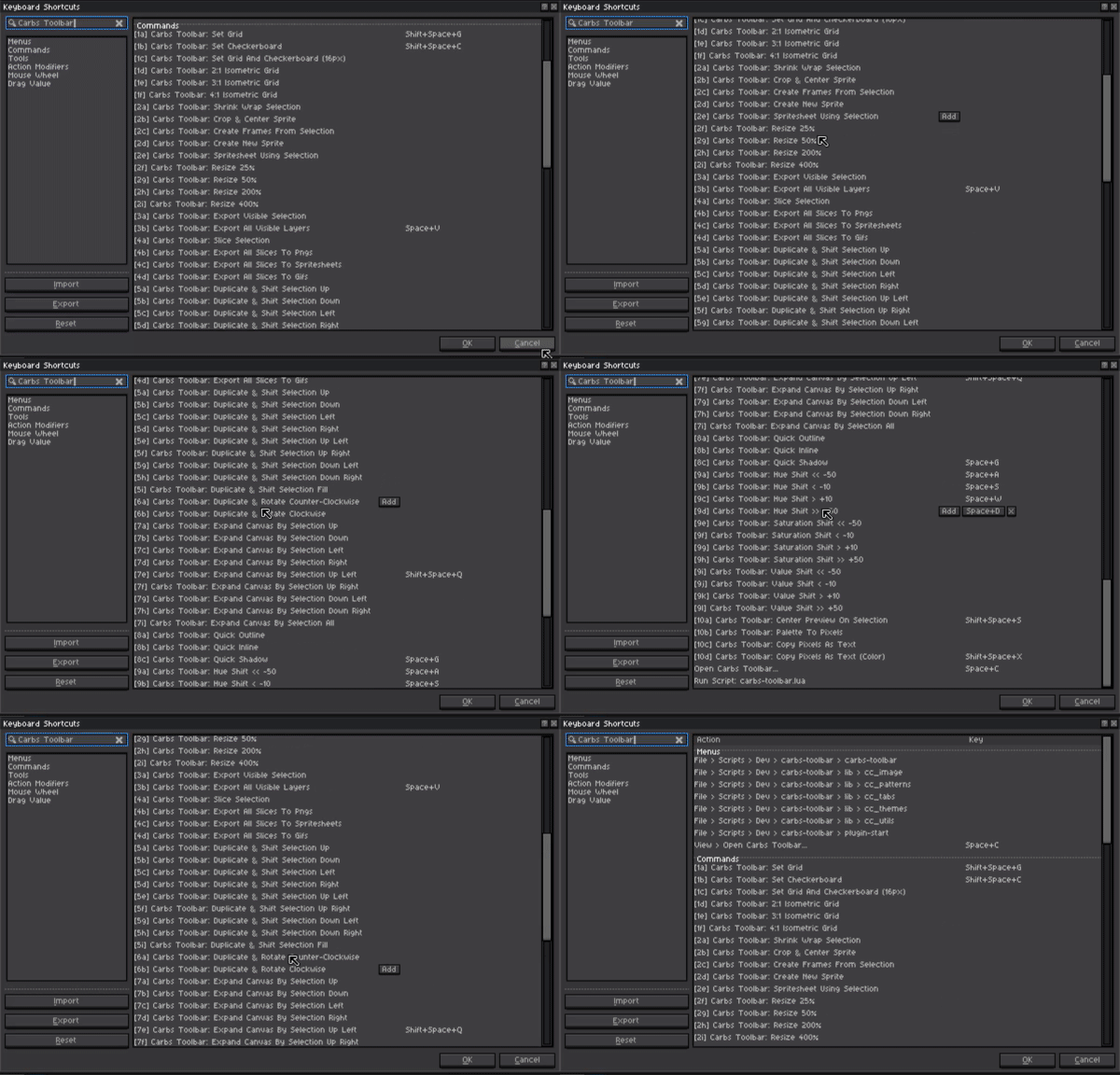
All functions have customizable hotkeys
All functions can now be run even when the tool is closed*
*Carbs Toolbar must be opened at least once after installing to initialize the hotkeys
Installing:
-
Installing and updating can be done by simply double clicking or dragging and dropping the extension file in to Aseprite.
-
This will put all the files where they need to go automatically.
-
You can also enable and disable the extension as well from the settings menu in Edit>Preferences>Extensions if needed.
Opening The Tool:
- Once installed there will be a new option called “Open Carbs Toolbar…” located under View>Open Carbs Toolbar…
–Simple Usage License / Rights–
Simple Usage License / Rights © CarbsCode 2019 - 2026 All Rights Reserved. (Updated 8/21/25)
By using the script included with this file you understand that you are using it ASIS with no guarantees.
Though the script / toolbar is not intended to cause any harm, you understand that any such harm, such as lost of work,time or any other issues financial or otherwise, CarbsCode can not be held responsible.
You understand that you should always save your work regularly.
Please use at your own risk! If you change any of the script that may cause issues support may or may not be available.
CarbsCode reserves the right to revise this license as needed.
YOU CAN / SHOULD:
Use this script as a toolbar to assist in Aseprite for personal and/or professional use.
Make changes as you see fit for your use-case. However support may not be available for modified scripts so do so at your own risk.
(Modified scripts should not be redistributed and are for internal use only.)
Always give credit to your sources or inspirations
YOU CAN’T / SHOULDN’T:
Re-sell, copy, transfer or distribute entire script or parts of this script without permission.
Distributing products that mimic the layout and functionality to the extent that they may cause confusion between original products is also not permitted.
Usage of this tool in any training of AI (Artificial Intelligence) models is strictly prohibited.
Usage of this tool to create NFT (Non-Fungible Tokens) is strictly prohibited.
Bugs / Feature Requests:

Please check out the new issues page if you find any bugs or want to make a feature request!
Please report any bugs if you find some and Carbs will try and resolve as soon as possible!
Hope you all enjoy the tool! Please feel free to reach out or leave a comment if you have any issues or feedback!
 Thank you all for the amazing support
Download Link: Carbs Toolbar by CarbsCode
Quick Teaser / Announcement Video: https://youtu.be/CcrI9wKGJMA
Full Overview / How To Use Video: https://youtu.be/gCqpYfHveio