
Download Link: Cel Speed Colors By CarbsCode
Announcement Video: View Here
Full Overview & How To Use Video: View Here
Cel Speed Colors is an extension for Aseprite. It features a system to change both the frame duration and the cels color all in one action while also providing at a quick glance what each frames current speed or duration is.
This tool was requested and made in collaboration with the very talented pixel artist and animator named Chapel (The_Whitechapel)
He was looking for a way to more quickly mark cels in different colors based on a set of pre-defined frame durations. These frame durations are used for animating on 1s 2s 3s and 4s. Animating on 2s is pretty normal and used in most classic animation. Check out the overview video above as I go in to more detail and show examples of using theses types of frame speeds and transitions.
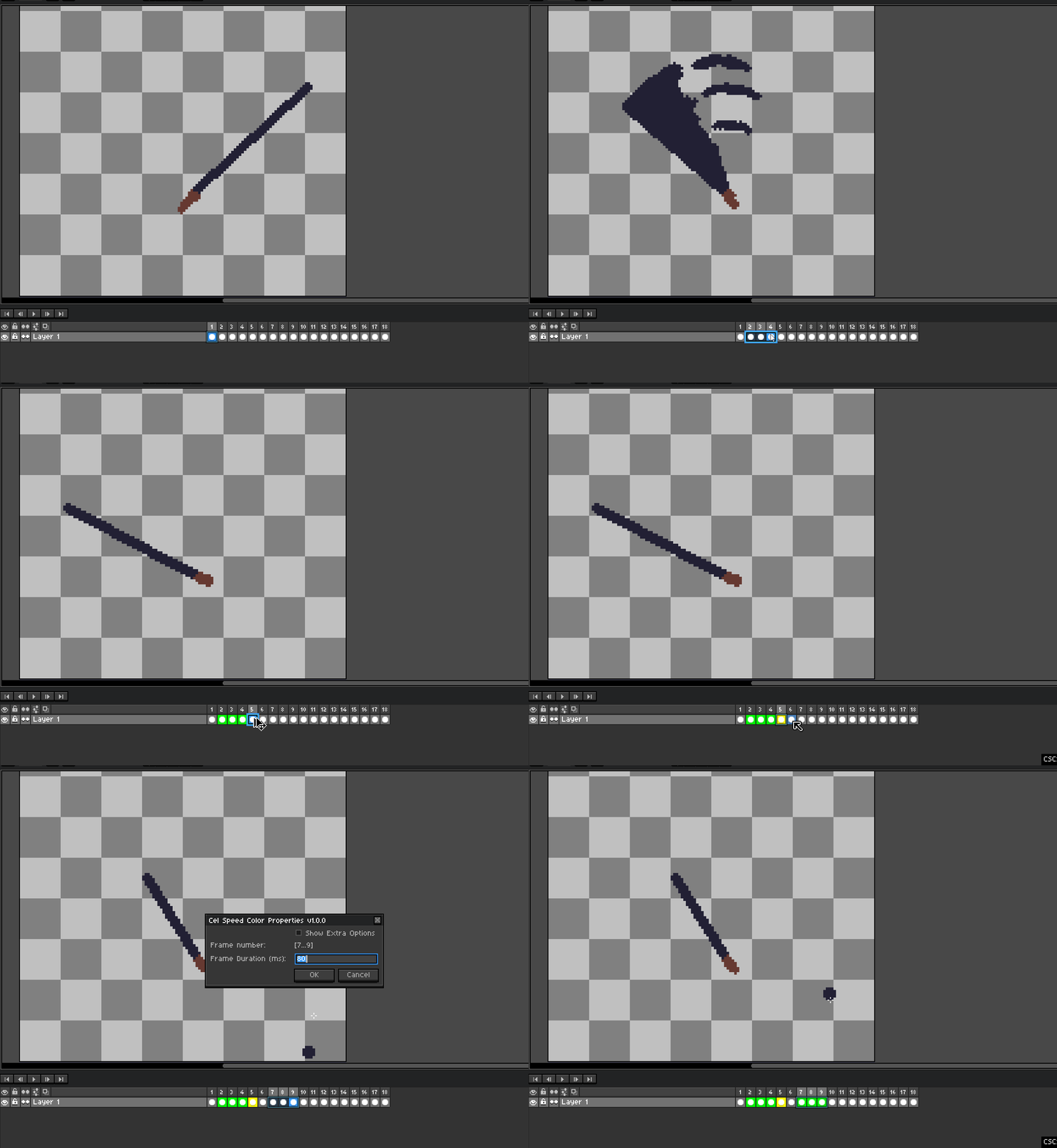
Cel Speed Colors requires Aseprite version 1.3.11 or newer
Features:
Configurable Preset Colors and Frame Durations
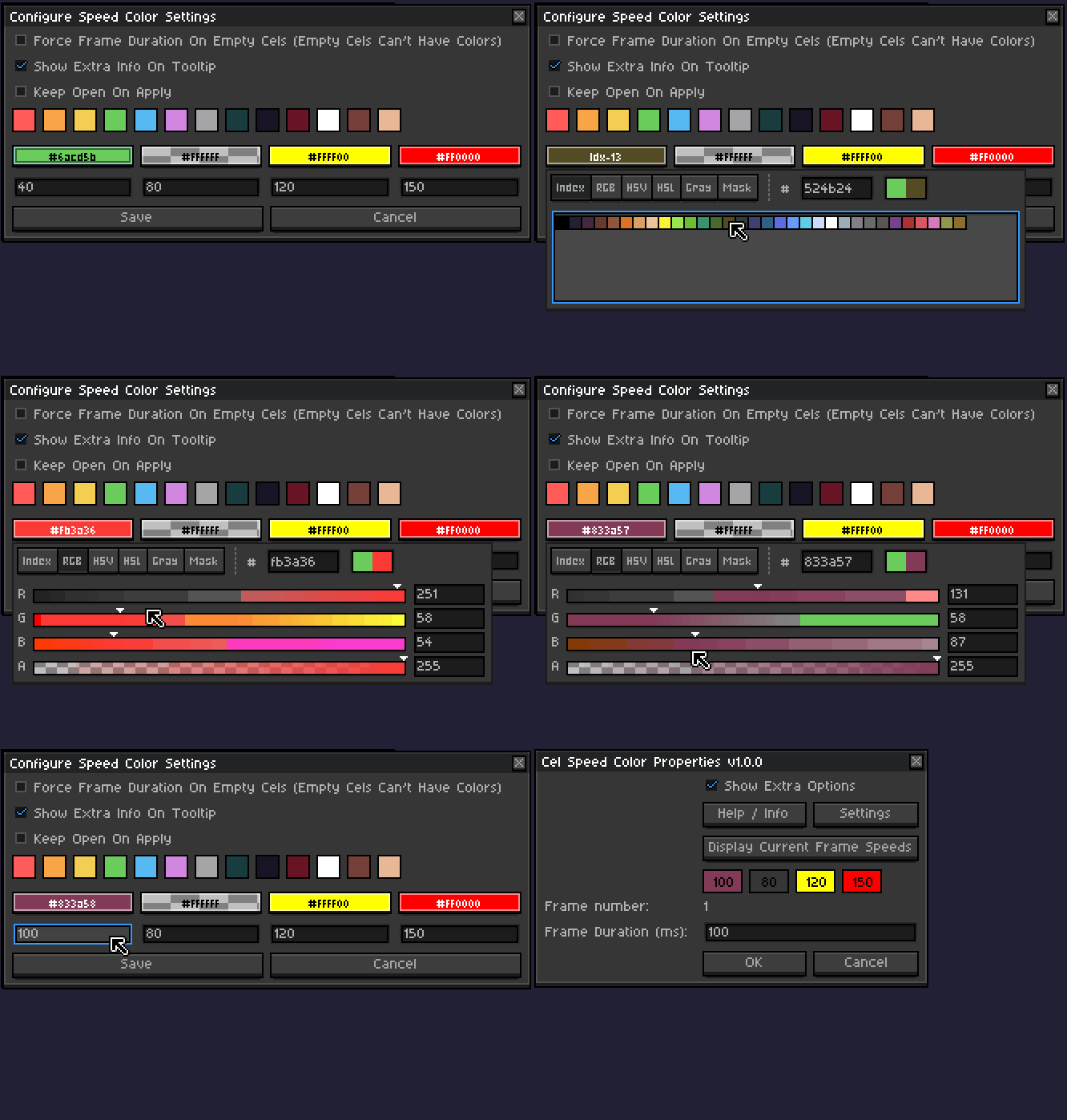
Set up the preset colors and matching frame durations to fit your current project’s needs. These colors and speeds are saved and ready to use each time you load up Aseprite.
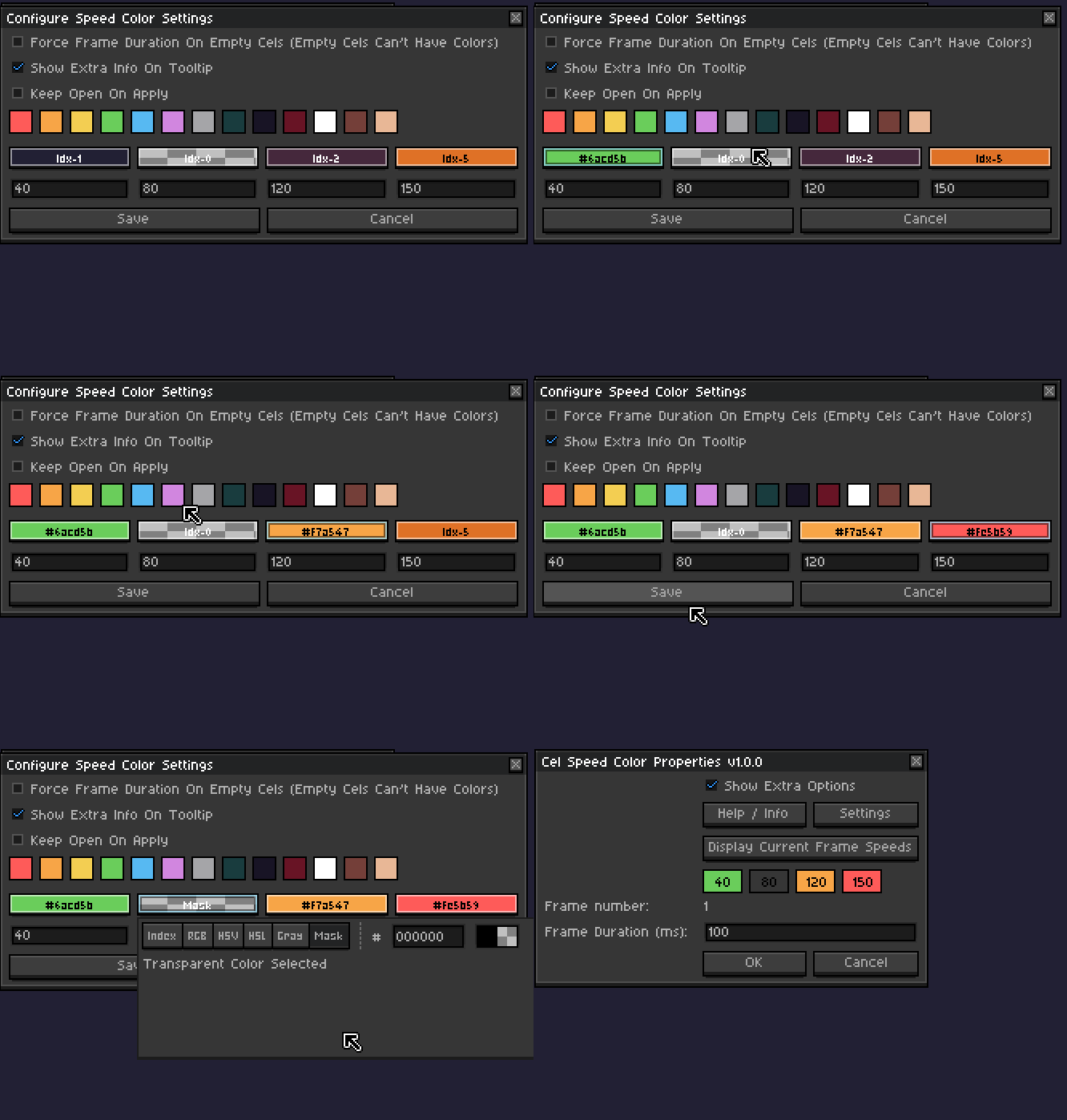
Some common colors have been placed above this input to allow for quick color picking as well.
Opening The Quick Settings Dialog
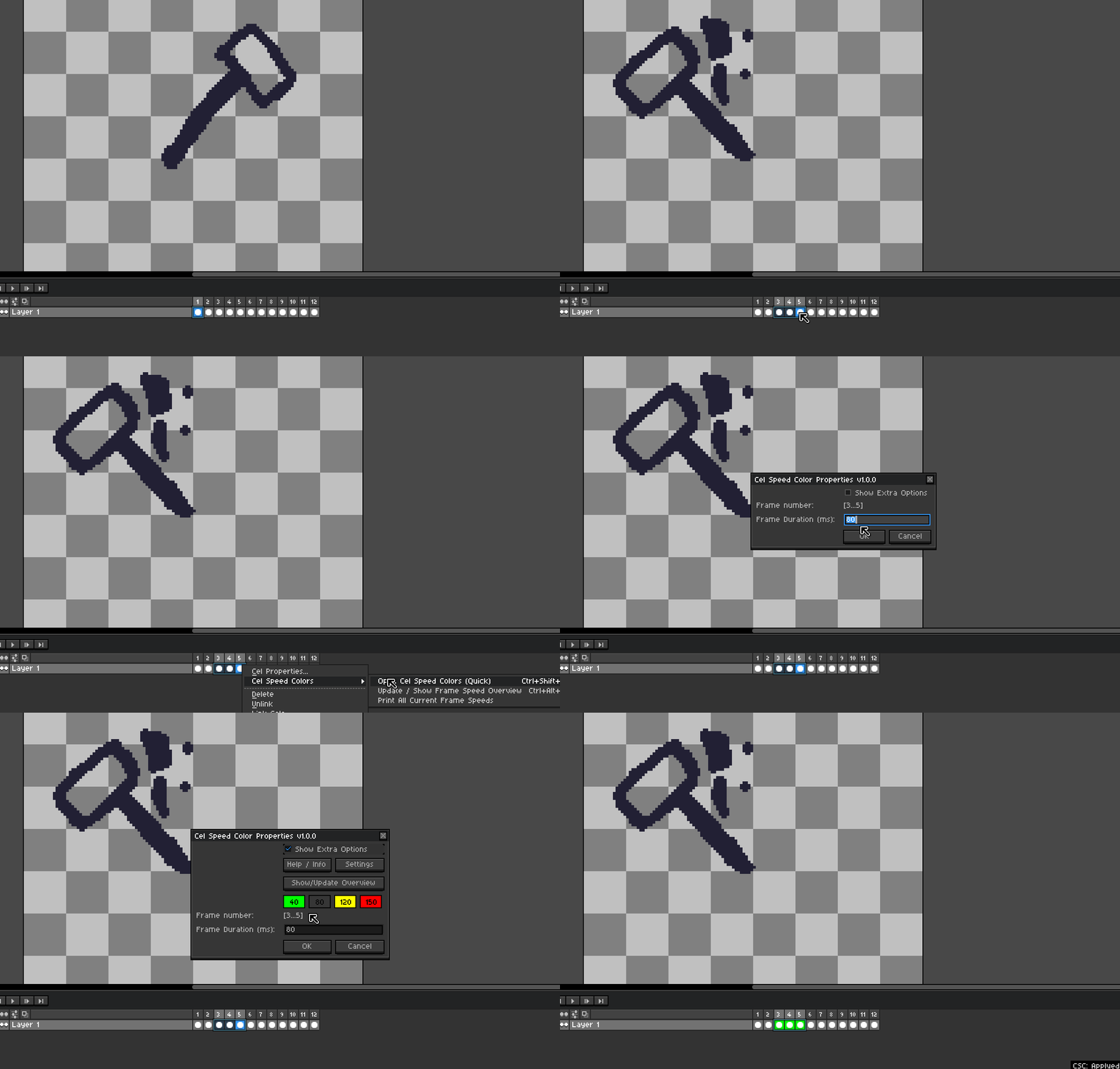
Right click on a selection of cels and select Cel Speed Colors > Open Cel Speed Colors (Quick)
Setting Selected Cel Color and Frame Durations
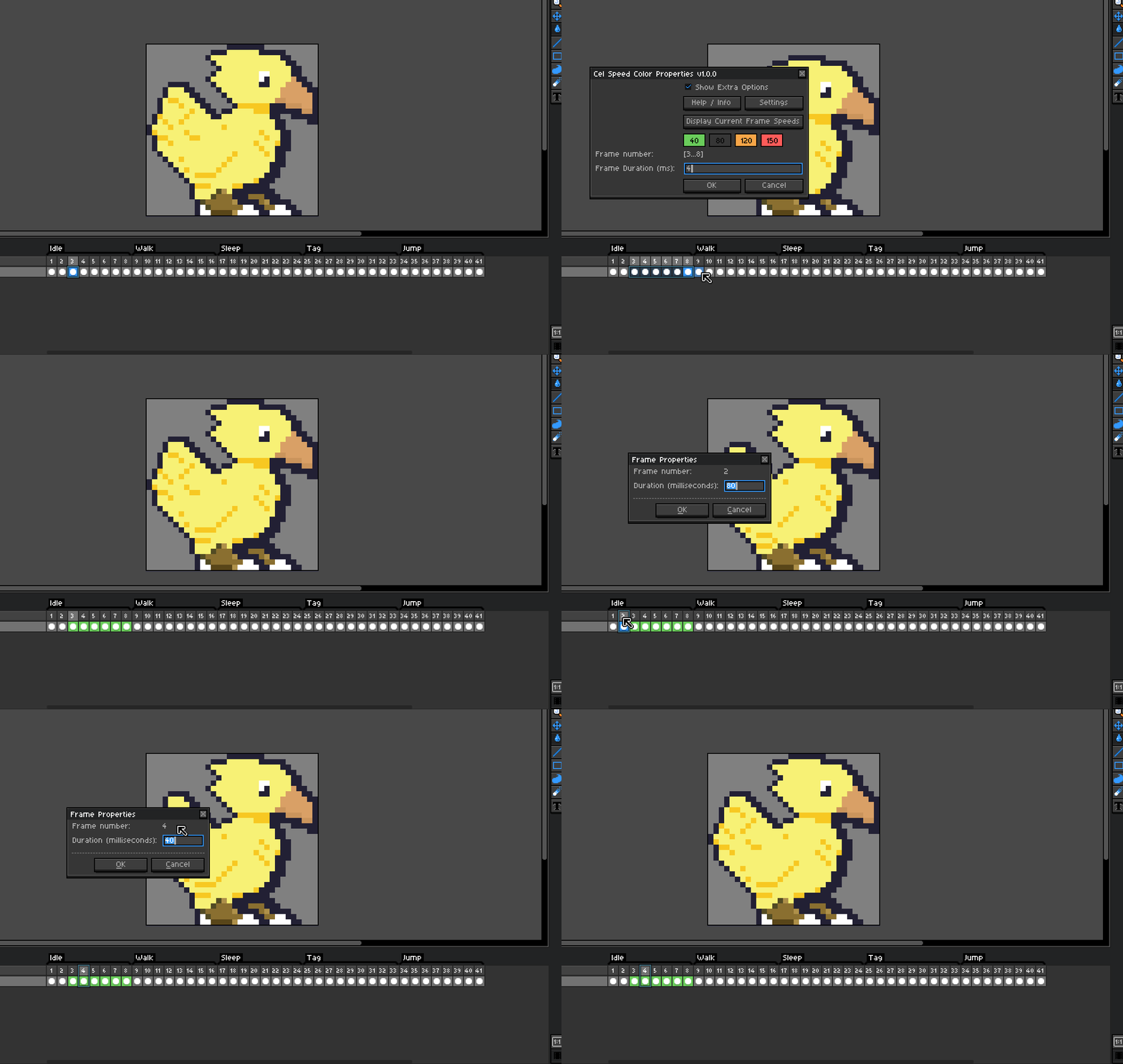
Apply both a color and a frame duration using a pre-defined preset in one quick action by simply typing in a new speed in the popup dialog.
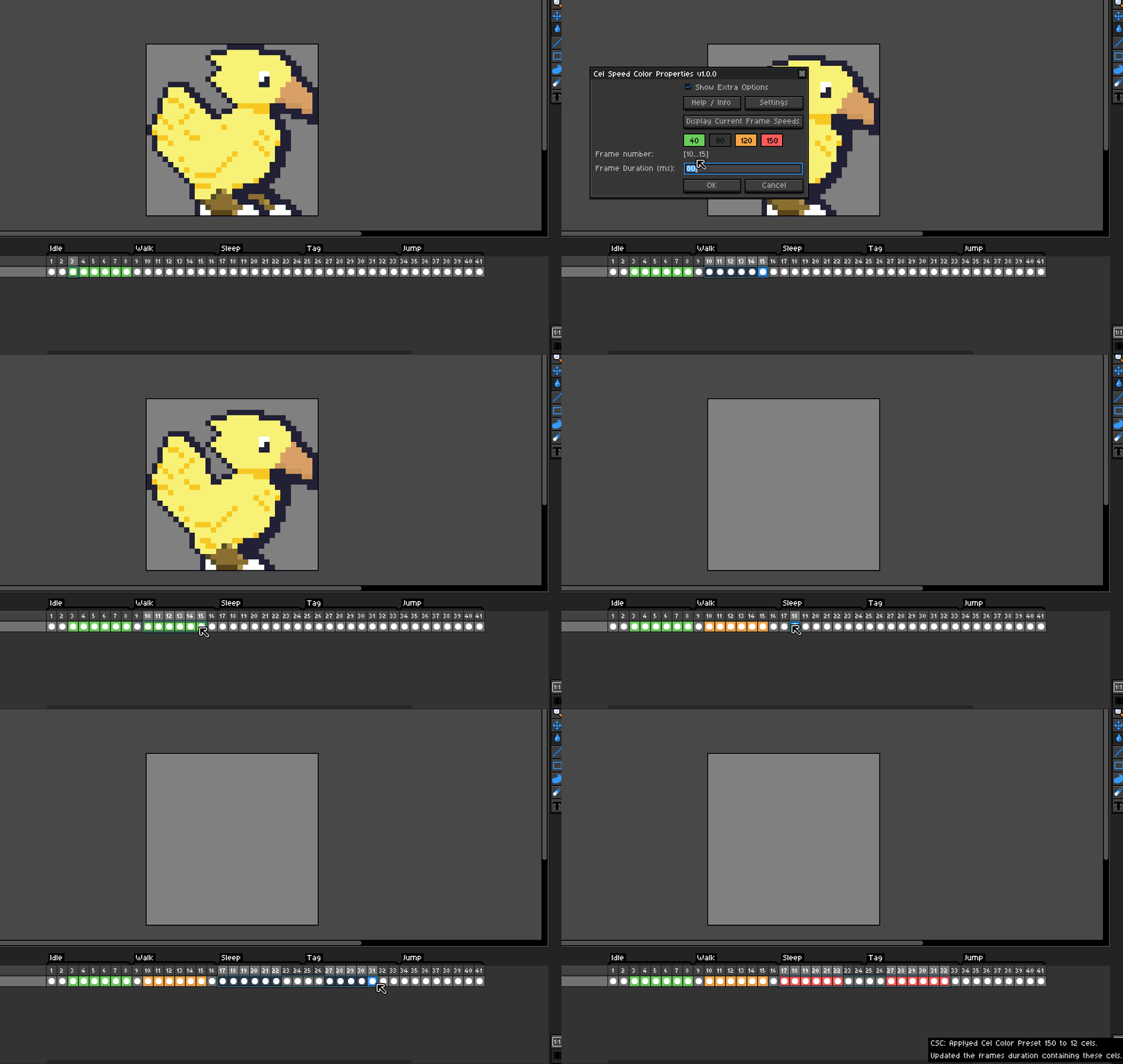
Presets can also be used by clicking on the colored boxes with the duration inside and multiple groups of cels can be selected at once.
Extra Settings Can Be Hidden
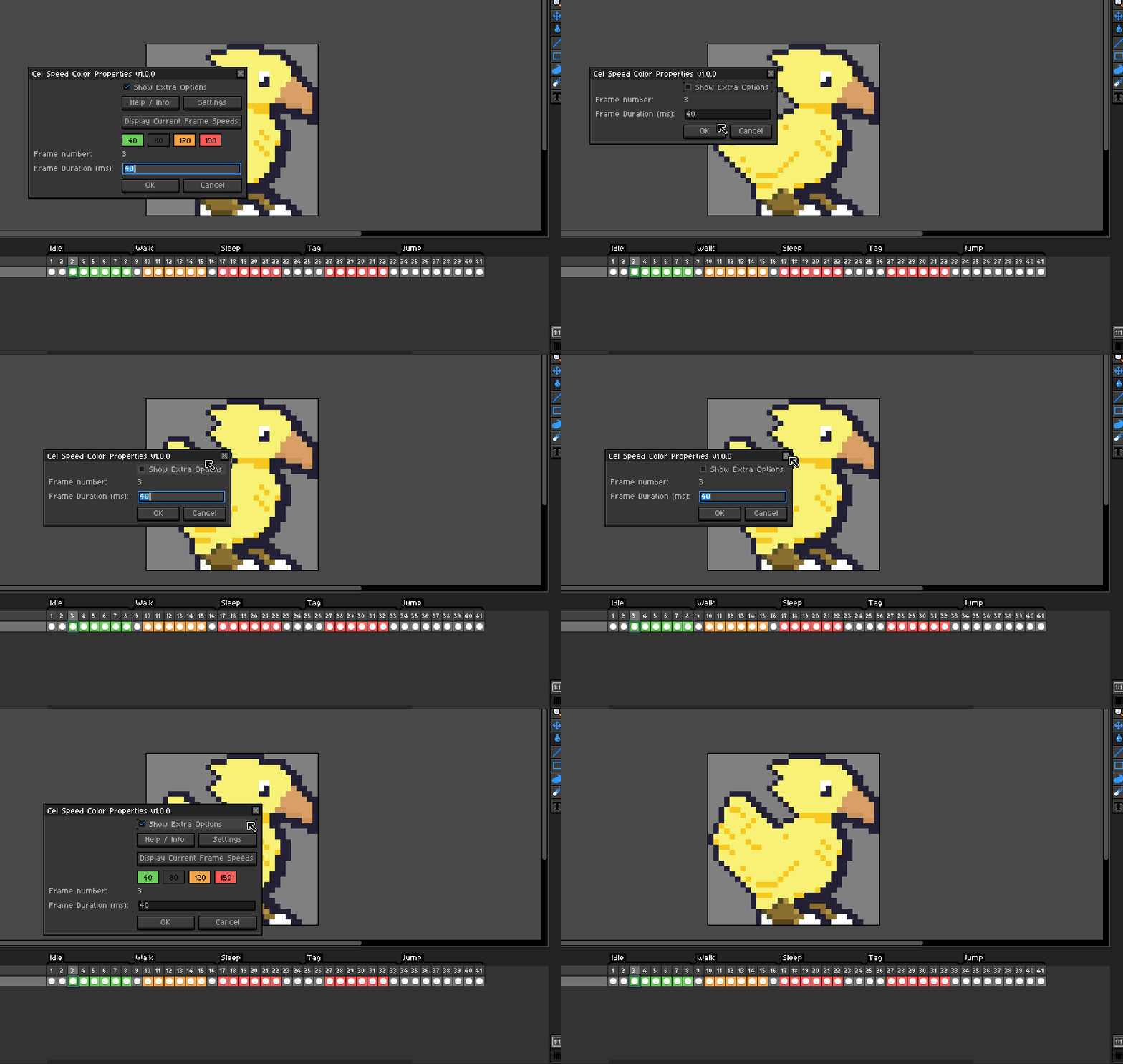
The extra settings can hidden using the toggle at the top of the quick input this setting will retain each time the dialog is open if the extra info is not needed.
Keep Open On Apply
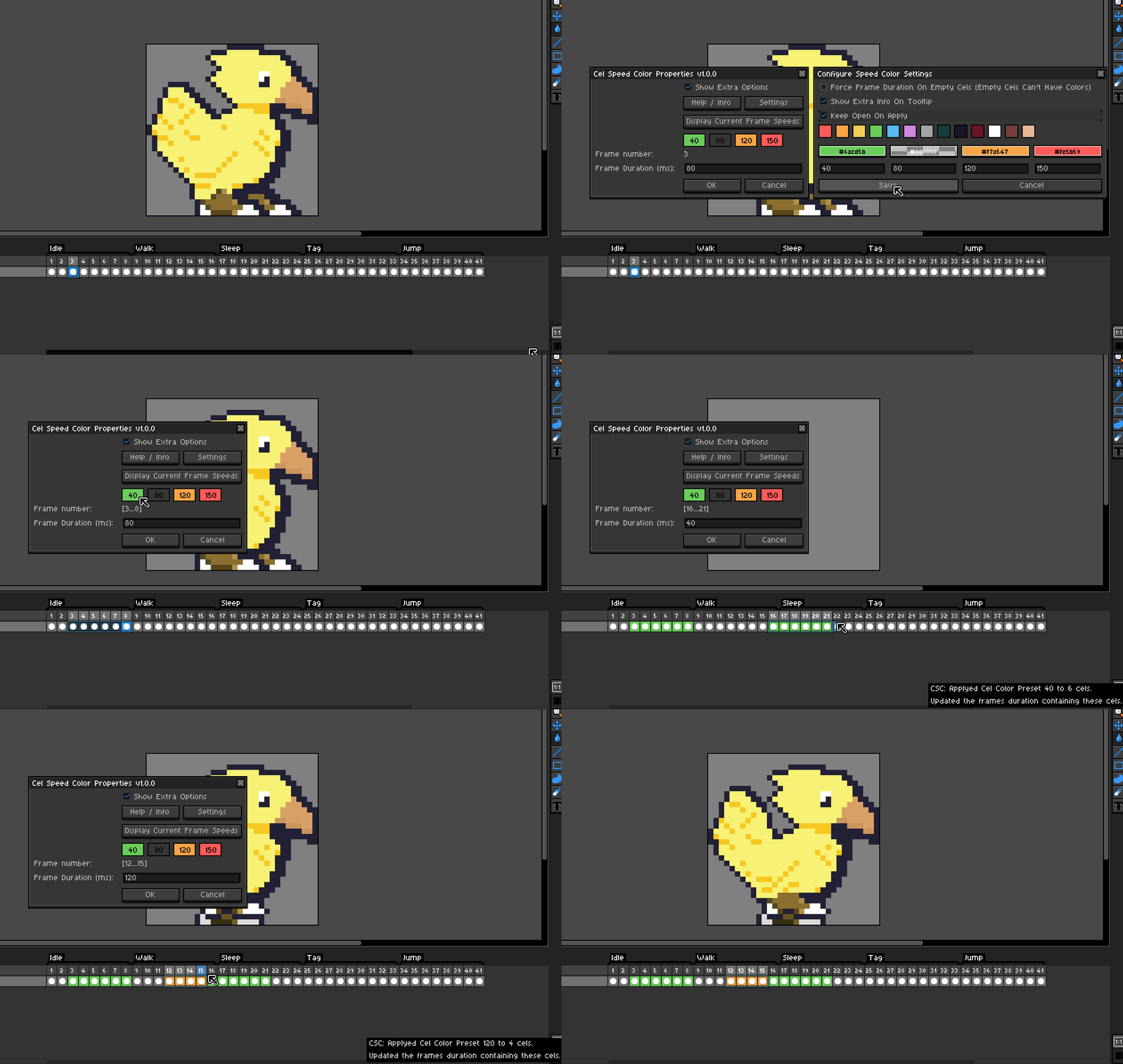
Helpful if wanting to do multiple applications with out closing the Cel Speed Colors properties dialog.
Force Frame Duration On Empty Cels
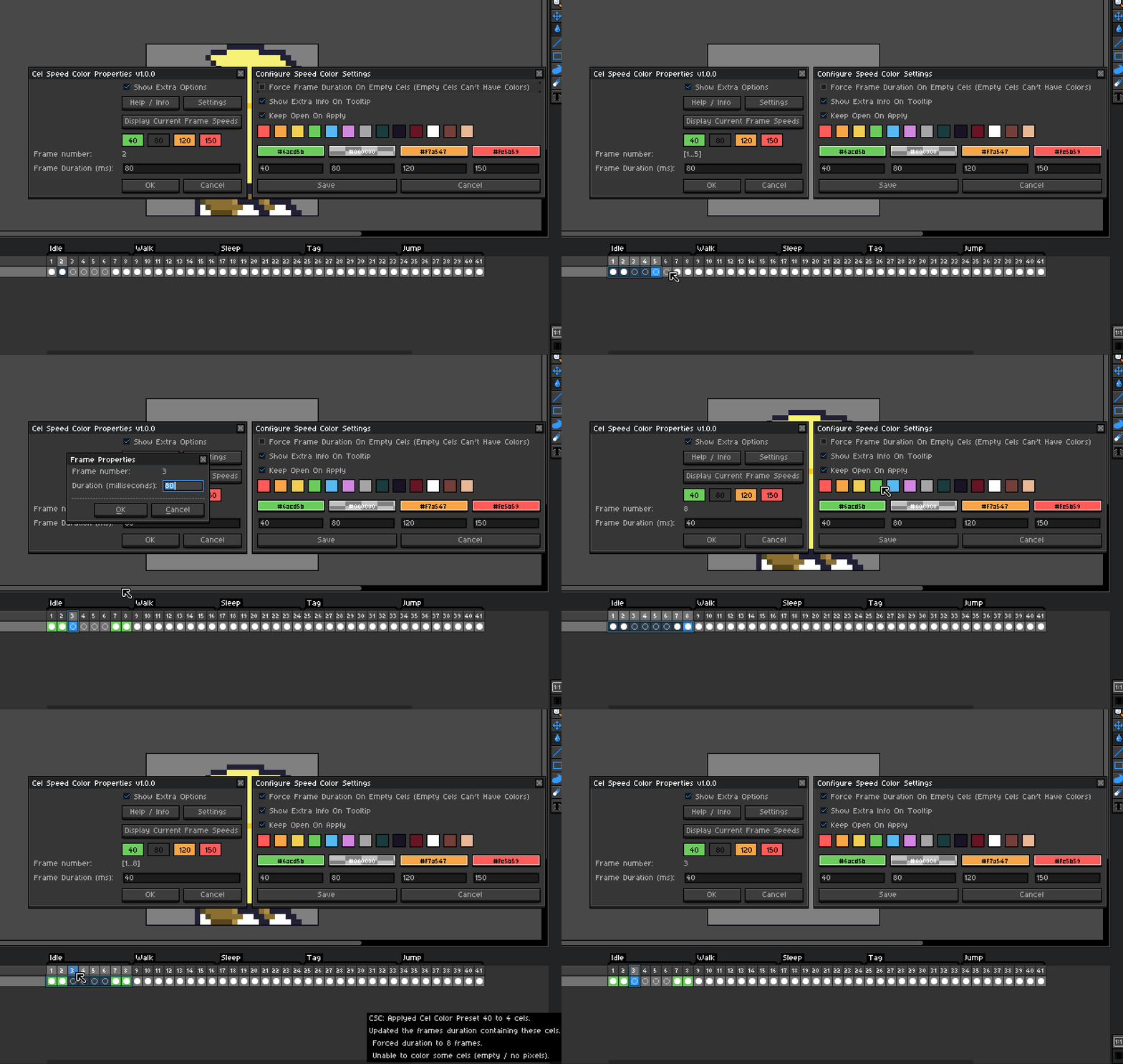
By default the tool will only change frame durations on cels that have pixels. Empty cels are skipped over. With this setting on the tool will force the frame duration on the cels frames instead of skipping over them. The empty cels color will not be changed as empty cels can not have a color.
Simplified Tooltip Setting
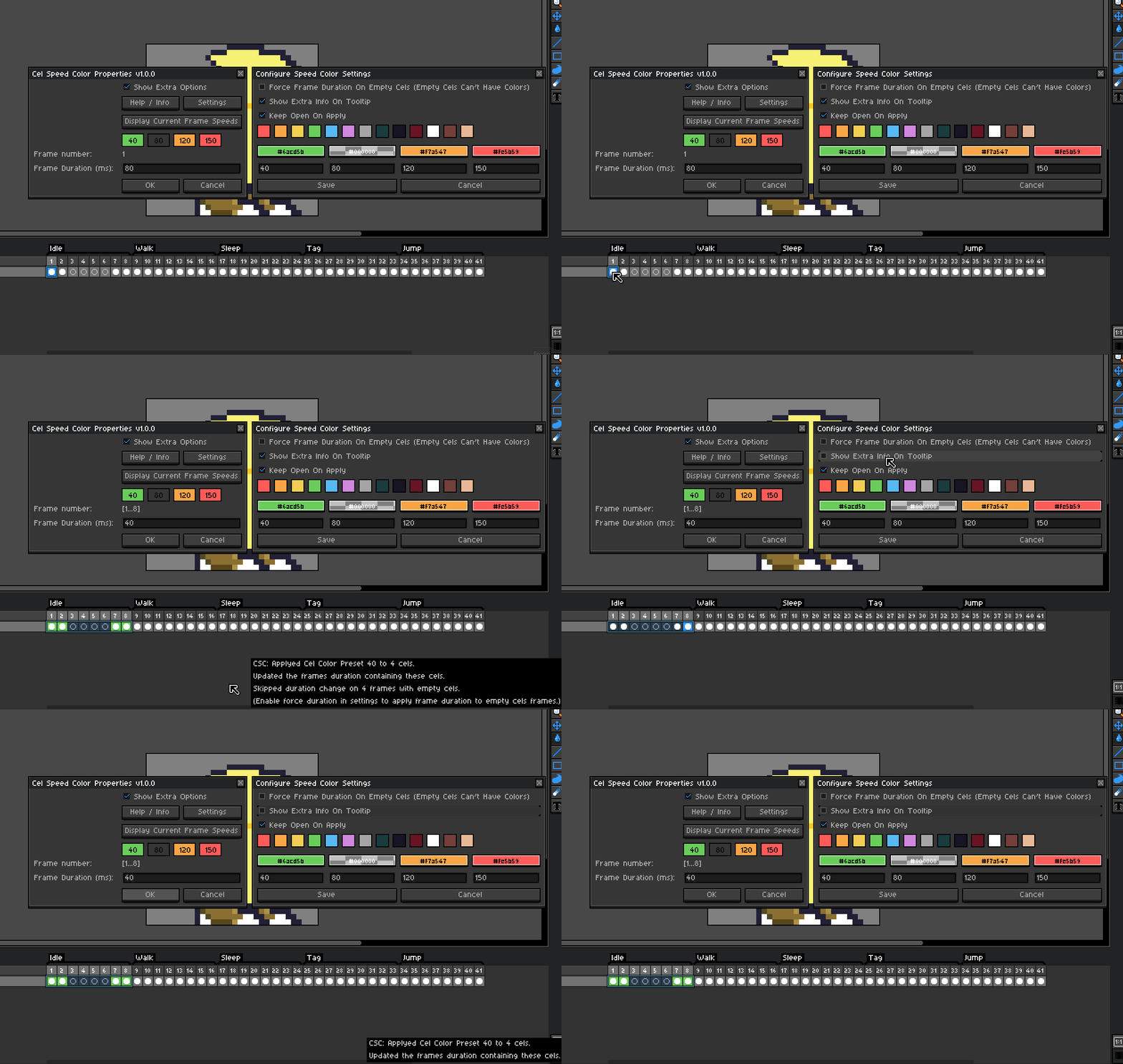
By default the tooltip will display extra info such as any cels skipped or frames durations that had been forced. This setting can be turned off to show a much more simplified tooltip.
Update / Show Frame Speed Overview
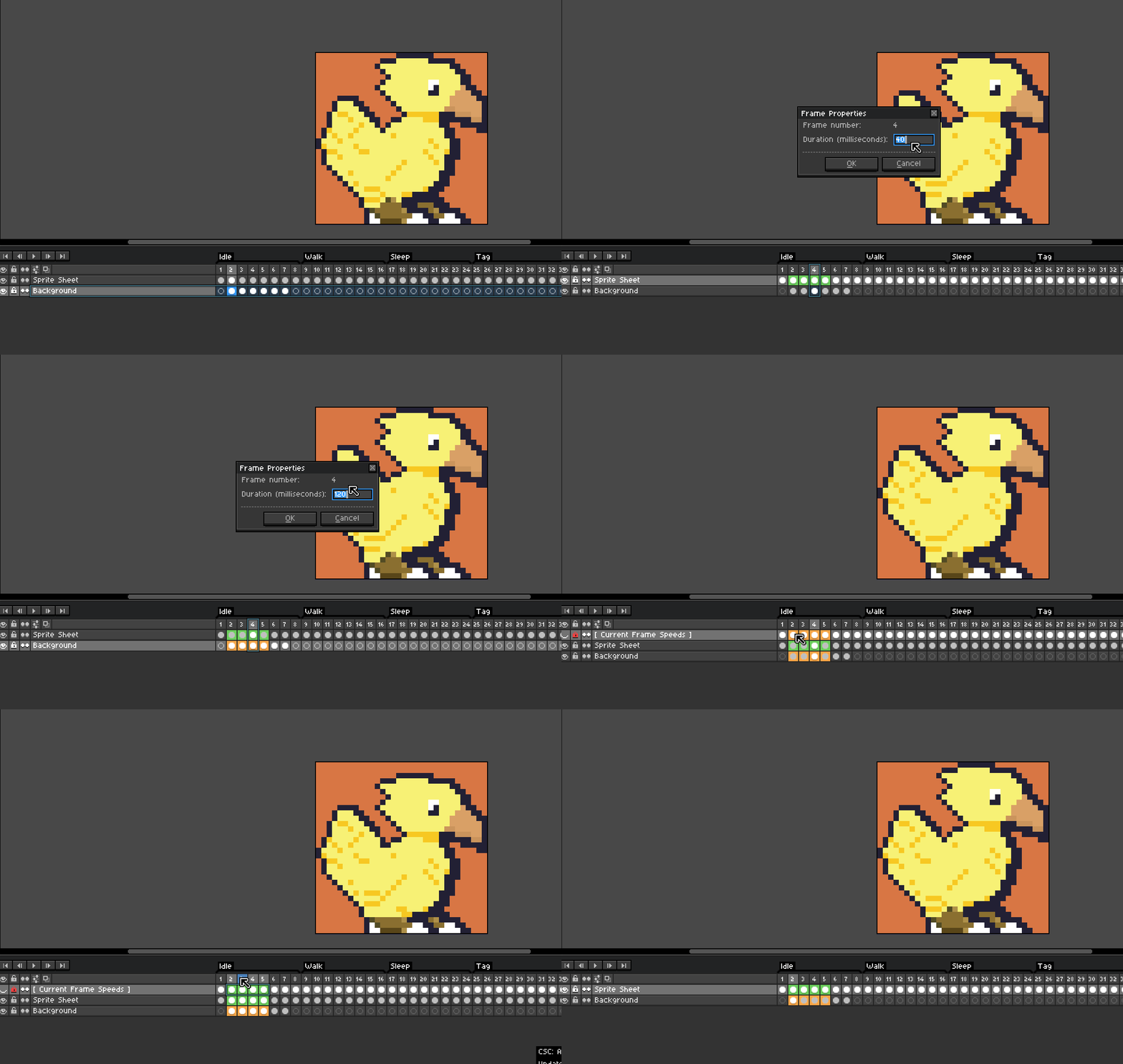
Creates / updates a layer which displays all the current frame durations by marking each cel with the preset colors. This can be useful if a frames duration is set manually or if a cels colors have been changed on multiple layers. The layer will show the most up to date and current frame speeds. This was added as a sort of sanity check as frame durations are globally set, meaning each cel on a frame will always have the current frame duration.
Print All Current Frame Speeds
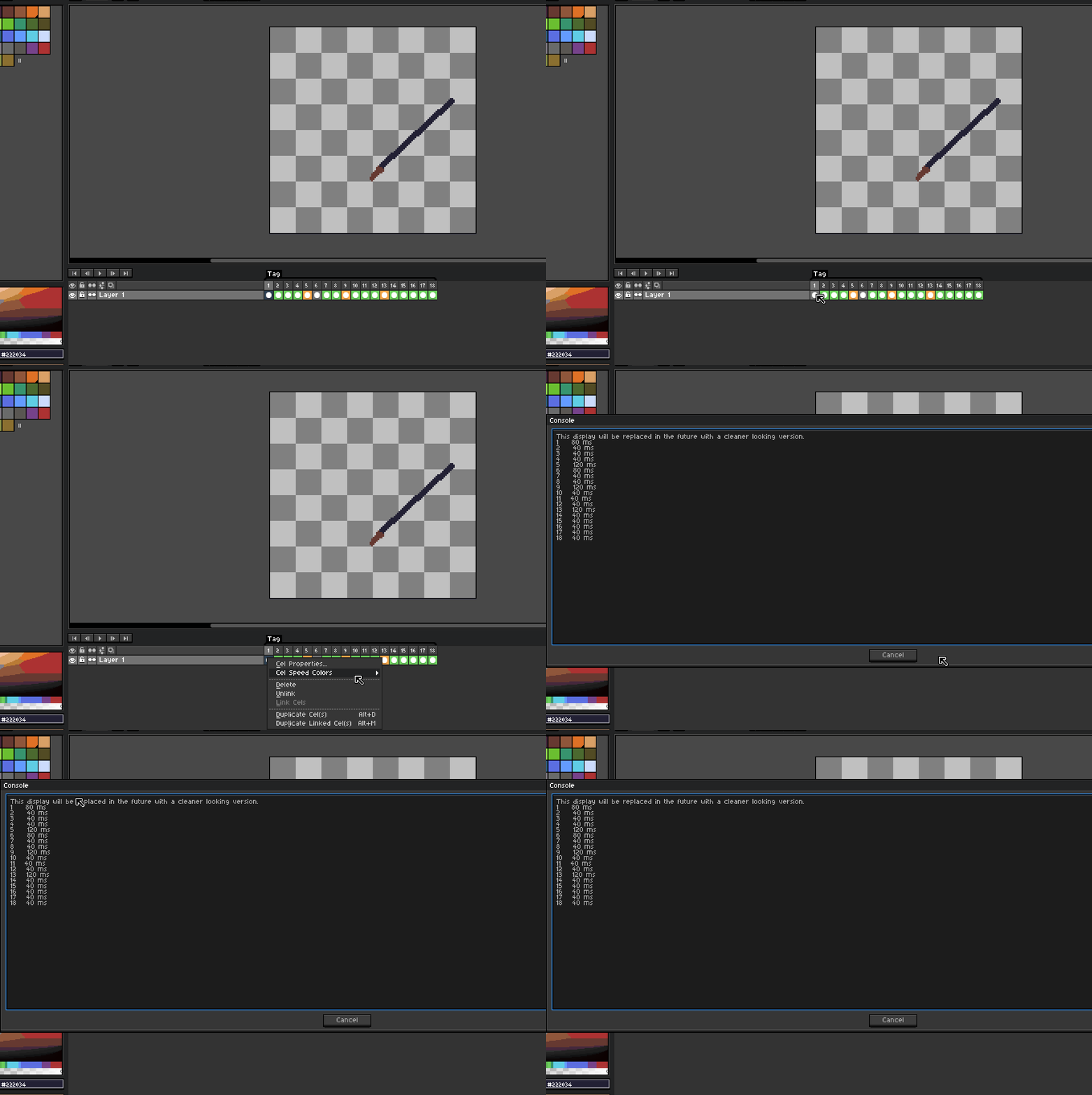
A quick print out of all the frame speeds can be accessed by selecting “Print All Current Frame Speeds” in the right click menu. This is a temporary print out that will be updated in the future to it’s own formatted (and evenly spaced) dialog. I have included it for this release as it was requested by W111nd and it was mentioned that it could be quite helpful when working with files that contain many different frame durations / speeds and it would be nice to see everything all at once.
Recommended Hotkeys
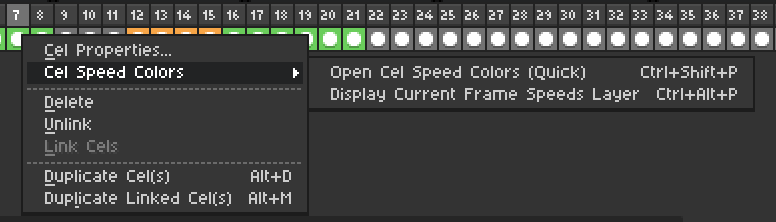
Hotkeys can be set under Edit>Keyboard Shortcuts and searching for these commands. Currently have mine set to the above shown for easy access.
Download Link: Cel Speed Colors By CarbsCode
Announcement Video: View Here
Full Overview & How To Use Video: View Here