Download Link: Extra Layer Options by CarbsCode
Announcement Video:View Here
Full Overview & How To Use Video: View Here
Extra Layer Options or ELO for short is an extension for Aseprite that adds additional features pertaining to layers. Features such as selecting, moving masking and even displaying the current layer. Many features also support single layer, multiple layers and grouped layers. Check out everything down below!
Select Options
Select Layer Contents
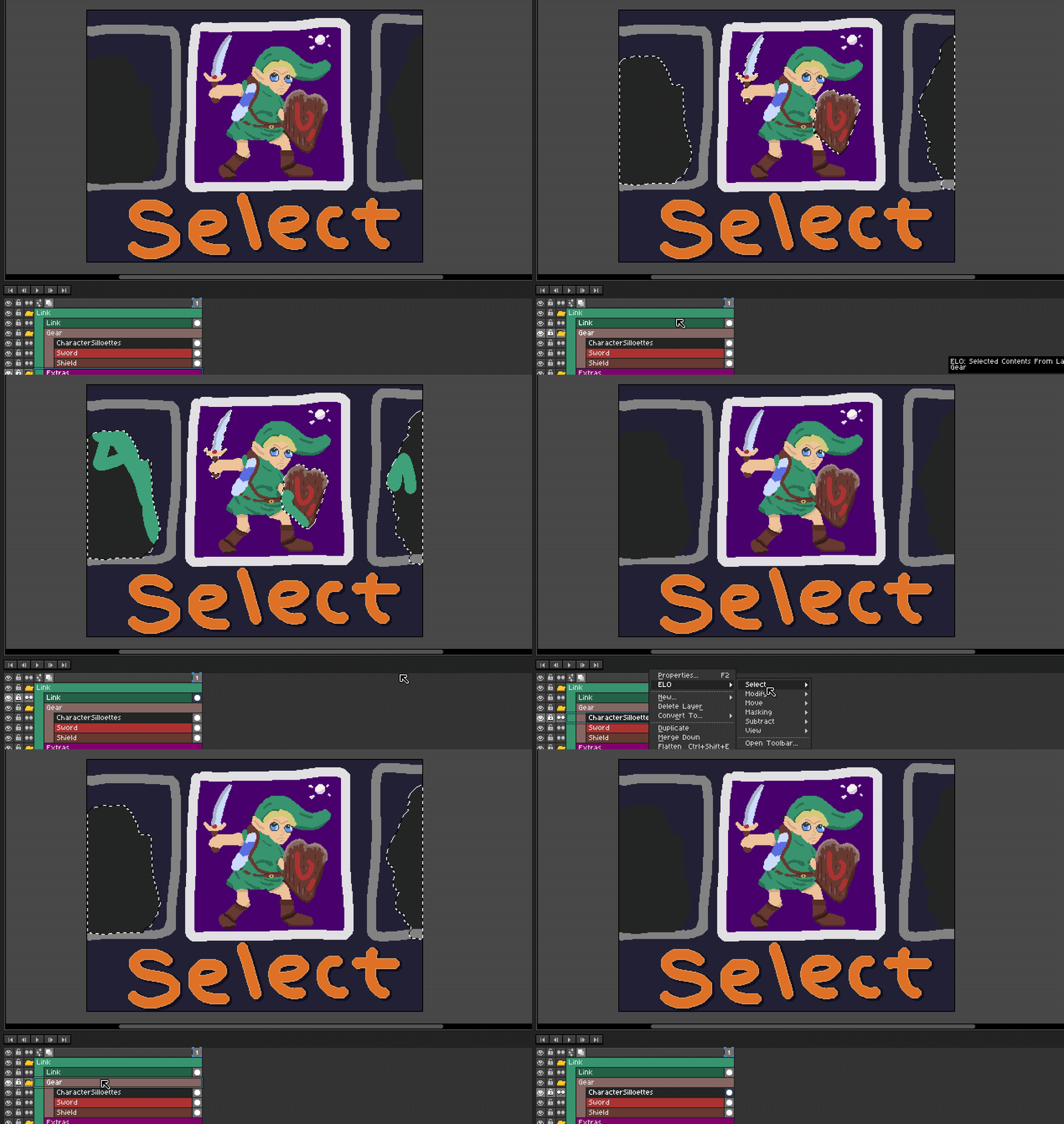
Select the contents of a single layer, multiple layers or even grouped layers with this feature. It operates much like when ctrl clicking on a cel but with a slightly easier way to do so. This feature comes with the ability to set a hotkey for even quicker access as well.
Select Content Layers (Inversed)
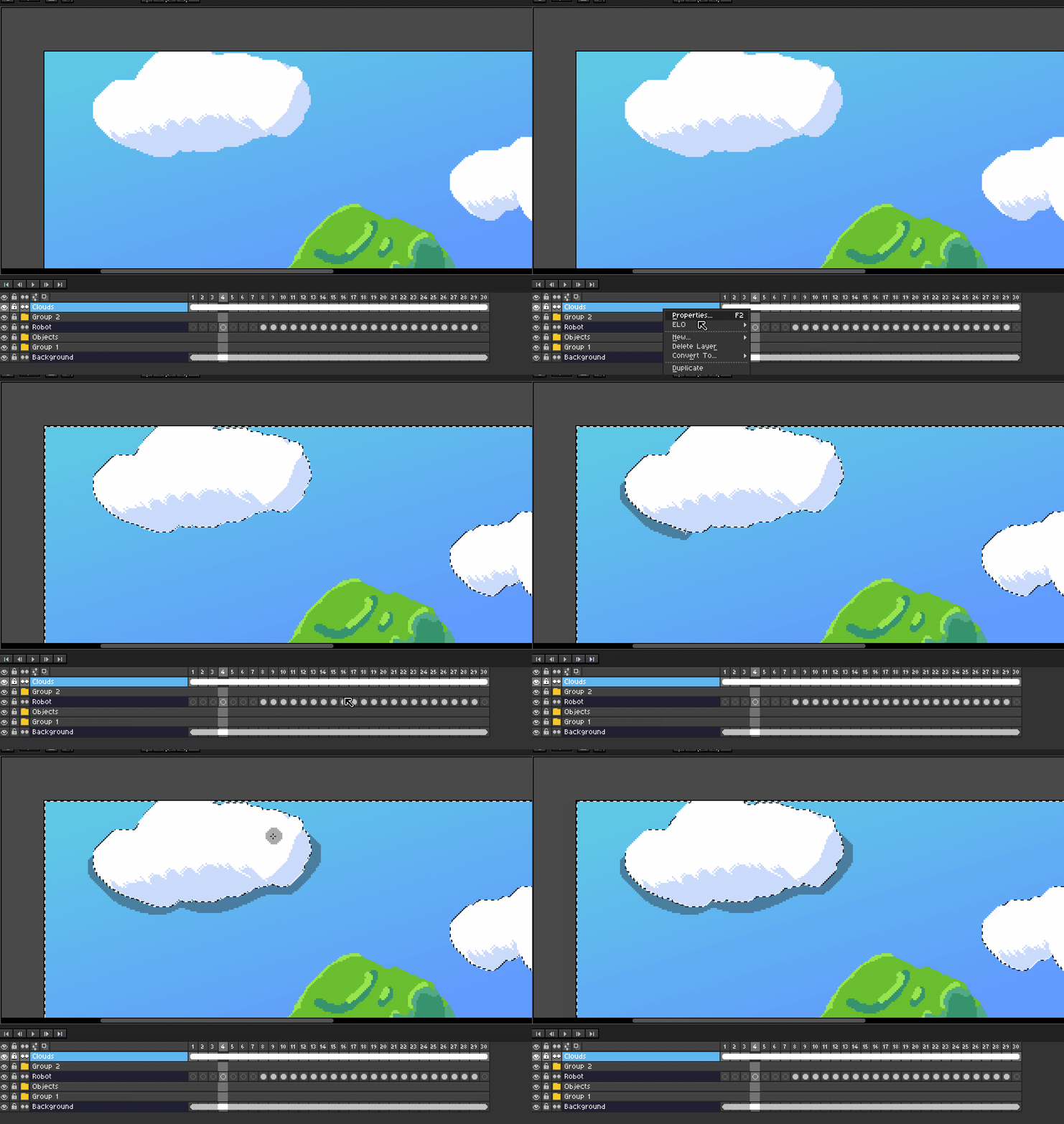
Selects content from all selected layers / groups of layers and then will automatically inverse the selection.
Select Content From Layer Above / Below
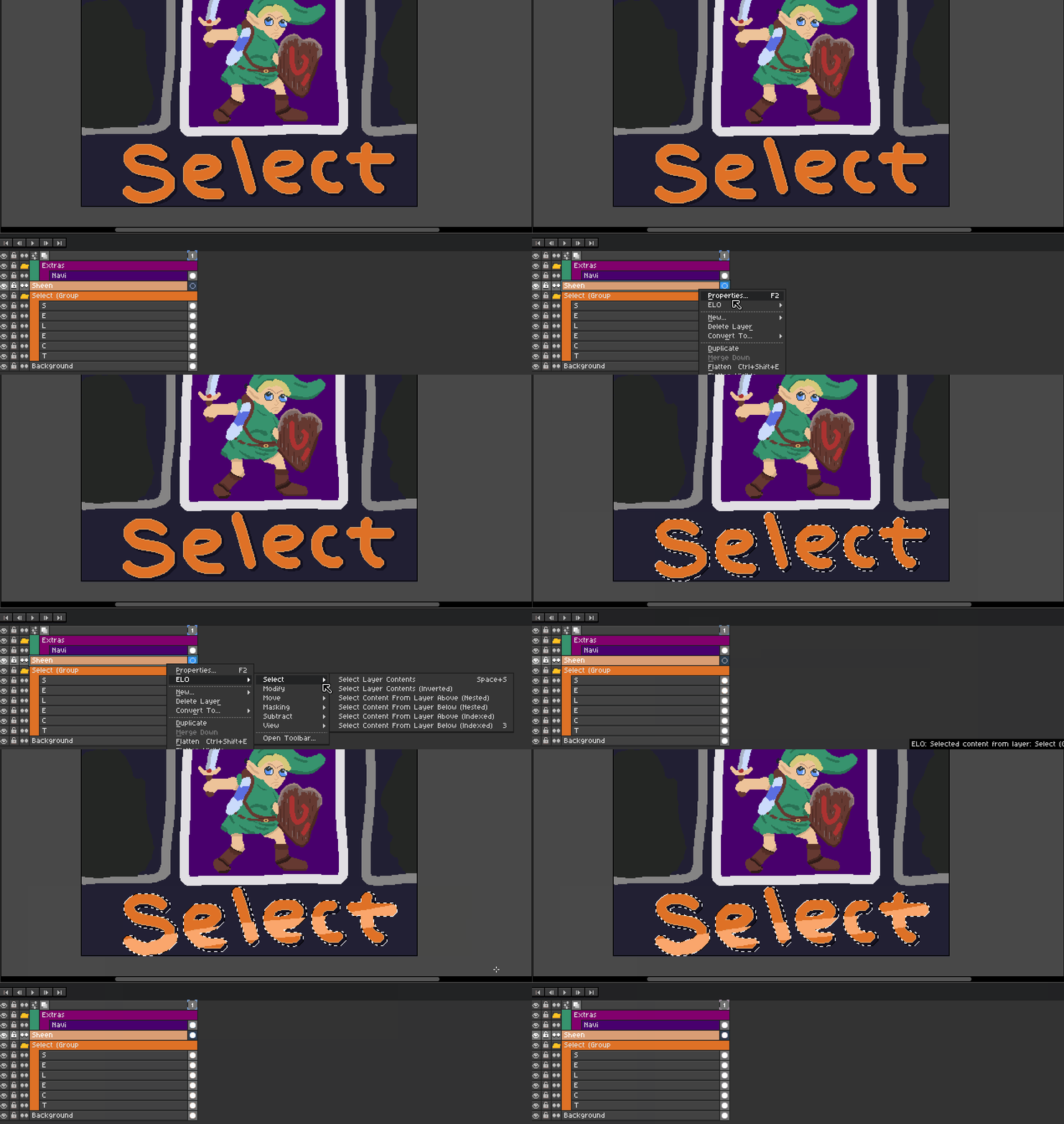
When selecting content from another layer either above or below the current layer this feature will keep you drawing on the original layer while selecting another layers content area.
Nested mode will select from the layer directly above or below the current layer, this includes layers inside of a nested group.
Indexed mode will select layers in the same parent and skip over any nested layers inside of groups.
Modify Options
Clear Selected Layers
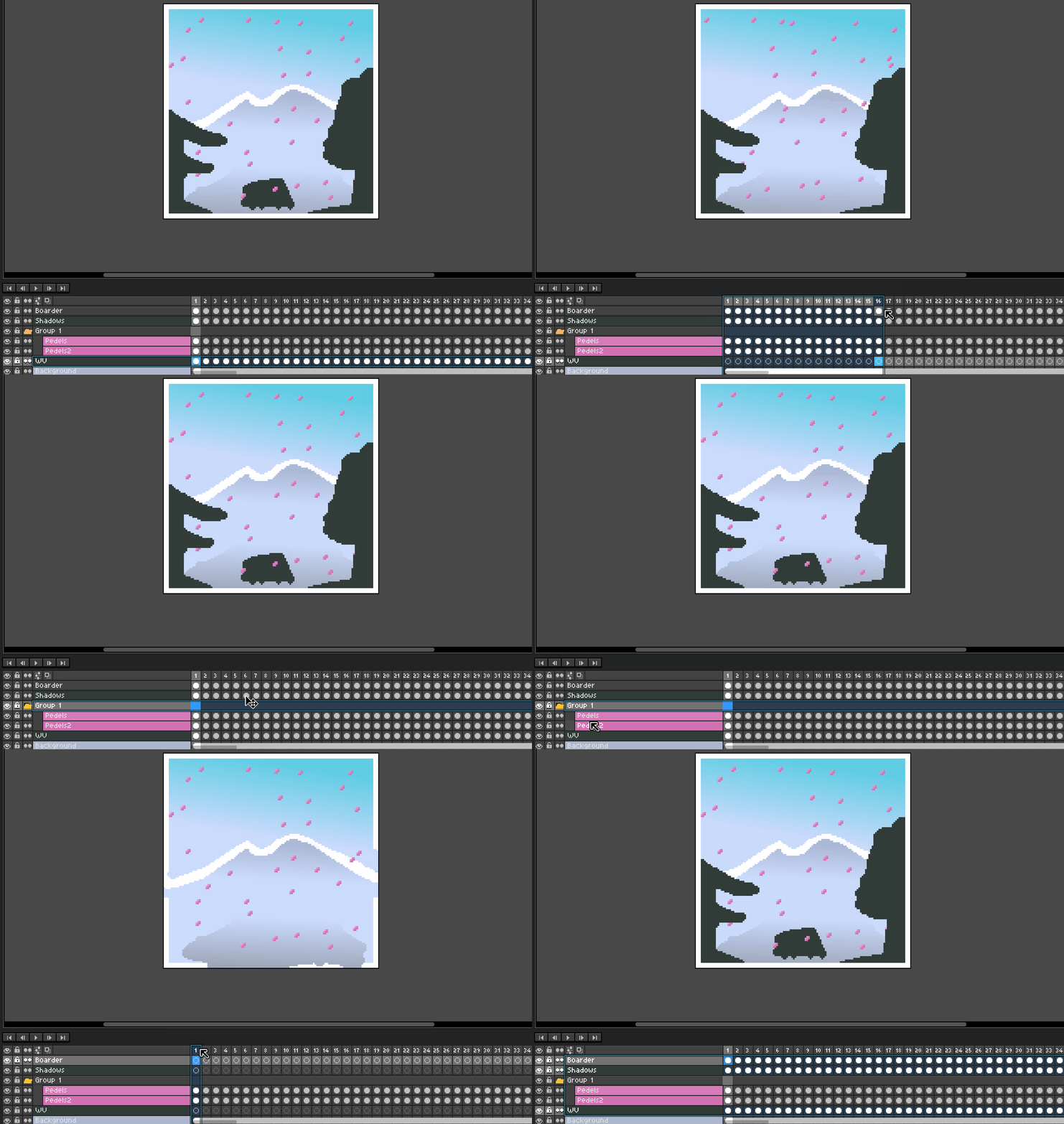
Clears all cels on the currently selected layers / groups of layers while keeping the layers intact.
Move Options
Merge Selected Layers Up/Down
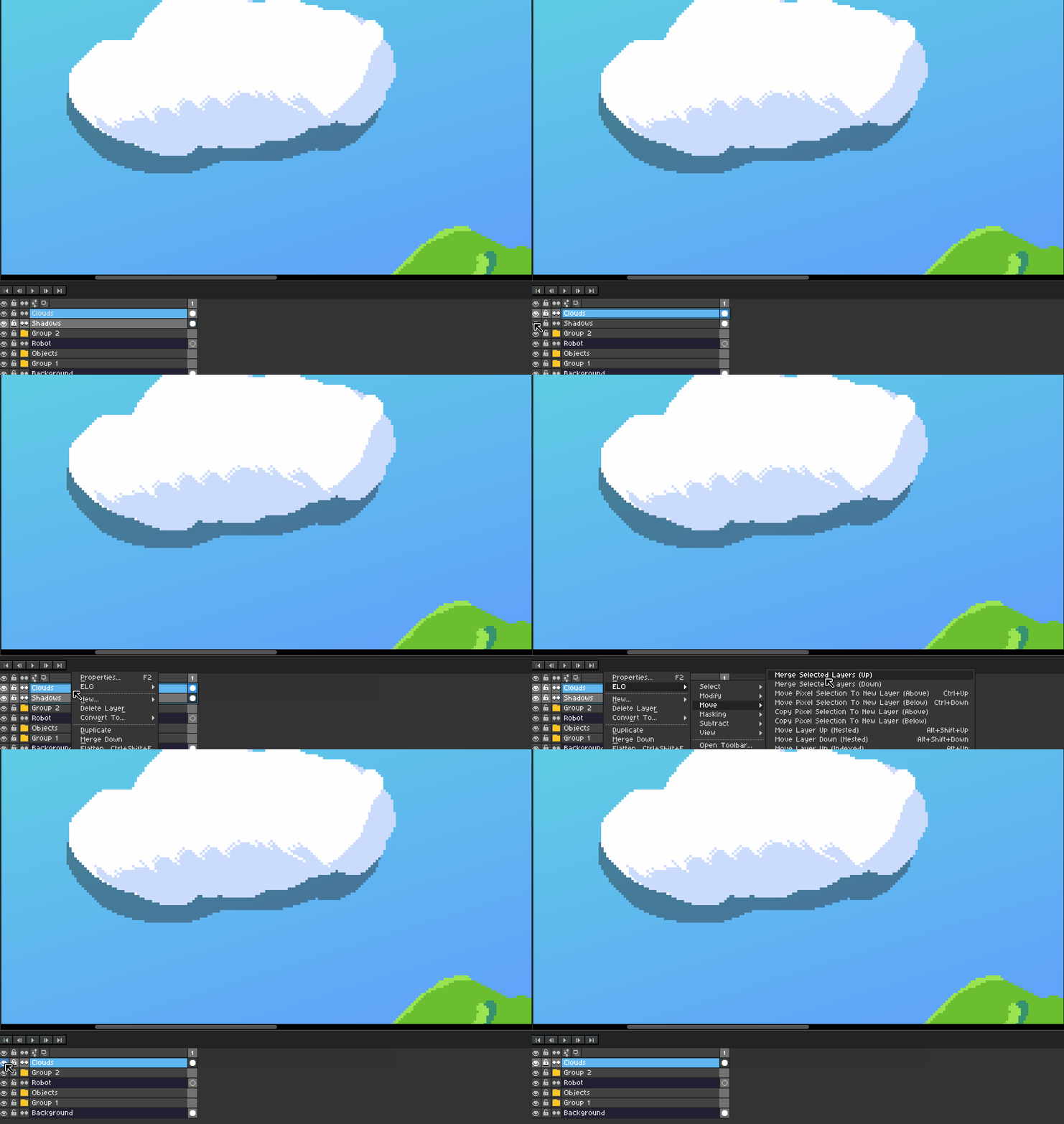
Combines multiple layers and even groups in to a single layer while keeping the name and color of the layer.
When merging up the top most layer name and color is kept.
When merging down the bottom most layer name and color is kept.
Copy Pixel Selection To New Layer Above / Below
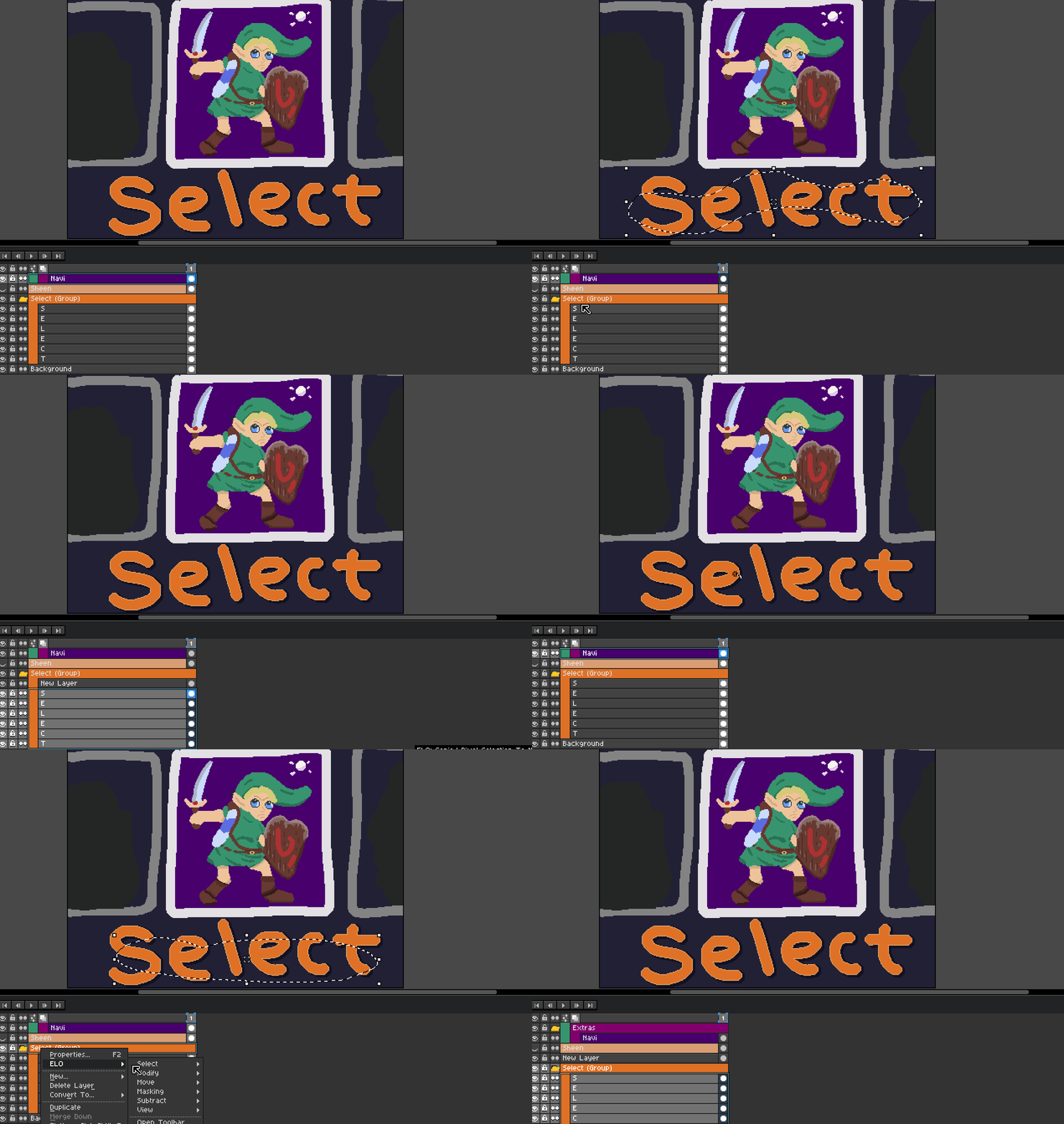
Creates a new layer and copies pixels in the current selection from all selected layers and/or groups.
Move Pixel Selection To New Layer Above / Below
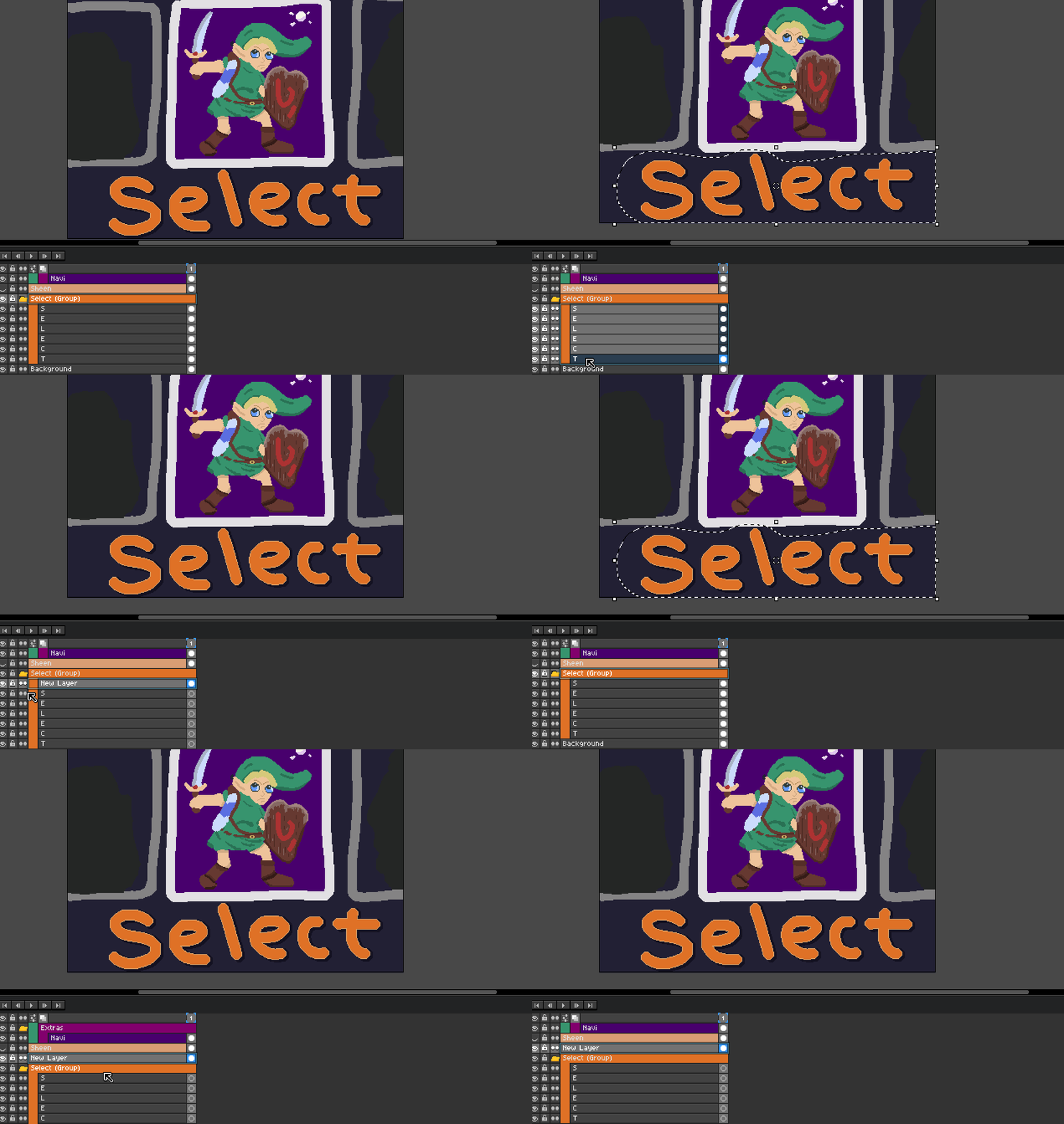
Creates a new layer and moves pixels in the current selection from selected layers and/or groups.
Move Layers Up / Down
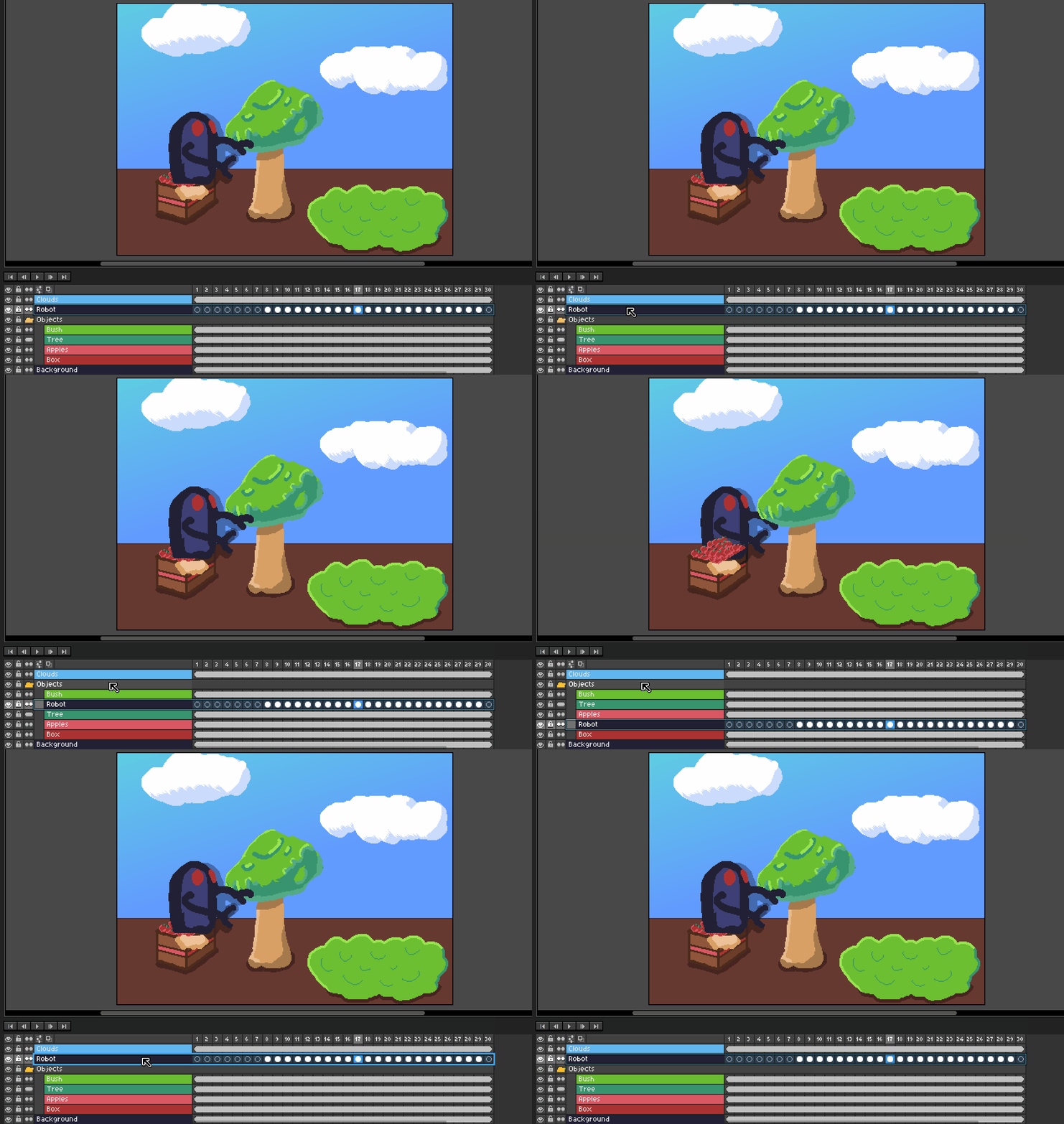
Nested Mode - Layers will move directly above or below including in and out of nested groups layers. (Recommended Hotkey: Alt+Shift + Up/Down Arrows)
Indexed Mode - Layers will move in relation to there parent layer and not go in and out of groups layers. (Recommended Hotkey: Alt + Up/Down Arrows)
Masking Options
Mask Content Using Layer Above / Below
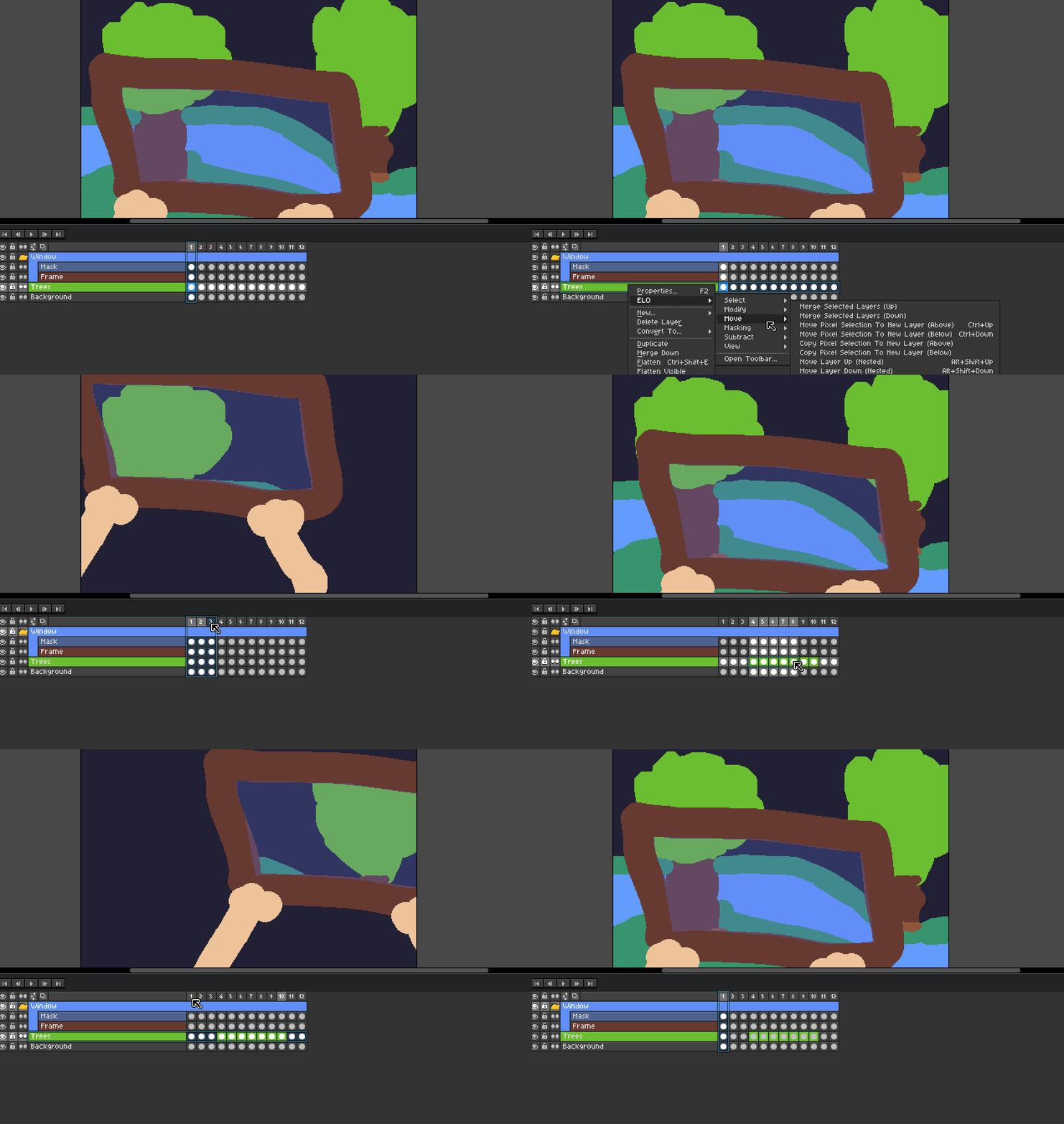
Includes / keeps any pixels that appear in the pixel selection both on each selected layer and the mask layer.
Nested Mode - The layer used for masking will be the first layer directly above or below the highest selected layer or group. This layer selection will include nested layers inside of groups.
Index Mode - The layer used for masking will be the first layer above or below the highest selected layer or group. This layer will only reference layers and groups within the same parent and skip nested layers.
*Note On Masking / Subtraction Cel Selection:
If a layer group or multiple layers are selected all cels in those layers will have the mask/subtraction applied.
If a single cel or multiple cels on the same frame using single or multiple layers are selected mask / subtraction is applied only to those cels.
If a multiple cels are selected, in any number of layers (non-grouped), only those cels will have the mask/subtraction applied.*
Subtract Options
Subtract Content Using Layer Above / Below
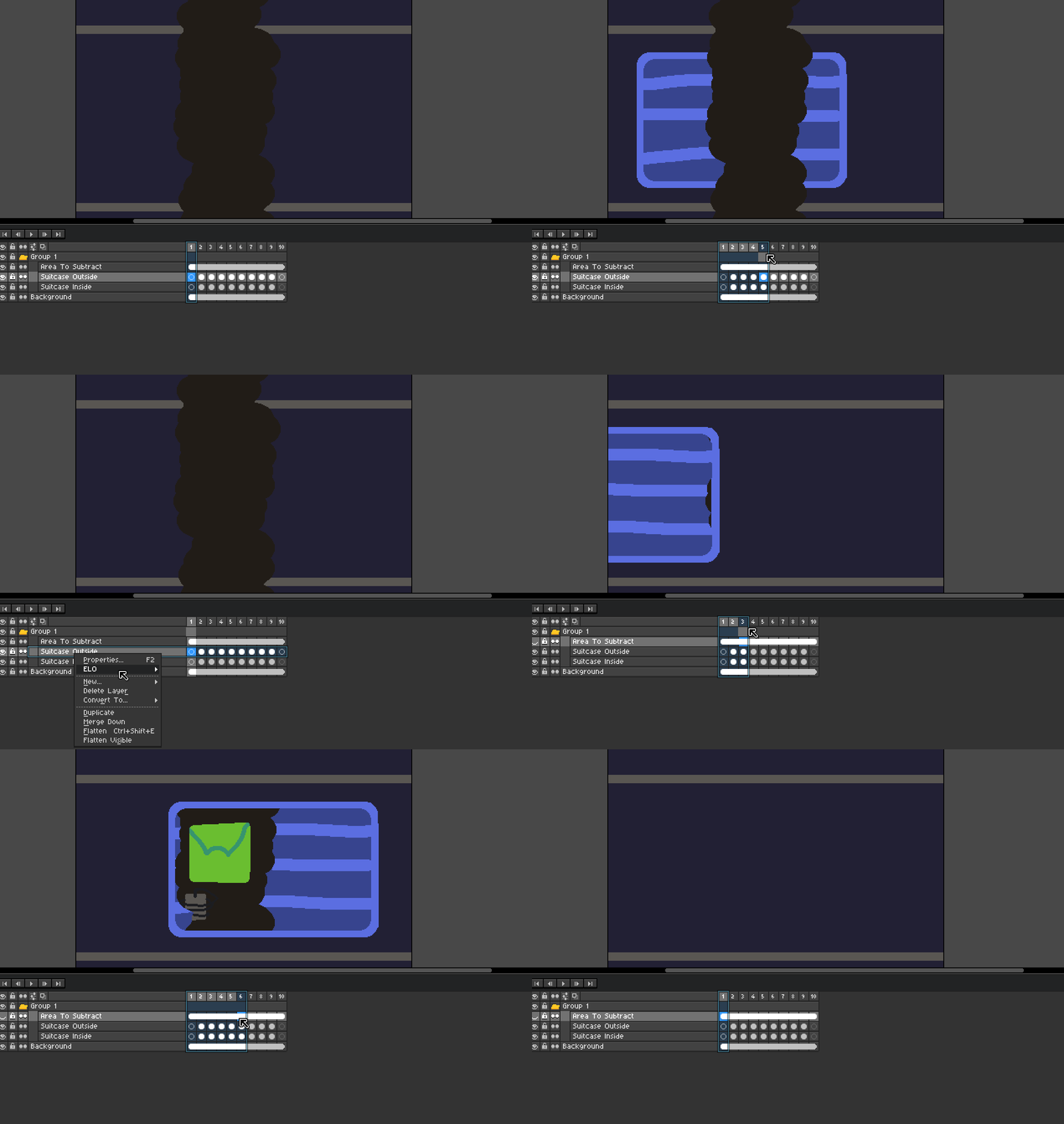
Excludes / discards any pixels that appear in the curent selection on each selected layer and the mask layer.
Nested Mode - The layer used for subtracting will be the first layer directly above or below the highest selected layer or group. This layer selection will include nested layers inside of groups.
Index Mode - The layer used for subtracting will be the first layer above or below the highest selected layer or group. This layer will only reference layers and groups within the same parent and skip nested layers
*Note On Masking / Subtraction Cel Selection:
If a layer group or multiple layers are selected all cels in those layers will have the mask/subtraction applied.
If a single cel or multiple cels on the same frame using single or multiple layers are selected mask / subtraction is applied only to those cels.
If a multiple cels are selected, in any number of layers (non-grouped), only those cels will have the mask/subtraction applied.*
View Options
Solo Selected Layers Visibility
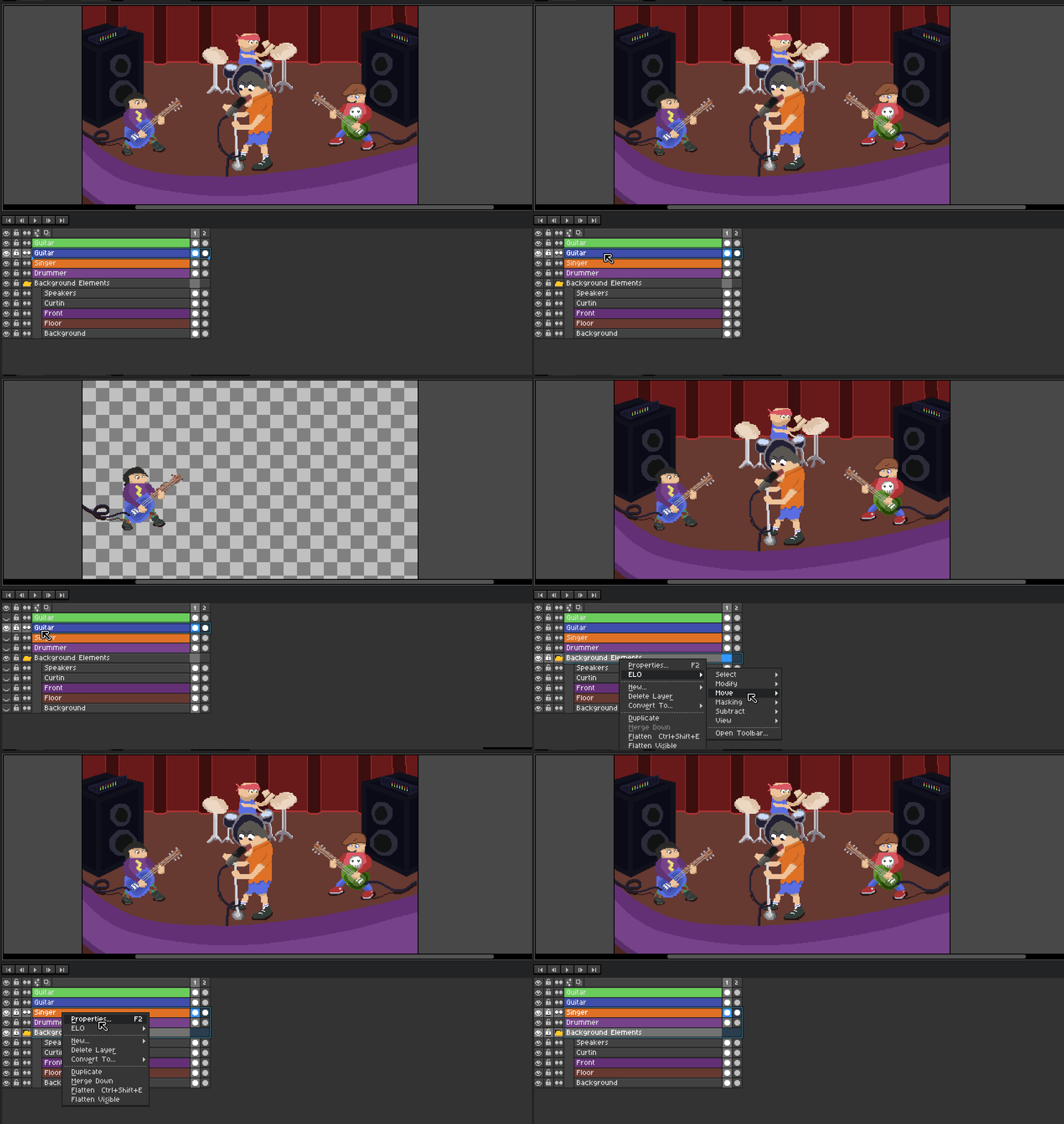
Hides all layers excluding the currently selected layers and /or groups.
Popout Current Layer Display
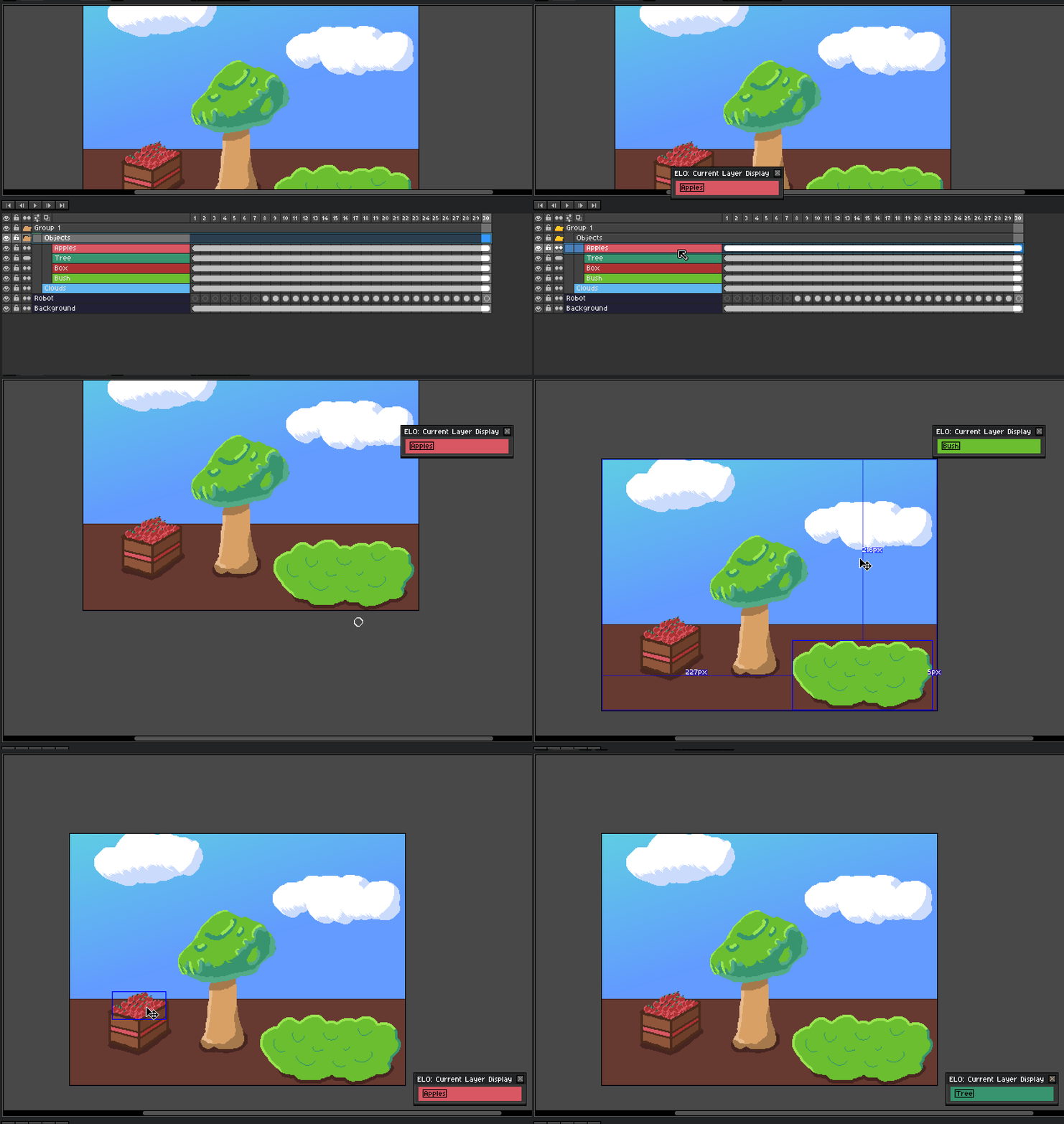
Creates a simple floating dialog that shows and updates the currently selected layer. This display will also show the layers color for even faster reference.
Download Link: Extra Layer Options by CarbsCode
Announcement Video:View Here
Full Overview & How To Use Video: View Here