Download Link: Thinky Blobs On Itch.io
Announcement Video: Announcement / Trailer Video
Full Overview Video: Full Overview & How To Use Video
Have you ever looked up at the clouds, a painted wall, or maybe even looked at a tile on the floor and started to think “oh look that looks like something.” Perhaps when you point it out to someone else they see something completely different?
This is what Thinky Blobs is all about! Thinky Blobs chooses random points on the canvas and draws lines between each point and then fills in the shape to make a unique looking blob. The goal is to look at the blob and get creative by pixeling / drawing over what you might see.
Everything is done via math and randomness and I am a strong believer that the creative should be left in human hands so of course no slop used for the creation of this tool or even how it works! (Just like all of my tools in fact) (Its a shame I even have to put this here but as the tool creates shapes I figured I should include it just incase, ugh timeline)
The tool is meant to be quite fun and can be used to help give a little inspiration especially if your feeling stuck and not sure what you want to draw. It also can be used as a fun challenge, perhaps a channel point redeem on stream even?
Thinky Blobs also has a built in system to copy and paste the last used settings which is aimed at sharing or saving blobs you enjoy! Again this could be fun to do in your community as a neat challenge.
Very excited to see what everyone does with this and what you all are able to create.
Let’s get inspired… no wait INKspired!
Thinky Blobs requires Aseprite version 1.3.13 or newer
(1.3.15 or newer recommend for full functionality)
At it’s core it may seem like a very simple tool but there are many ways to use it and even some advanced options to increase its flexibility too. All that is needed is a bit of imagination and creativity!
Excited to see which shapes you take on and what you all are able to make from them.
To get started I’ve included two simple buttons for you to try.
Add Ink Blob and Re-Spill Ink Blob
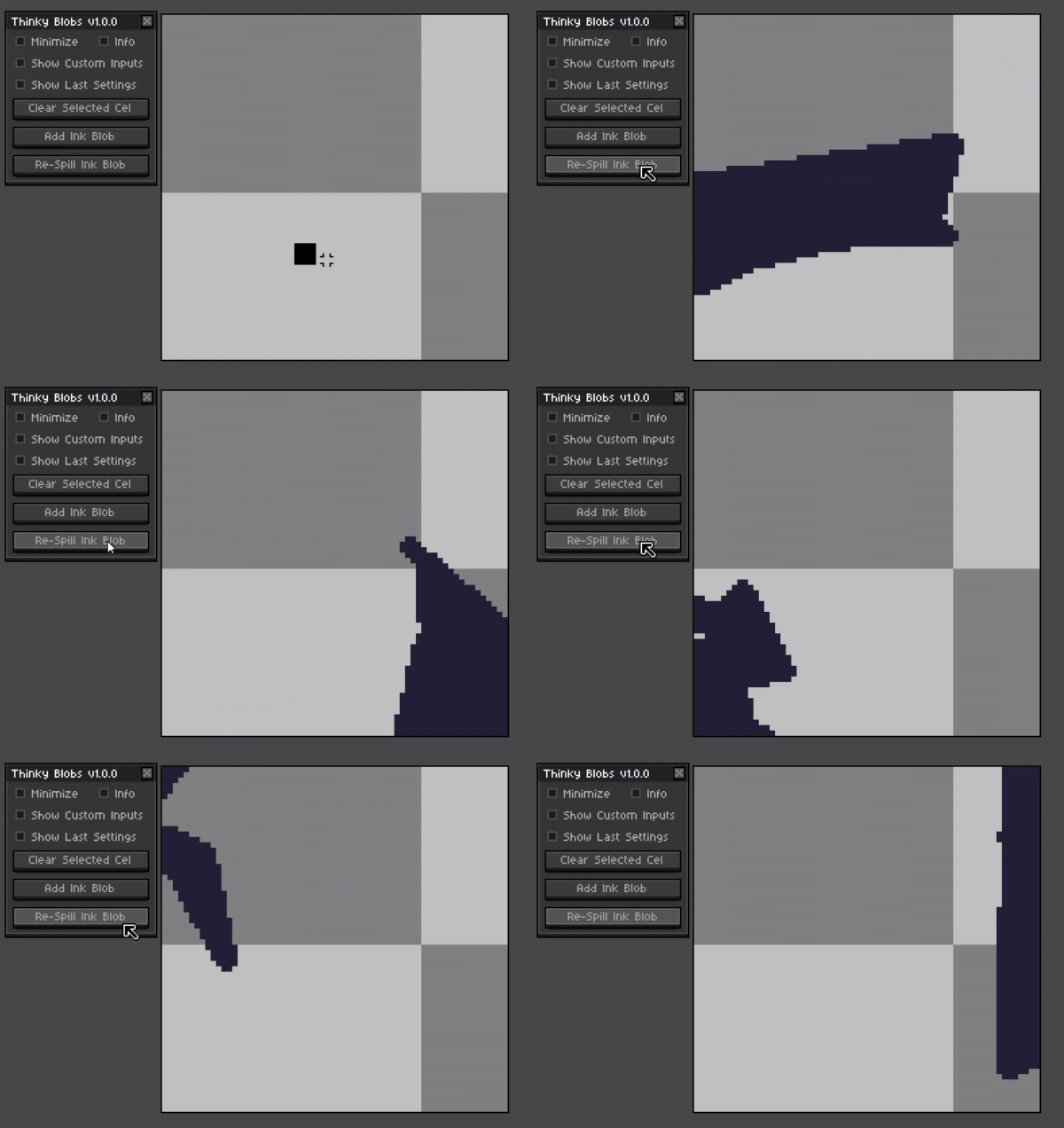
With these you will be able to place a shape on the canvas with the default settings if the first shape doesn’t catch your eye then you can simply press the re-spill ink to try another shape.
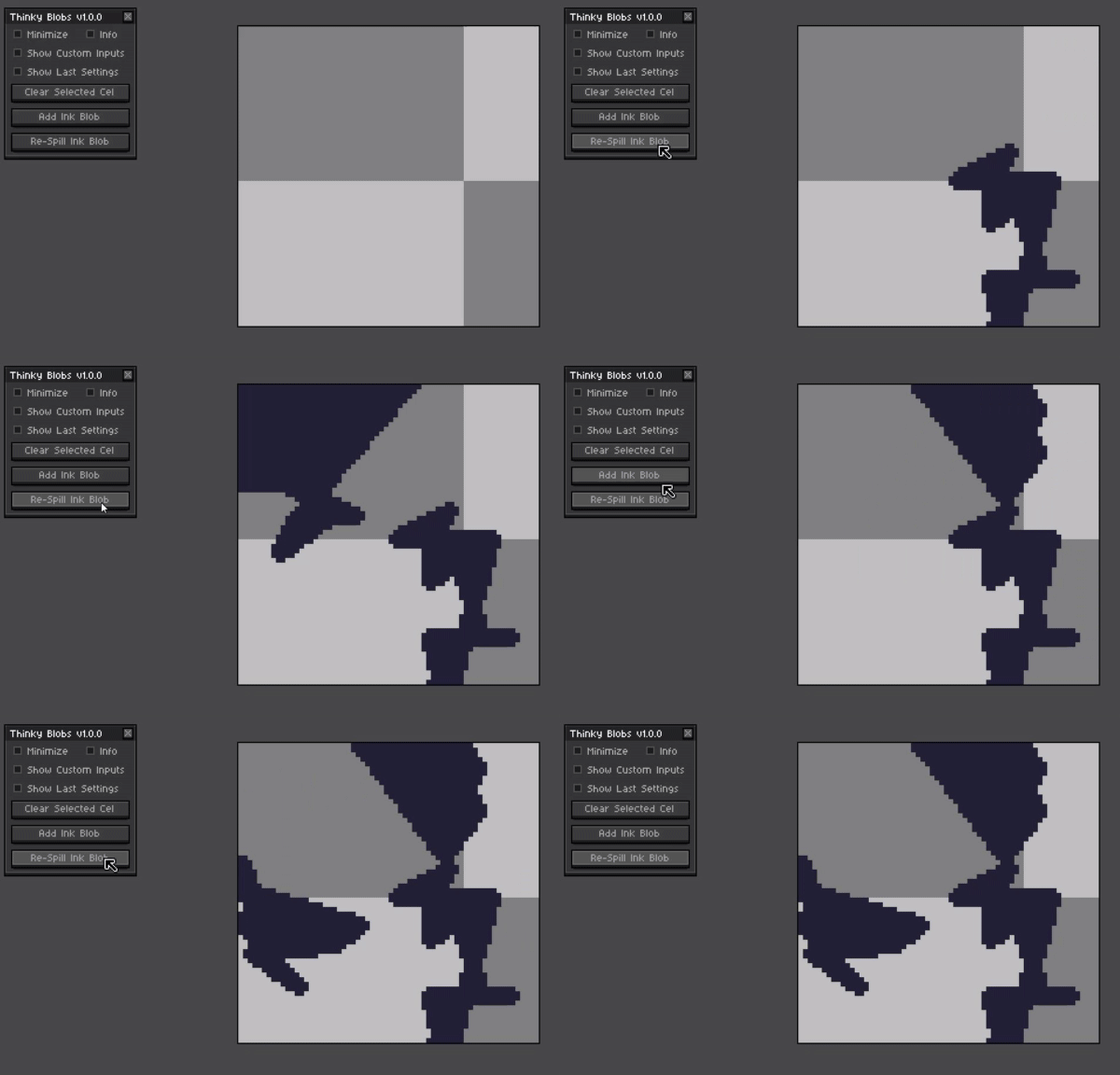
Multiple shapes can also be added to the canvas so feel free to experiment.
Interesting And Fun Ideas To Try
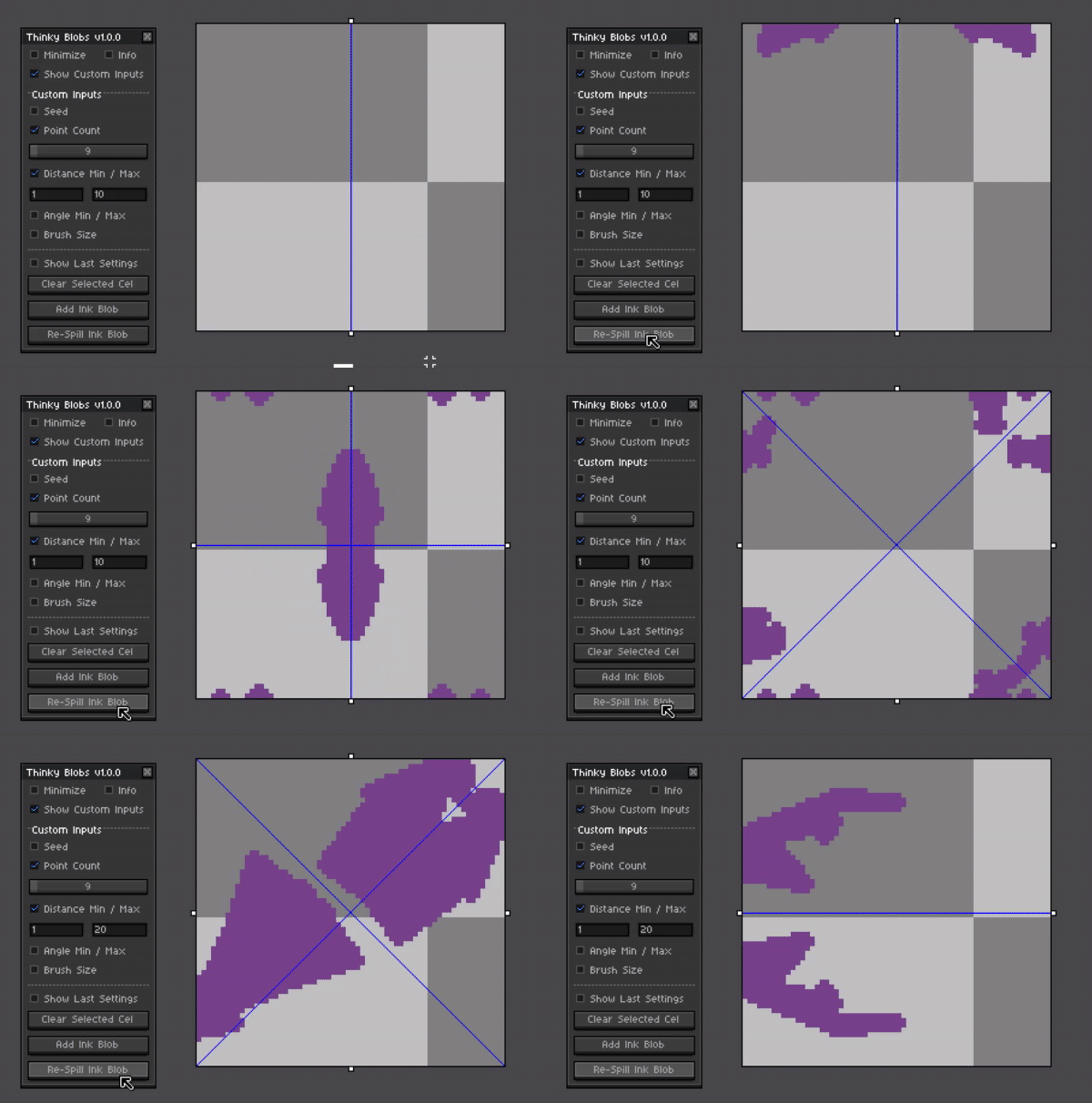
Try with symmetry
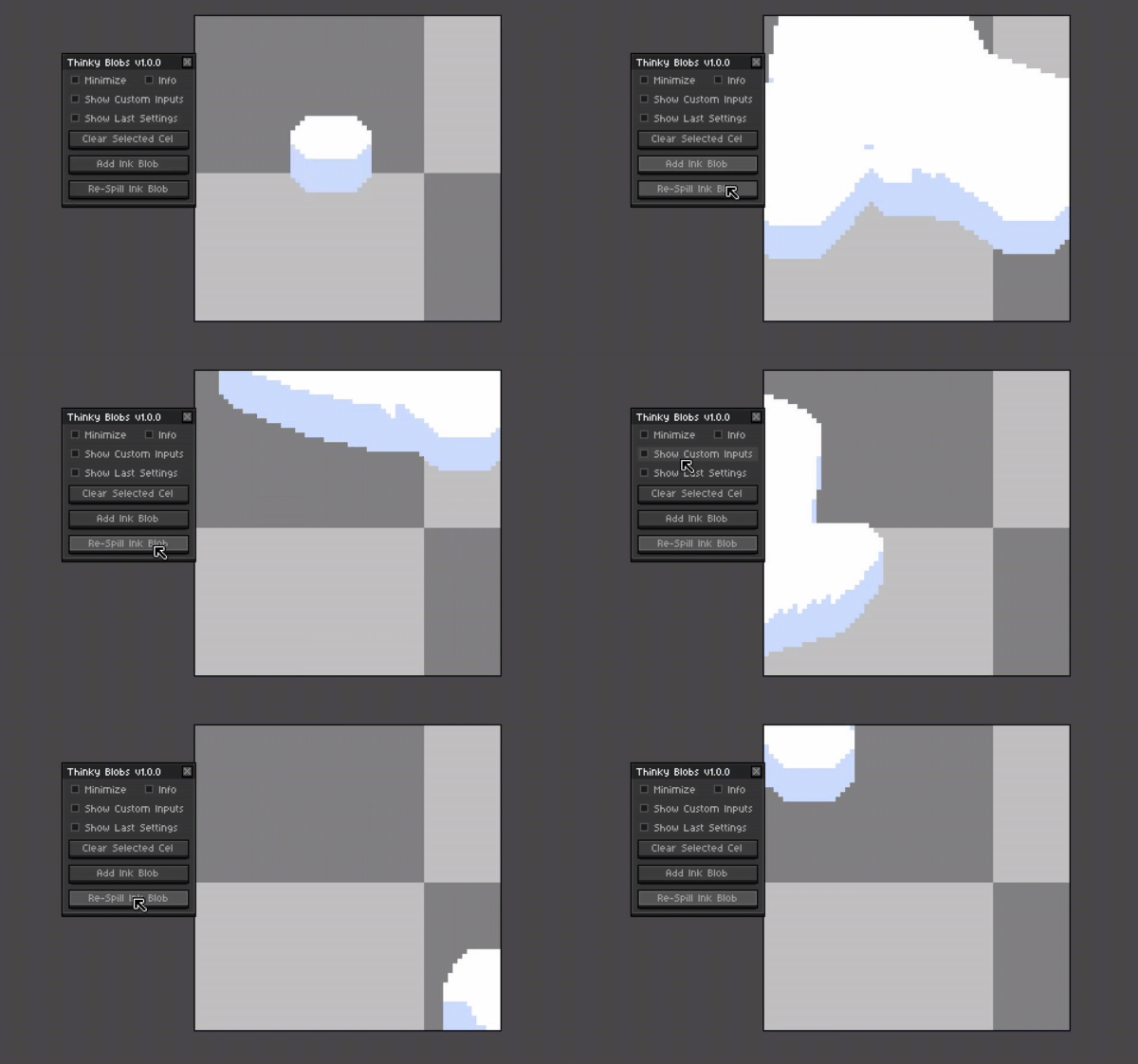
Try with custom brushes
Customizable Options
Blob Point Count
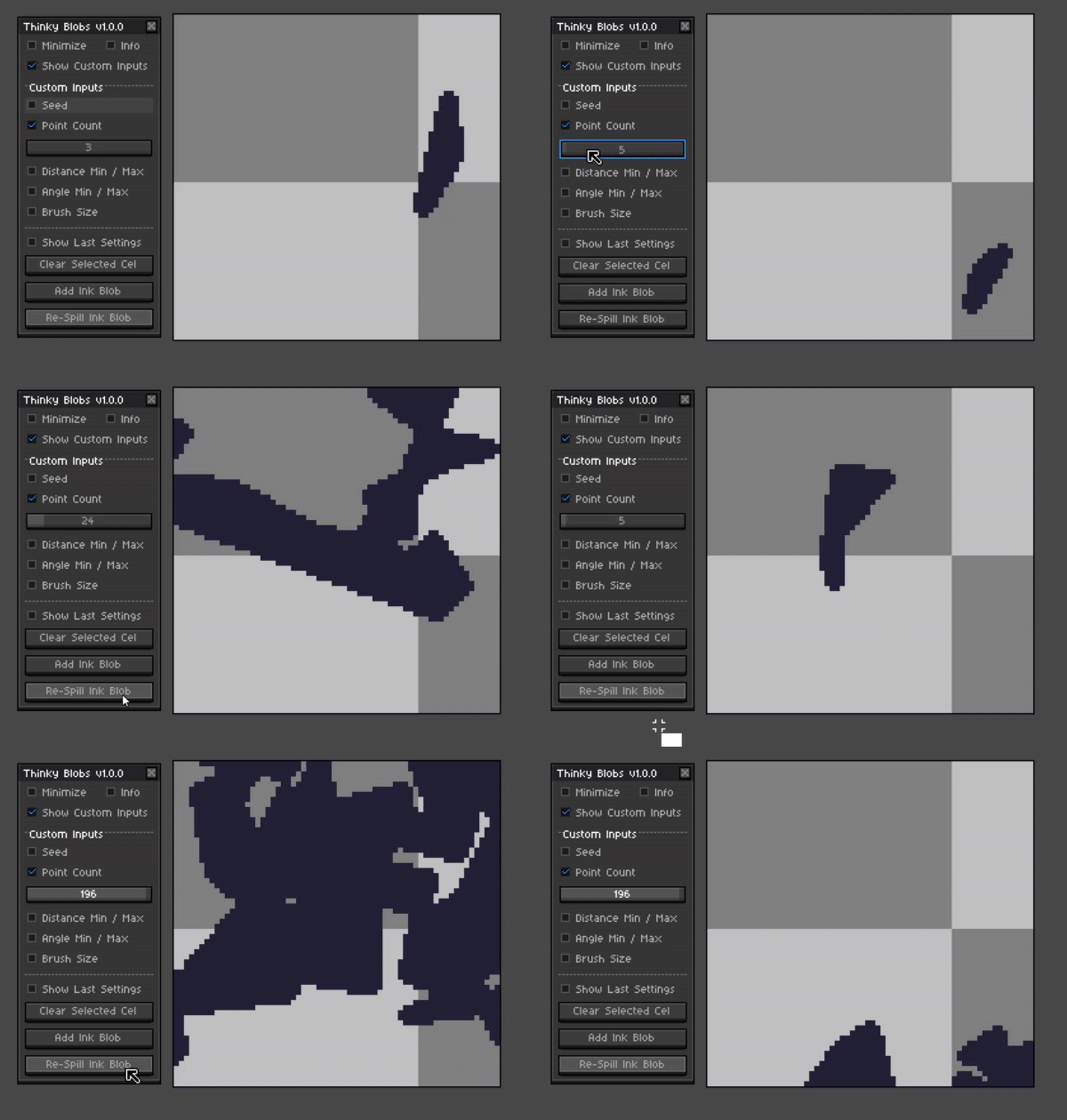
A lower point count will draw simpler shapes and fewer lines will be drawn when creating the shapes. Likewise a higher number will make more lines for the blobs. For each point a single connected line will be drawn. This is basically how many corners or sides are created when making the blob.
Min/Max Distance Between Points
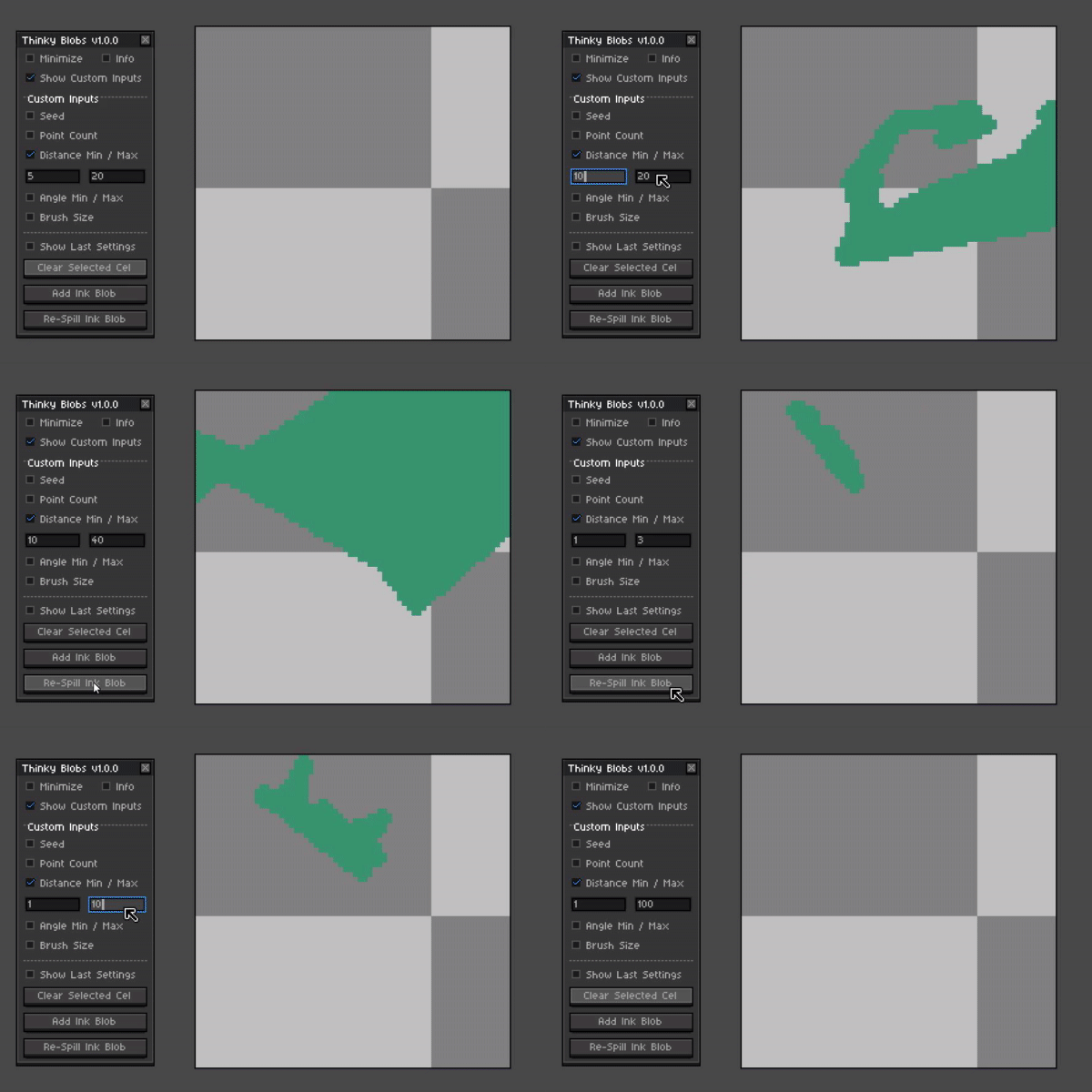
The Distance between each point when creating a line for the shape / blob. If both numbers are closer the shape will seem more consistent. Tinkering and experimenting with these numbers can create vastly different shapes.
Min/Max Angle To Next Point
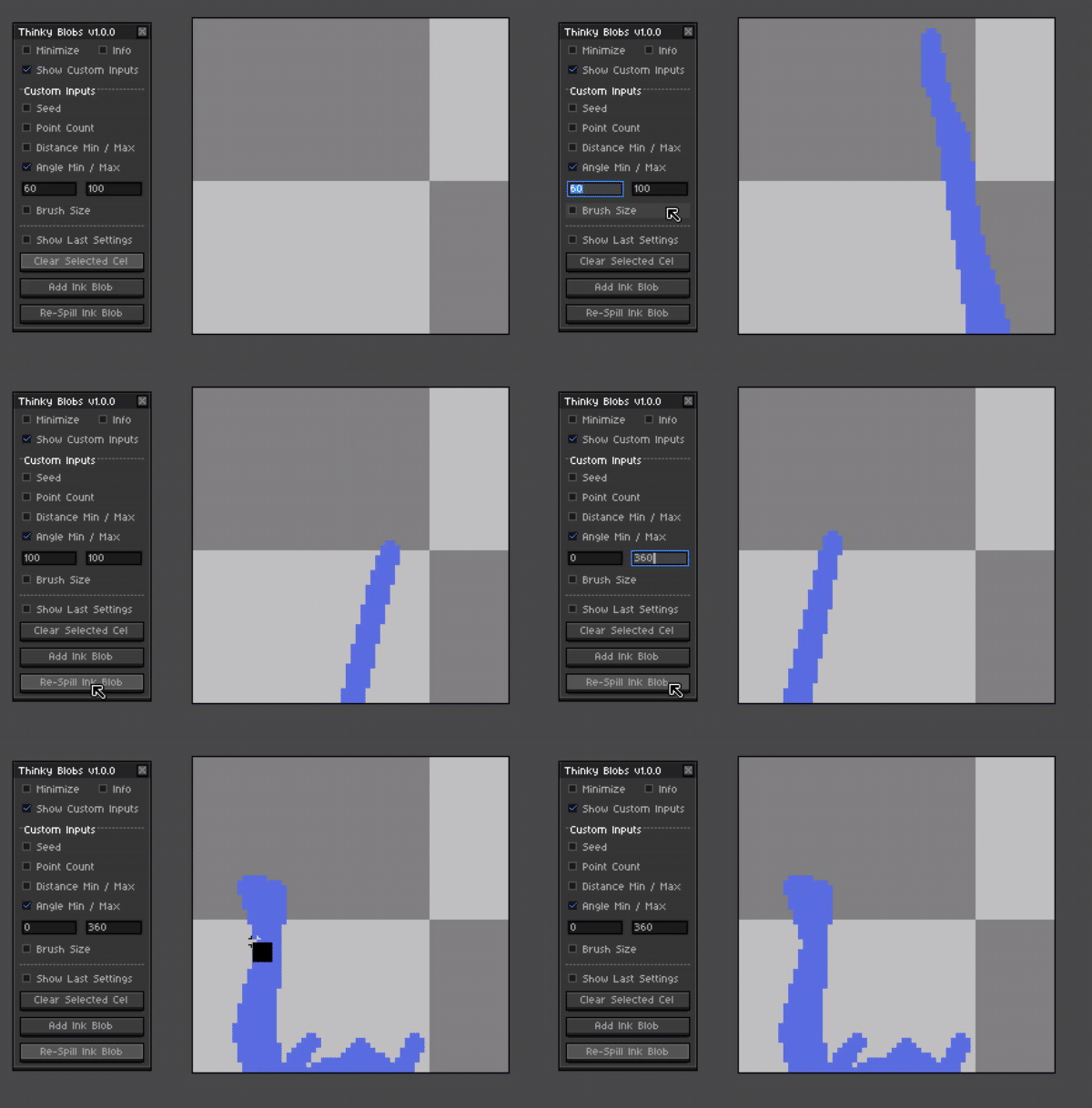
A minimum and maximum angle or direction that is selected for each line that makes up the blob. Setting the Min and Max angle closer to each other will make shapes that seem to go in mostly one direction.
Last Blob Settings (Copy And Paste)
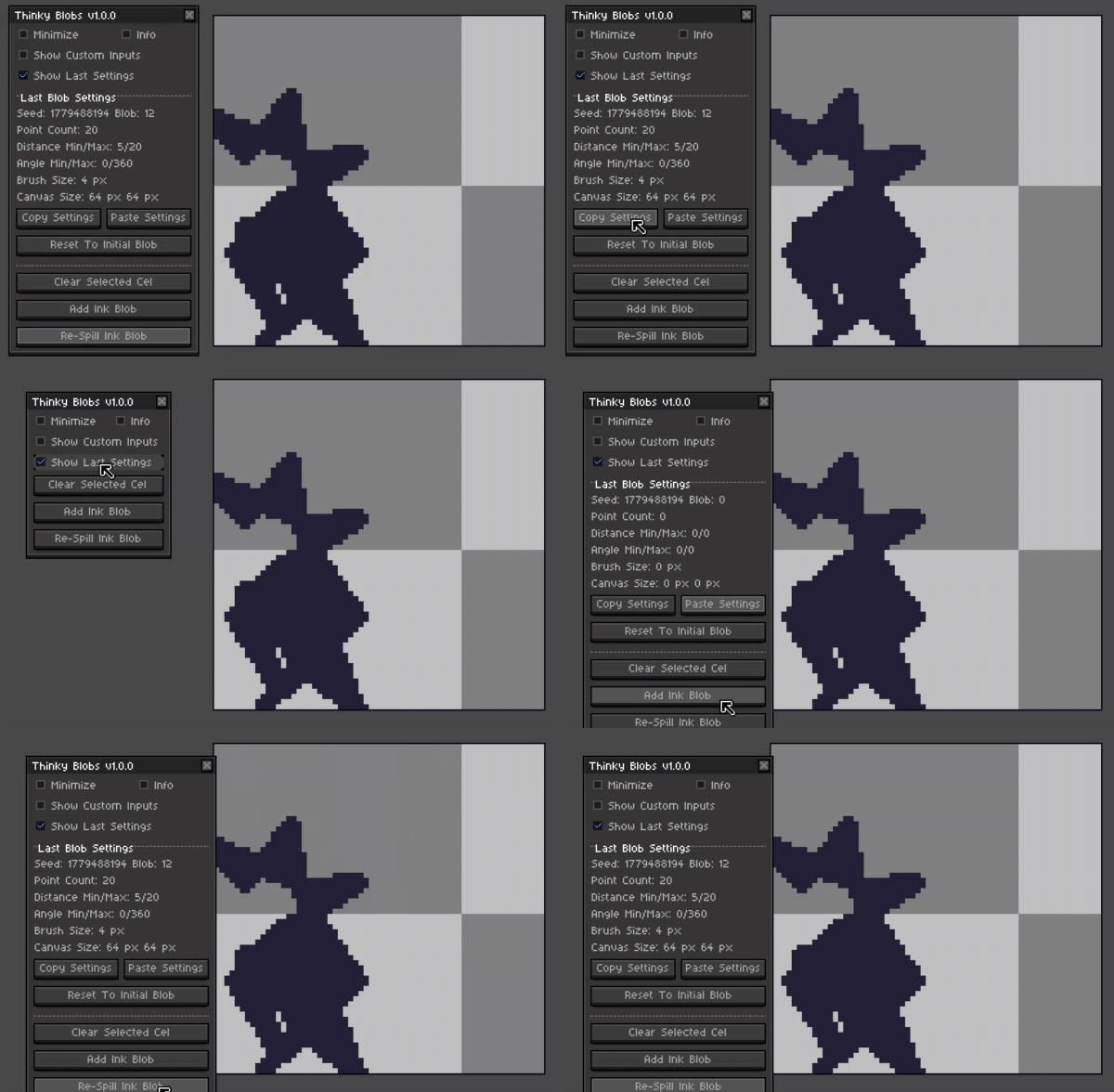
With the built in copy and paste settings buttons this will make it quite easy to share settings with friends. Keep note that the Blob number will reset so try to remember which number you had there when sharing so that others can re-spill up to that exact blob.
Reset To Initial Blob
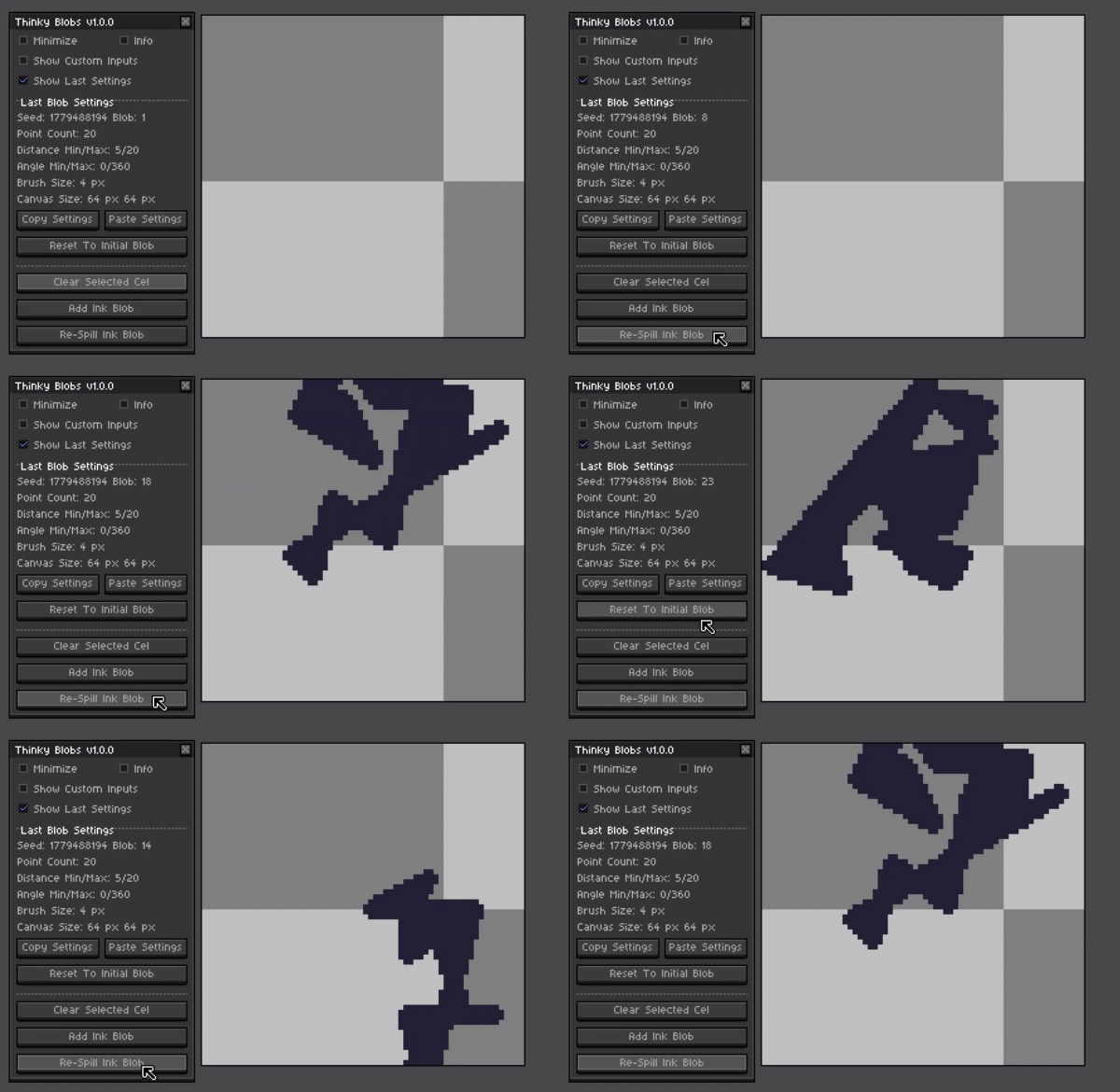
If you see a previous blob that you liked and want to get back to it you can reset the current blob counter to go back to it again.
Create New Blobs On Cel Layer Or Frame
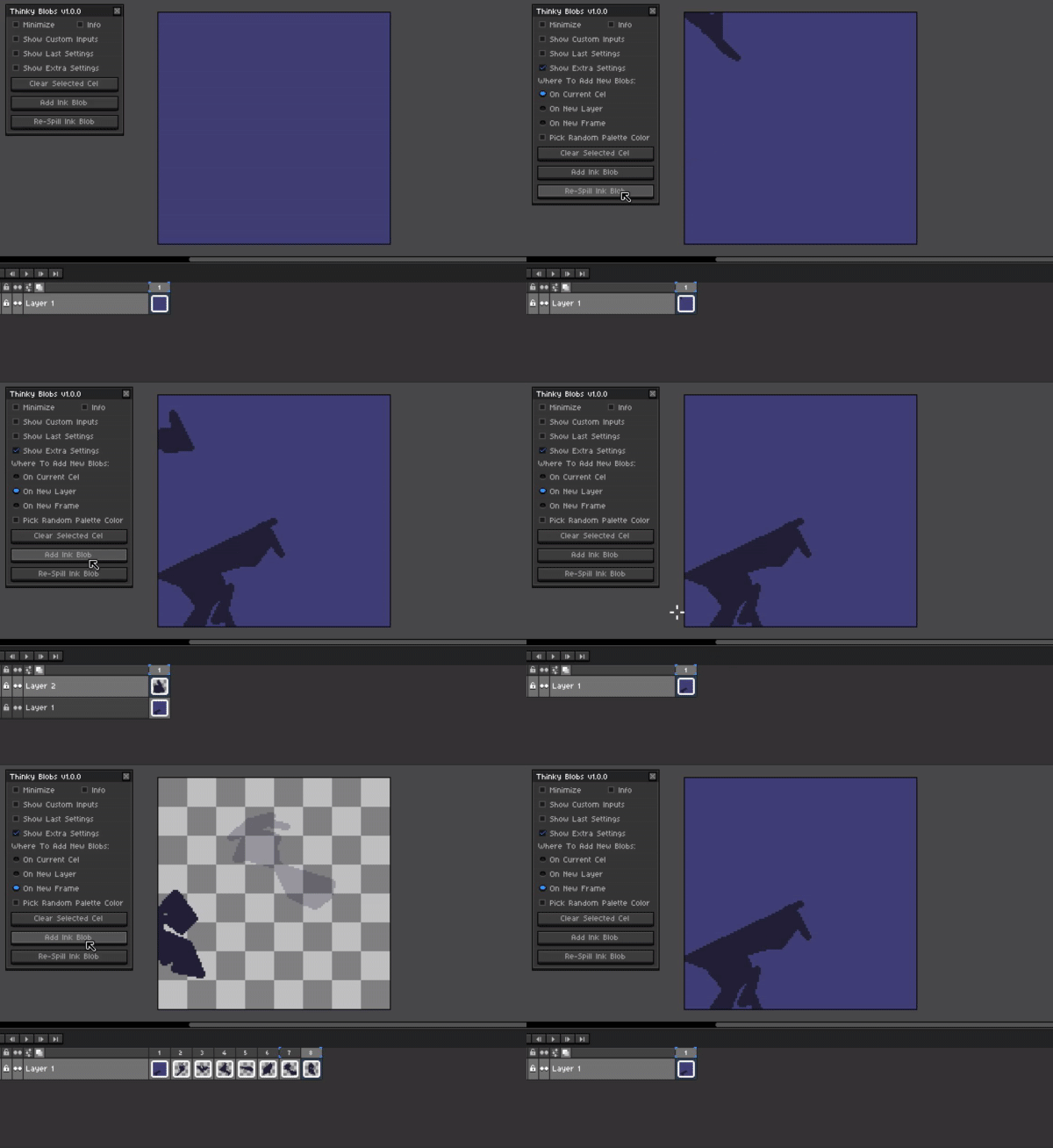
Choose where the next blob goes, either on the current cel, a new layer or even on a new frame for each new blob created.
Pick Random Colors For Next Blob
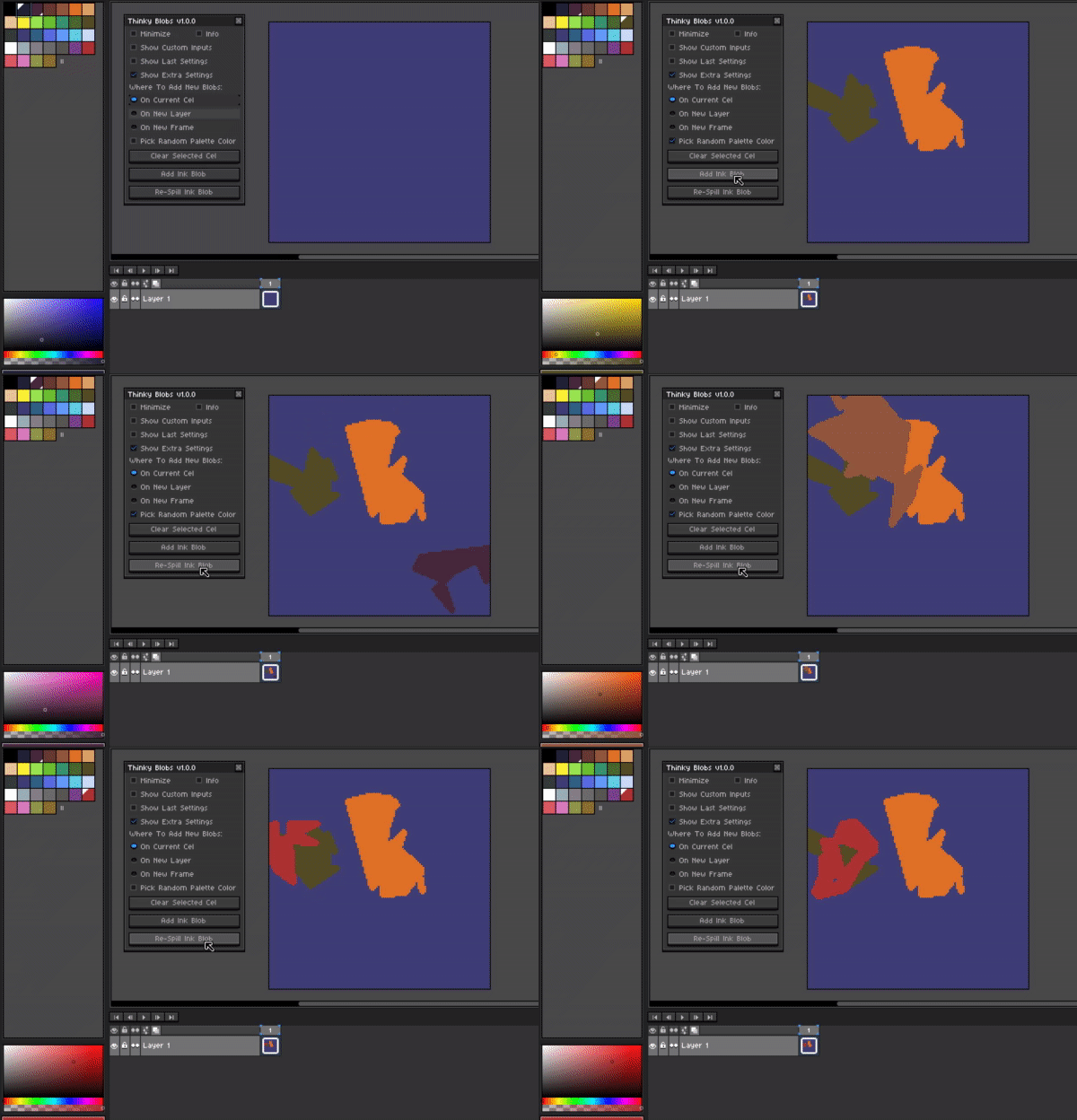
Toggling on the Pick random color will choose a random color from your current color palette each time a blob is drawn. Unchecking this box will keep the current color for all new blobs.
Feel free to share your creations in the comments down below!
Would love to see what shapes everyone will choose and what is seen with in them.
Some examples of the ones that I drew are here below!
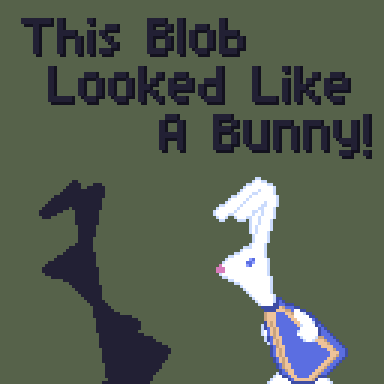
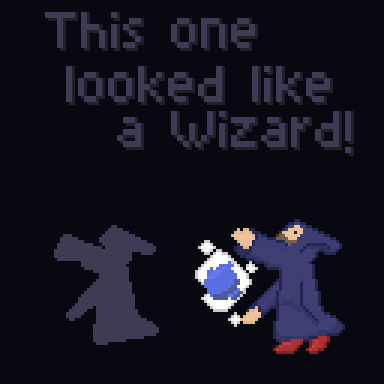
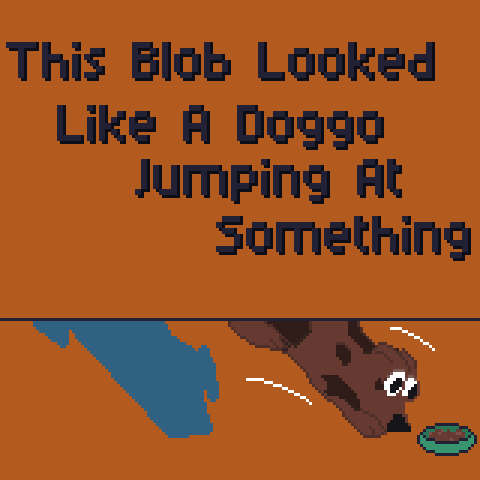
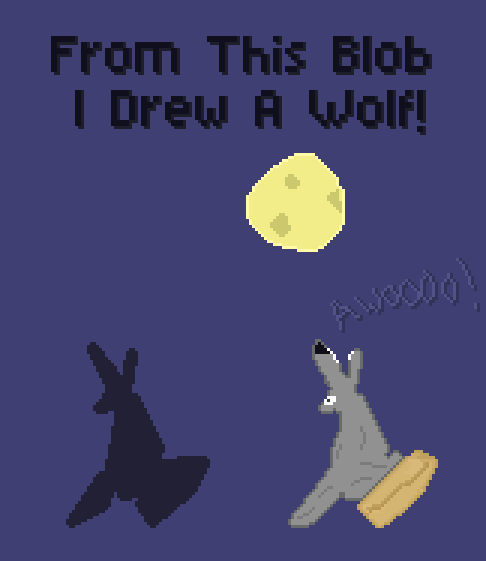
Let’s get inspired… no wait… INKspired!
Download Link: Thinky Blobs On Itch.io
Announcement Video: Announcement / Trailer Video
Full Overview Video: Full Overview & How To Use Video