Hi everyone!
I’m learning pixel art and kept running into the problem: I wanted to work in grayscale first to nail my values, then add color — but the process of manually recoloring grays in Aseprite was really tedious…
So I made Palette Manager — a set of Lua scripts that automate this workflow.
How it works
- Pick your target hues (skin, metal, wood, etc.)
- The script generates an organized Indexed palette — each hue gets a bright marker + a near-gray ramp (S=5%) with configurable value steps (presets: Full, Dark, Pastel, or custom)
- Paint your sprite focusing on form and light
- Press one hotkey to toggle between grayscale and full color instantly
Because it uses Indexed Color Mode, changing the palette recolors every pixel on the canvas immediately.
Demo
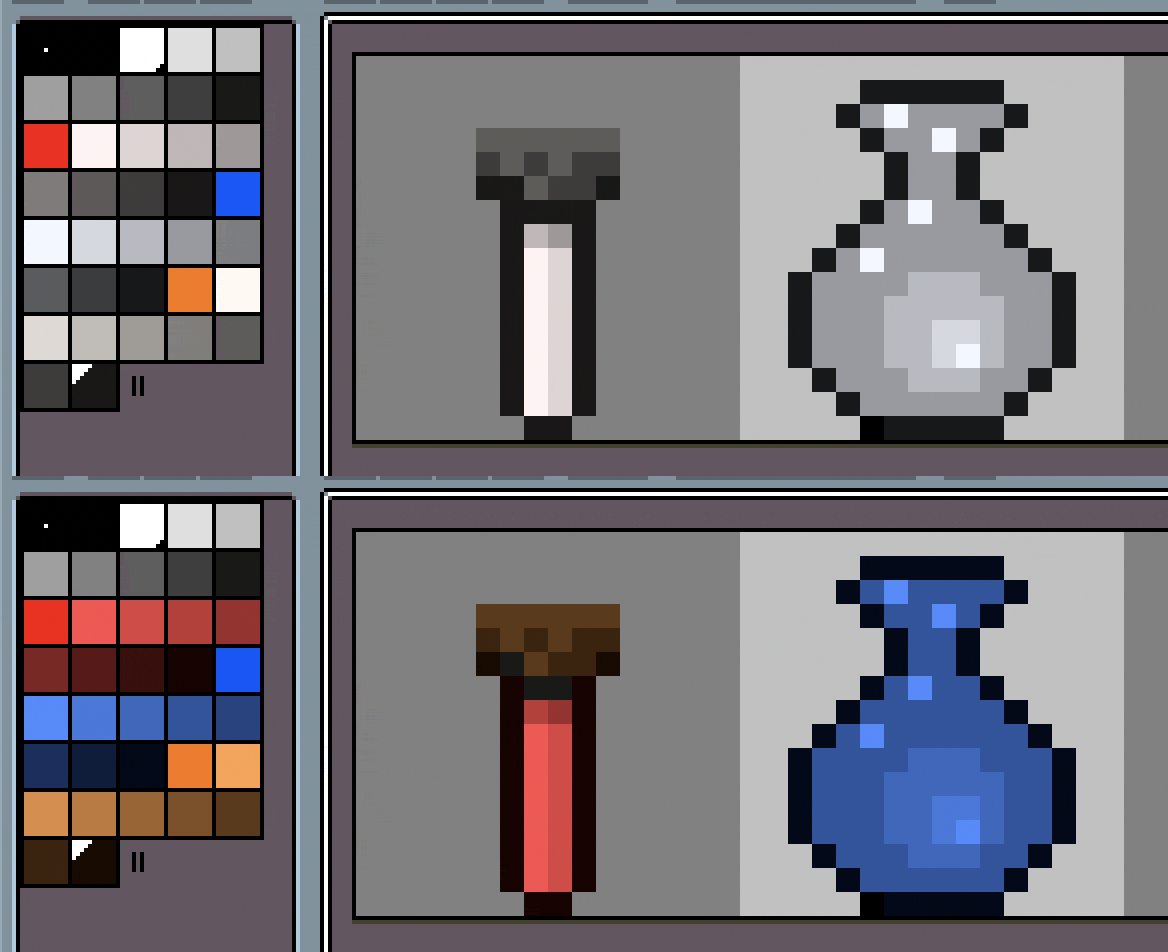
What’s included
- PaletteManager.lua — main dialog for palette generation with auto-detection of hues from existing palettes
- PM_Toolbar.lua — compact floating panel with a saturation slider (keep it open while painting)
- PM_Toggle.lua — no-UI toggle script, bind to a hotkey for instant switching
Features
- Generate palettes with multiple color groups (number depends on step count)
- Value range presets (Full, Dark, Pastel) with visual grayscale preview
- Auto-detects hues when opening an existing palette (finds vivid markers or saturated colors)
- Add new color groups to an existing palette without losing your work
- Black outline color always at Index 1
- Customizable bright/dark range, step count, and saturation levels
Install
- Download the scripts
File > Scripts > Open Scripts Folder→ copy files thereFile > Scripts > Rescan Scripts Folder- Bind PM_Toggle to a hotkey in
Edit > Keyboard Shortcuts
GitHub: GitHub - kulti/aseprite_pm: Aseprite Palete Manager · GitHub
Would love to hear your feedback! Especially if you have ideas for improvements.