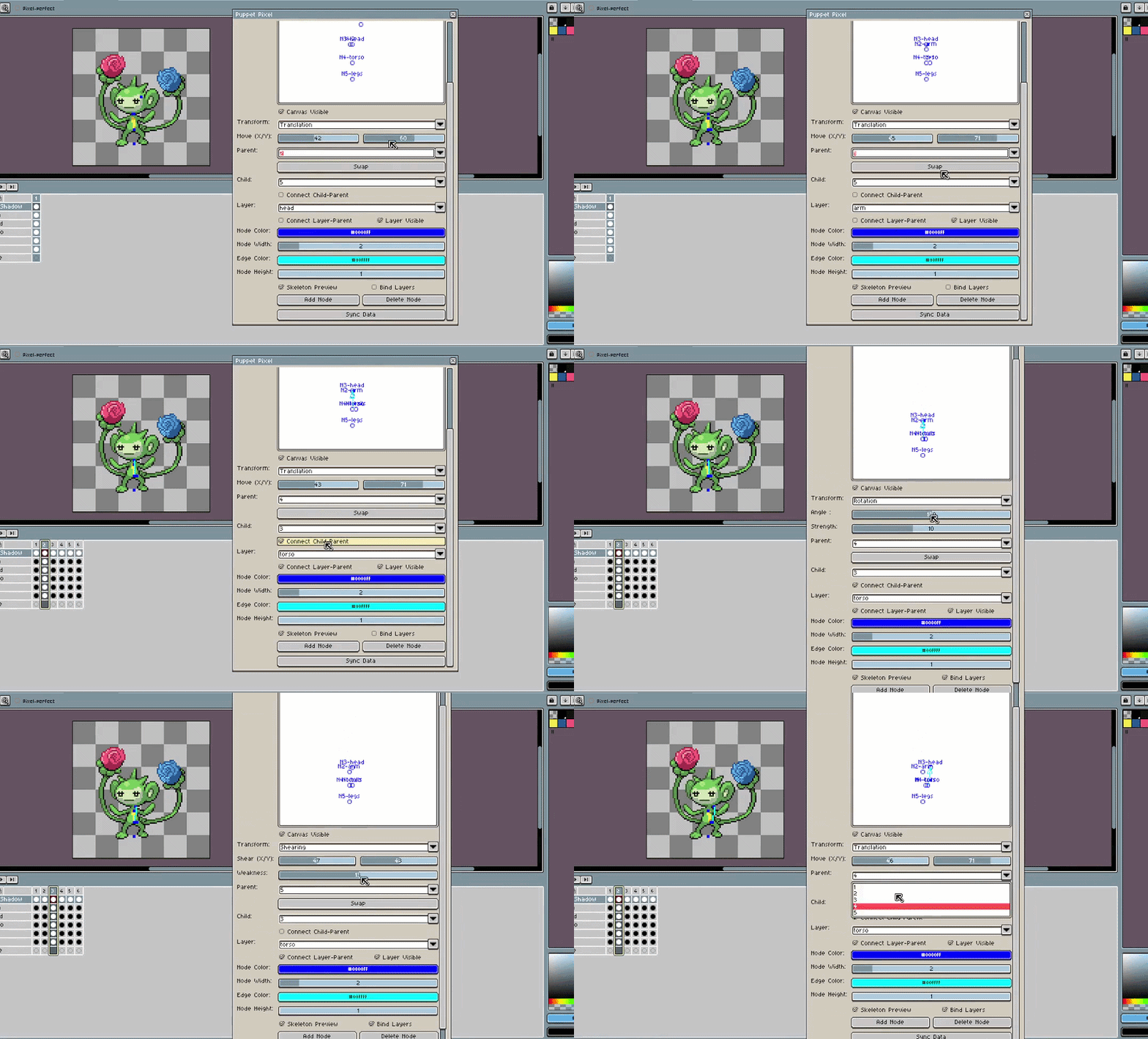
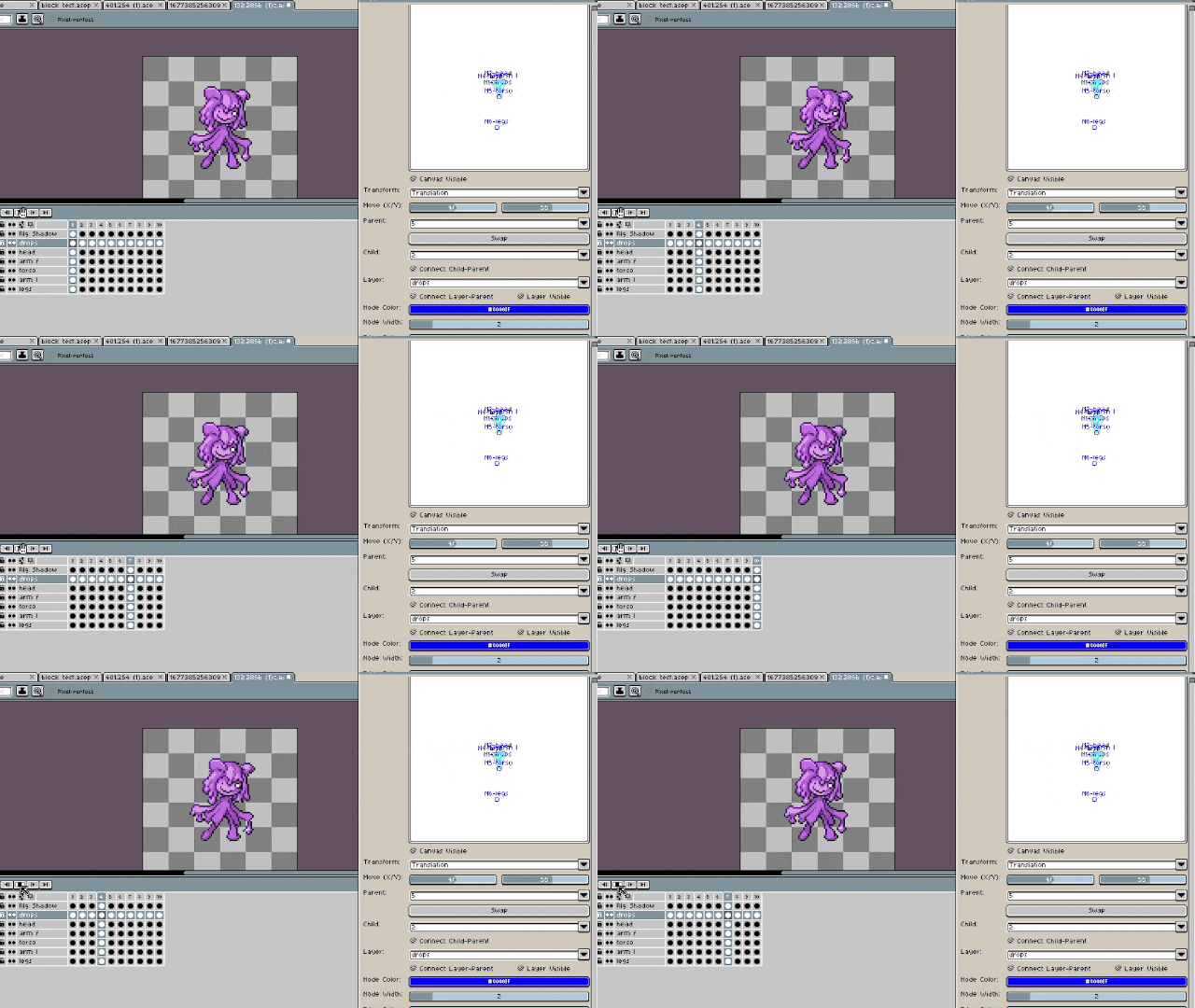
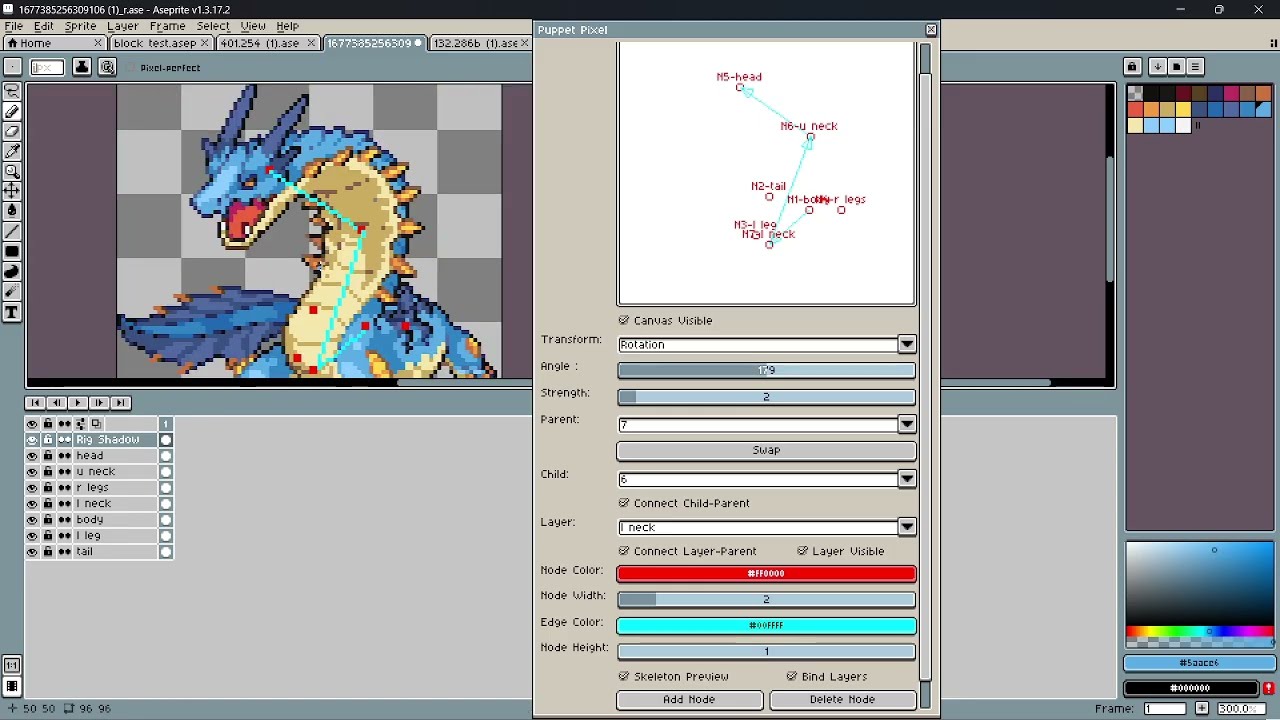
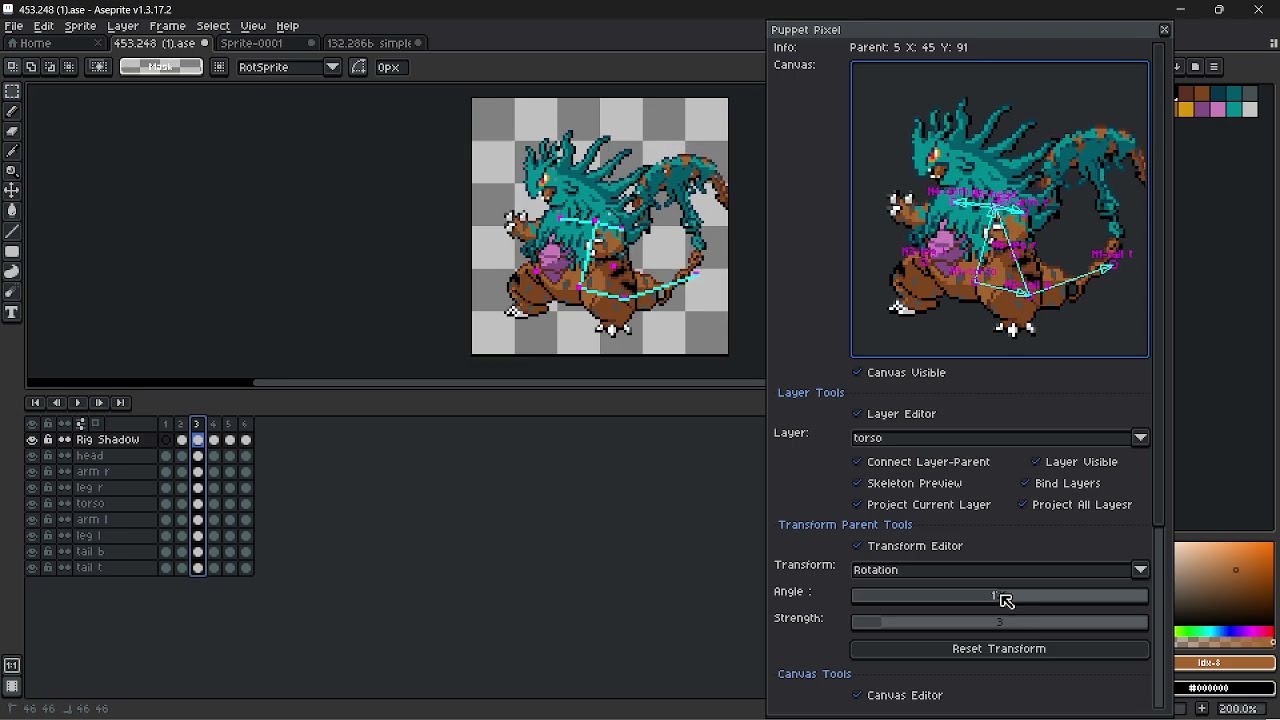
Pixel Puppet is an animation focused Aseprite script that allows users to place pivot points, connect them to layers or to each other in a chain, and apply transformations(scaling, shearing, rotation, and translation/movement) to the selected layer and frame’s current cel.
General Usage
Draw or import a static sprite, chop the sprite into pieces and put them on different layers, add as many nodes or pivot points as there are layers, position them, then connect the layers and pivots, manipulate the two to make an animation. Then clean up as necessary.
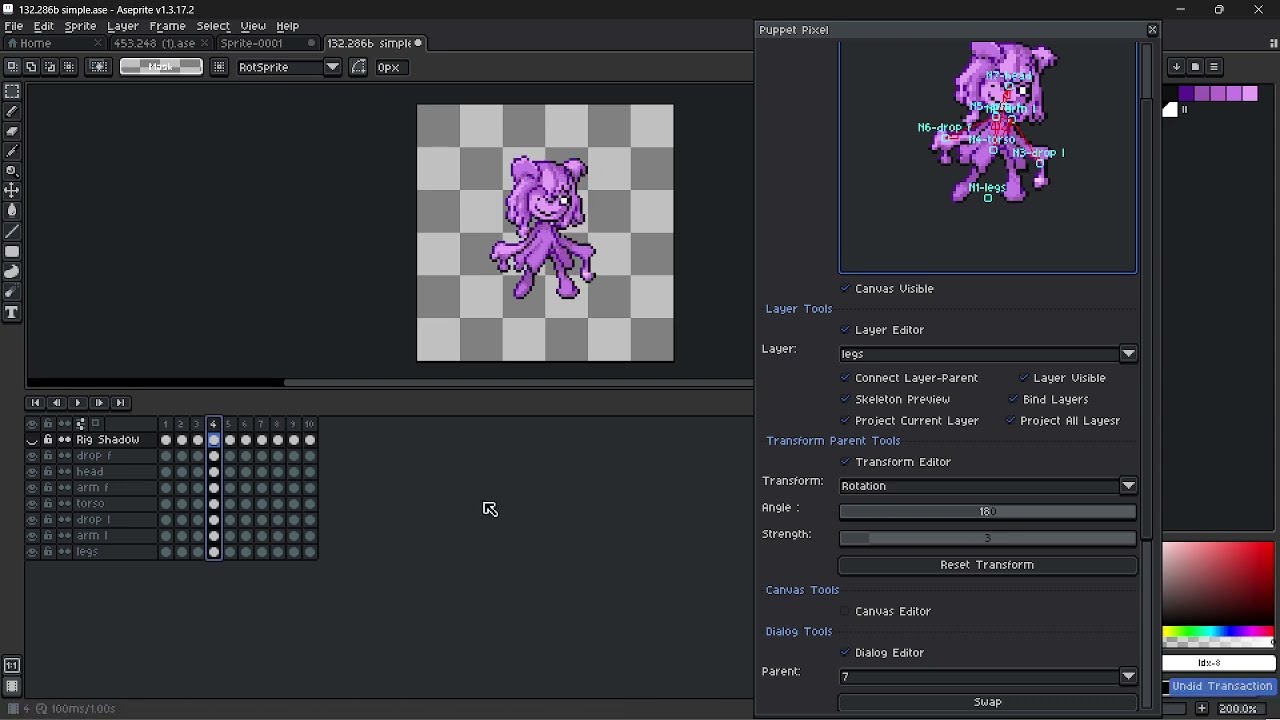
The original editor has been chopped into pieces becoming several sections that can be expanded and contracted based on checkboxes. This sections are the following
Layer Tools
Allows the user to project the selected layer or all layers onto the dialog canvas, bind/parent layers to nodes, preview the skeleton, and decide a layer’s visibility
Transform Parent Tools
Allows the user to apply transformations such as rotation, shearing, translation, and scaling to nodes, their children, and the layers they are connected to in the “bind layer” checkbutton is ticked
Canvas Tools
Instead of manually placing nodes using dialog buttons, direct interaction with the dialog canvas is now possible through double clicking the canvas’ area.
The options are placing, erasing, moving, selecting, connecting nodes, and breaking connections to other nodes
Dialog Tools
The original editor that allowed users to place nodes to be moved by the current transform parent tools, allows selection of the current nodes and connection of them through a check button
Style Tools
Allows to edit the color and size of nodes/pivot points and of edges, the lines connecting them in on the sprite’s canvas